PAG.
30
rev 1.1
ENGLISH
SYSTEM SETUP
- Length: Settle the length of time you want the receiver to keep
one channel. Once it is finished, the receiver will be settled in
StandBy. If you do not want the receiver to be settled on
Stand-By, you have to configure the length to 00:00.
Note: If the date/ start time is prior to the current date/hour,
a warning message will be shown and you have to change the
date/start time.
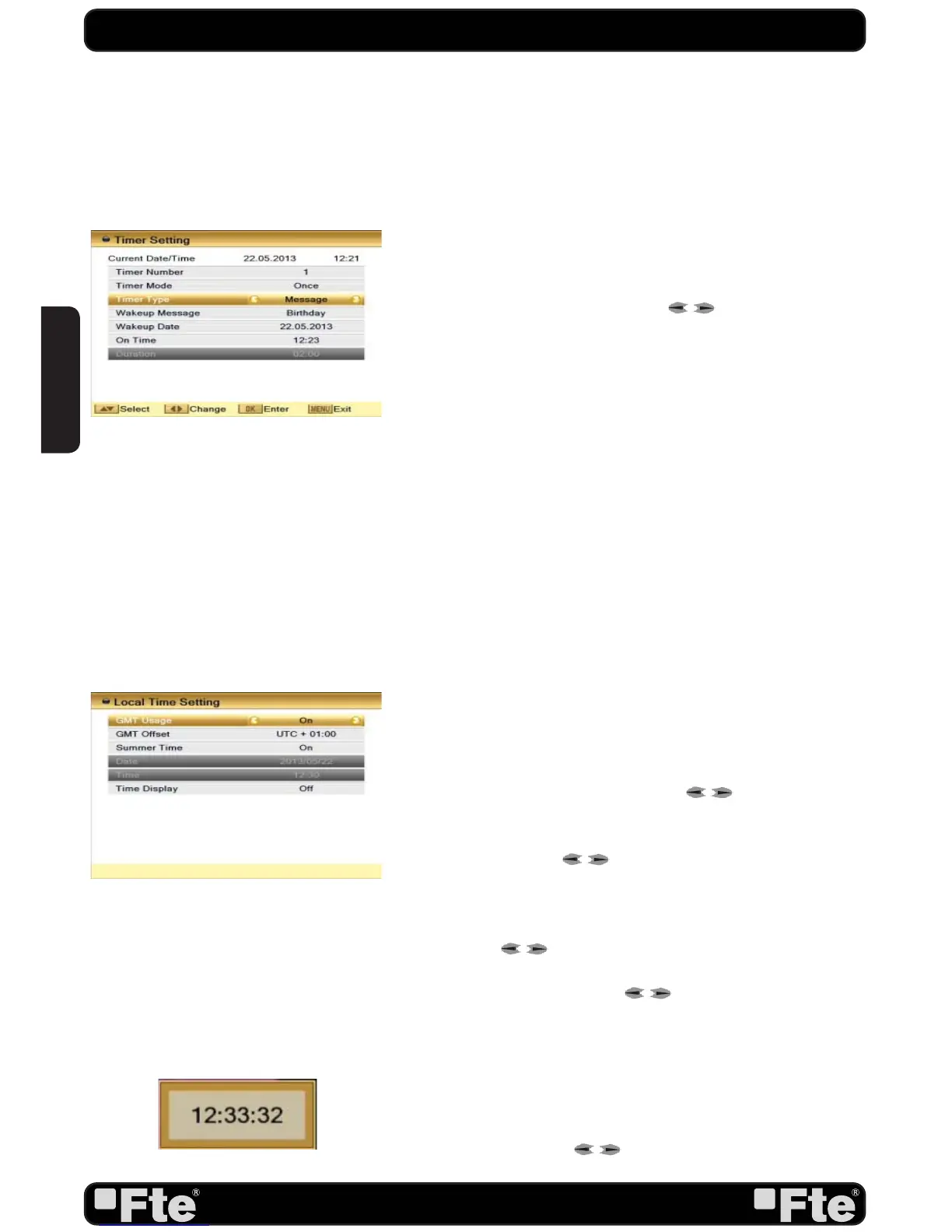
5. Message option: If you select this option, the following image
fields will be active in order that you can configure them (OSD
60).
- Wakeup message: Use the keys [ ] to select the text
you want to appear on the screen
- Wakeup date: Introduce using the numerical keys on the
remote control the date on which you want to activate the
service.
- On time: Introduce using the numerical keys on the remote
control the time on which you want to activate the service.
Automatically, a message will be shown although the receiver
is ON or in Standby.
Note: If the date/ start time is prior to the current date/hour,
a warning message will be shown and you have to change the
date/start time.
6. Press [Exit] to leave the “Timer” menu.
Note: If the receiver is in stand-by, and Low Power Consumption
mode is active, the receiver will switch on 1 minute before the
programmed event.
5.3.2. LOCAL TIME SETTING
When you select “Local Time Setting” and press [OK] then you
will see a window like the one beside (OSD 61):
1. GMT Usage: This item is used to set the time by using the
time signal from the satellite. Press [
] to change the
setting.
2. The “GMT Offset” item is only available when “GMT Usage”
is set to “On”. Press [
] to set the “GMT Offset” value.
With every time you press the button the time offset will be
increased / decreased by half an hour.
3. Summer time: this option is only available when “USE GMT” is
enabled. Use [
] to switch on/off the summer timetable.
4. “Date” and “Time” items are only available when the “GMT
Usage” is set to “Off”. Press [
] to select one item and
use number buttons to input time and date directly.
NOTE: If the current channel provides the correct time
information, you will see the current time after you entered
“Time” menu. If the channel doesn’t provide time information,
you have to input the date and time information manually. The
most channels support the time signal.
5. Time Display: Use [
] to switch on/off this option.
When the option is enabled, the time will be displayed at the TV
OSD 61
OSD 62
OSD 60



 To Next Page