PAG.
41
rev 1.1
ENGLISH
OSD 110
INTERNET
8.7.3 TAG SEARCH
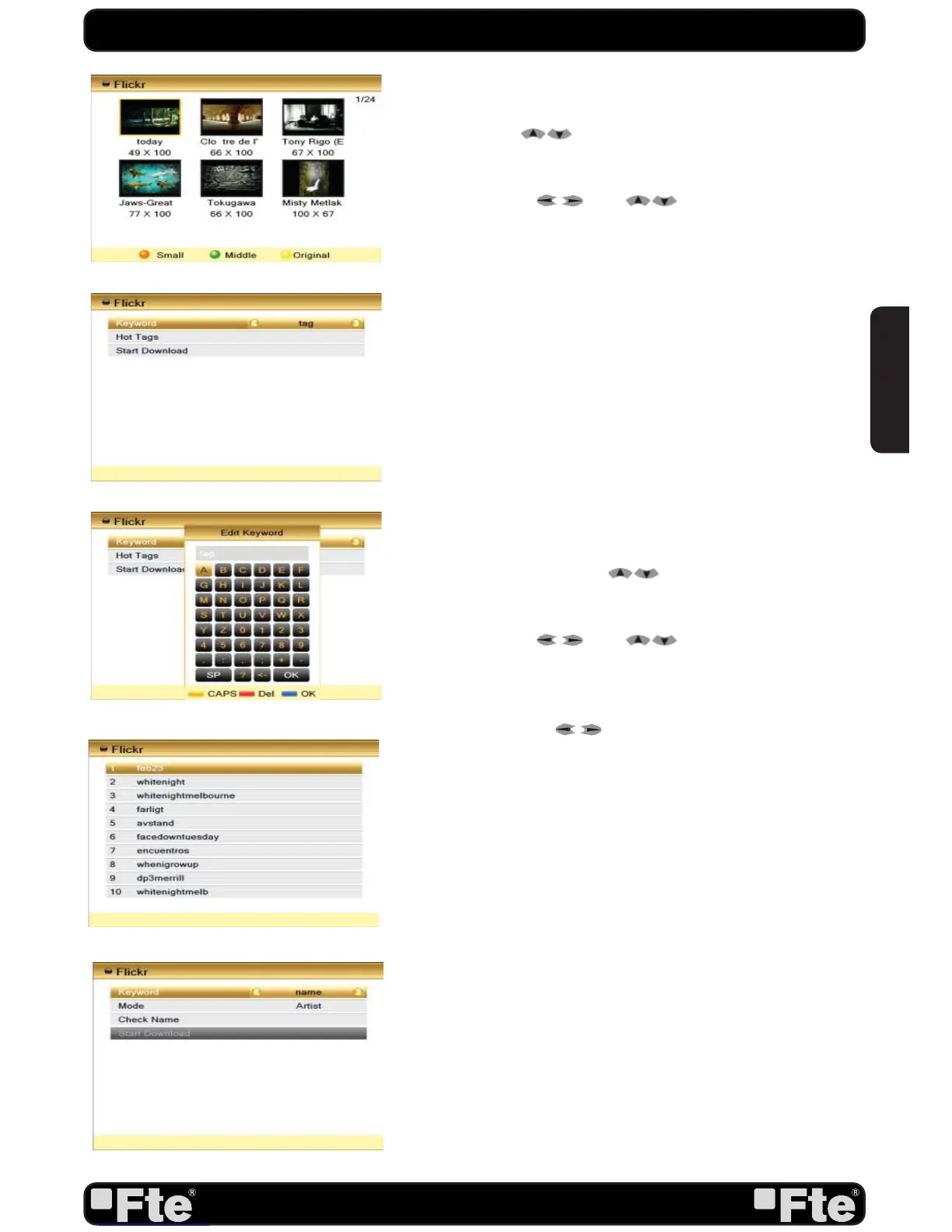
With this option you can search images by Tag (OSD 107).
1. Use the keys [
] to select “Keyword” and press [OK].
A new window will appear to enter the tag you want to search
(OSD 108).
- Use the buttons [ and ] to write the characters
of the tag. Press [OK] to confirm the characters.
- After writing down the characters, select OK and press [OK]
on the remote control.
2. Hot Tags: pressing [OK] in this option, you will see on the
screen a list with the most popular tags (OSD 109).
3. Press [OK] in “Start Download” option to search the images
cointaining the tag selected.
A new window will appear showing
the images.
- Use arrow keys to select photos and [OK] to show in full
screen mode. Press [Exit] key to return to menu.
- With colored keys you can change the size of photos on the
screen.
8.7.4 SEARCH
With this option you can search images (OSD 110).
1. Keyword: Use the keys [
] to select “Keyword” and
press [OK]. A new window will appear to enter the keyword you
want to search.
- Use the buttons [ and ] to write the characters
of the keyword. Press [OK] to confirm the characters.
- After writing down the characters, select OK and press [OK]
on the remote control.
2. Mode: select with [
] keys the category to search into.
3. Press [OK] in “Check Name” option to check if the keyword
entered exists.
4. Press [OK] in “Start Download” option to search the images
cointaining the tag selected.
A new window will appear showing
the images.
- Use arrow keys to select photos and [OK] to show in full
screen mode. Press [Exit] key to return to menu.
- With colored keys you can change the size of photos on the
screen.
OSD 106
OSD 107
OSD 108
OSD 109



 To Next Page