PAG.
7
rev 1.1
ENGLISH
IMAGE 5
STEP 5: INTERNET CONFIGURATION
Press the [Menu] key of the remote control for appearing the
main menu. Select the “Internet” option and confirm pressing
[OK].
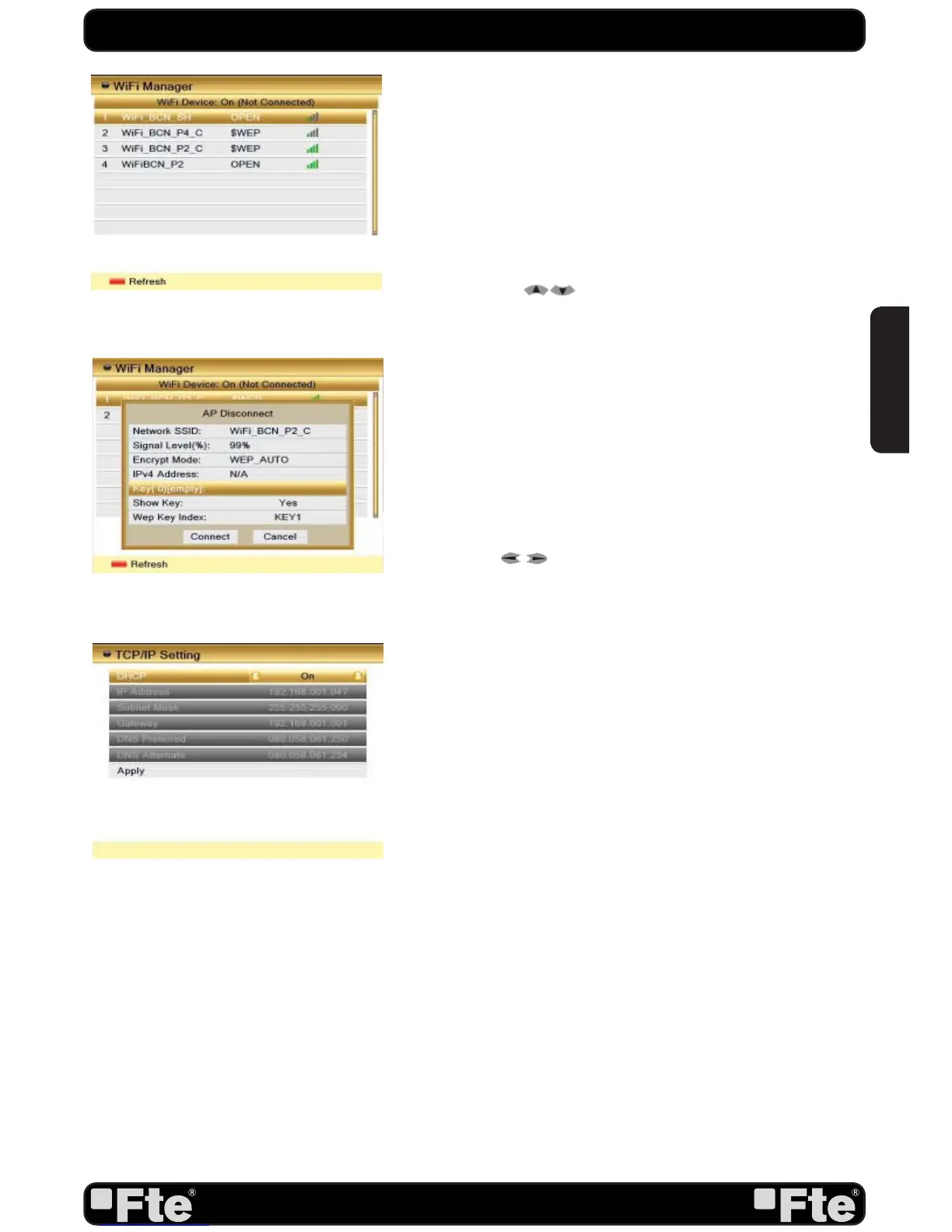
1. Once in the “Internet” menu, please select “WiFi manager”
option and press [OK]. IMAGE 5 is watched on the TV.
Now the receiver searches for WiFi connections and shows the
available wireless networks.
- Pressing [Red] button the list is refreshed.
- Use the keys [
] to select the network you want to
connect and press [OK] button.
A new window will appear (IMAGE 6).
- If your WiFi network is encrypted, enter the password pressing
[Ok] on the “Key” option. A new window will appear to enter the
key. Once you have writed the password press [Blue] button
to save it.
- Select “Connect” option and press [OK] to start the connection
to network, or select “Cancel” option and press [OK] to abort.
2. Go to the “Internet” menu again, select “TCP/IP Setting”
option and press [OK]. IMAGE 7 is watched on the TV.
- DHCP: Use [
] keys to switch between “On” (All settings
will be configured automatically by the network) or “Off” (All
network settings in this window must be configured manually).
- Select “Apply” option and press [OK] to save changes.
QUICK INSTALLATION GUIDE
IMAGE 6
IMAGE 7


 To Next Page