EasyManua.ls Logo

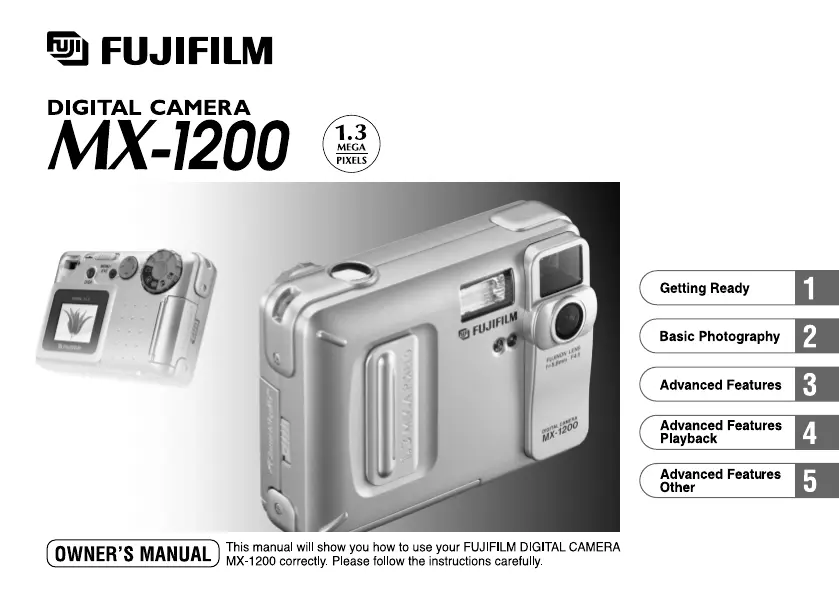
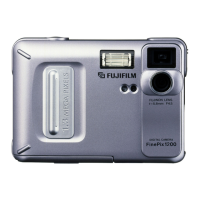
FujiFilm MX-1200 - User Manual

FujiFilm MX-1200
43 pages
Print Icon
To Next Page IconTo Next Page
Loading...

Table of Contents

Questions and Answers

  • M
    Melissa HallAug 12, 2025
    What to do if my FujiFilm Digital Camera doesn't take pictures when I press the shutter button?
    • A
      Ashley BenitezAug 13, 2025
      If your FujiFilm Digital Camera isn't taking pictures when you press the shutter button, several issues could be the cause. First, ensure that a SmartMedia is loaded. If it is, check if it's full; if so, erase some images or use a SmartMedia with more free space. Also, verify that the SmartMedia isn't write-protected—remove the write-protection if it is. If the SmartMedia is not formatted, format it. Clean the SmartMedia contact area with a clean, dry cloth. If the SmartMedia is damaged, load a new one. Check if the Auto Power Off function has switched the camera off, and if so, switch the camera back on. Lastly, ensure that the batteries are not exhausted; load new batteries if needed.
  • C
    Colin KimAug 16, 2025
    Why is my FujiFilm MX-1200 Digital Camera not turning on?
    • W
      Wendy Jones MDAug 16, 2025
      If your FujiFilm Digital Camera is not turning on, it could be due to a couple of reasons. First, check if the battery is exhausted and load a new one if needed. Also, make sure the AC power adapter plug is properly connected to the power outlet. If it has come out, plug it back in.
  • X
    xtorresAug 20, 2025
    Why won't the flash charge on my FujiFilm Digital Camera?
    • D
      David CarrollAug 20, 2025
      If the flash on your FujiFilm Digital Camera isn't charging, there are a few potential reasons. First, check if a compatible SmartMedia is loaded. If not, load a new one, erase a frame, or remove the write-protection. Ensure that the camera isn't set to Suppressed Flash mode; if it is, set the flash mode to Auto, Red-Eye Reduction, Flash, or Slow Synchro. Finally, check the battery level and load new batteries if they are exhausted.
  • D
    Dustin DaughertyAug 25, 2025
    Why are my FujiFilm MX-1200 photos blurry?
    • D
      David Roberts MDAug 25, 2025
      If your FujiFilm Digital Camera photos are blurry, the lens may be soiled, so try cleaning it. Alternatively, if you were shooting a distant subject in Macro mode, cancel Macro mode.
  • E
    Emily HallAug 28, 2025
    Why are my FujiFilm MX-1200 Digital Camera playback images too dark even with flash?
    • D
      Devon MillerAug 28, 2025
      If your FujiFilm Digital Camera playback images are too dark even when using the flash, it could be because the subject is too far away; try moving closer. Also, make sure your finger isn't covering the flash, and hold the camera correctly.
  • T
    Thomas Reynolds MDAug 31, 2025
    What to do if my FujiFilm MX-1200 Digital Camera loses power during use?
    • V
      Valerie BrownAug 31, 2025
      If your FujiFilm Digital Camera loses power during operation, the most likely cause is that the battery is exhausted. Try loading new batteries to resolve this issue.
  • K
    ksimsSep 4, 2025
    Why can’t I use the flash on my FujiFilm MX-1200 Digital Camera?
    • R
      Richard ValenzuelaSep 4, 2025
      You might not be able to use the flash on your FujiFilm Digital Camera if you pressed the shutter button when the viewfinder indicator was blinking orange. Wait until the viewfinder indicator stops blinking and turns green before pressing the shutter button.
  • K
    Kimberly AllenSep 8, 2025
    What to do if I cannot format the SmartMedia in my FujiFilm Digital Camera?
    • C
      Carl ScottSep 8, 2025
      If you cannot format the SmartMedia in your FujiFilm Digital Camera, it may be write-protected. Remove the write-protection by peeling off the write-protect sticker.

Summary

Getting Ready

Attaching the Strap

Instructions for attaching the camera strap to the strap mount.

Loading the Batteries

Guide to inserting AA-size batteries into the camera.

Loading the SmartMedia

Procedure for inserting the SmartMedia card into the camera.

Switching On and Off

Steps to turn the digital camera on and off.

Using the AC Power Adapter

How to connect and use the AC power adapter for continuous power.

Setting the Date and Time

Procedure to set the current date and time on the camera.

Switching the LCD Monitor Display

How to change the LCD monitor display status in different modes.

Adjusting the LCD Monitor Brightness

Steps to adjust the LCD screen's brightness level.

Warning

EC Declaration of Conformity

Preface

Photography Precautions

Advice on test shots, handling, and electrical interference.

Legal & Informational Notes

Details on copyright, liquid crystal, and trademarks.

Camera Features and Accessories

Features

Overview of the digital camera's key capabilities and specifications.

Accessories

List of items included with the camera and optional accessories.

Nomenclature

Basic Photography

Taking Pictures Using the Viewfinder (Power-Saving Mode)

Instructions for shooting using the viewfinder to conserve battery power.

Taking Pictures Using the LCD Monitor

Guide to framing and capturing images using the camera's LCD screen.

Viewing Your Images (Playback)

How to review recorded images and navigate through them.

Erasing Single Frame

Procedure for deleting individual captured images.

Removing the SmartMedia

Steps for safely ejecting the SmartMedia card from the camera.

Advanced Features

Flash Mode

Explanation of the five available flash modes for various shooting conditions.

Macro (Close-Up) Mode

Instructions for taking close-up photographs of small subjects.

Using the Digital Telephoto

How to use the digital zoom function to magnify subjects.

Manual Mode

Guide to using the camera in manual photography mode.

WB Setting the White Balance

How to adjust white balance for accurate color reproduction under different lighting.

Setting the Brightness (Exposure Compensation)

Adjusting exposure levels to fine-tune image brightness.

Self-Timer Mode

Using the self-timer for delayed picture taking.

Setup Mode

Configuration options for camera settings like quality, file size, and date.

Advanced Features Playback

Advanced Playback Functions

Overview of advanced functions available during image playback.

Playback Zoom and Navigation

How to magnify, pan, and navigate through recorded images.

Multi-Frame Playback

Displaying multiple images simultaneously on the LCD monitor.

Automatic Playback and Image Resizing

Initiating automatic slideshows and resizing captured images.

Print Order Management

Specifying and managing print orders using DPOF.

Advanced Features Other

Erasing and Formatting Media

Procedure for erasing images or formatting the SmartMedia card.

Image Protection

Setting and removing protection for single and all images.

SmartMedia Write-Protection

Using a sticker to prevent accidental writing or erasing on SmartMedia.

PC Mode (Downloading Images to a Personal Computer)

System Expansion Options

Accessories Guide

Media and Storage Accessories

Information on SmartMedia cards and floppy disk adapters.

Power and Connectivity Accessories

Details on AC adapters, chargers, and card readers.

Camera Protection

Information on the optional soft case for carrying the camera.

Explanation of Terms

Photography Concepts

Definitions for AE Lock, DPOF, EV, and White Balance.

Camera Functions

Definitions for Auto Power Off and JPEG file format.

Notes on Using Your Camera Correctly

Usage Environments and Precautions

Advice on places to avoid, condensation, and overseas travel.

Camera Maintenance and Storage

Guidance on cleaning and storing the camera when unused.

Notes on the Power Supply

Battery Information

Applicable batteries, handling, disposal, and rechargeable battery notes.

AC Power Adapter Usage

Important guidelines for safely connecting and using the AC power adapter.

Notes on the SmartMedia

SmartMedia Card Overview and Data Storage

Description of SmartMedia and risks of data loss.

SmartMedia Handling and PC Usage

Instructions for handling cards and using them with a PC.

Warning Displays

Troubleshooting

Specifications

Safety Notes

About the Icons

Explanation of warning and informational icons used in the manual.

FujiFilm MX-1200 Specifications

General IconGeneral
Optical Sensor TypeCCD
Optical Zoom3x
Display TypeLCD
Storage MediaSmartMedia Card
Shutter Speed1/1000 second
Supported Flash MemorySmartMedia
Flash ModesRed-eye reduction
LCD Screen Typecolor

Related product manuals