119
6
The Shooting Menus
IMAGE QUALITY SETTING (Still Photography)
Editing Custom Settings
Edit existing custom settings banks.
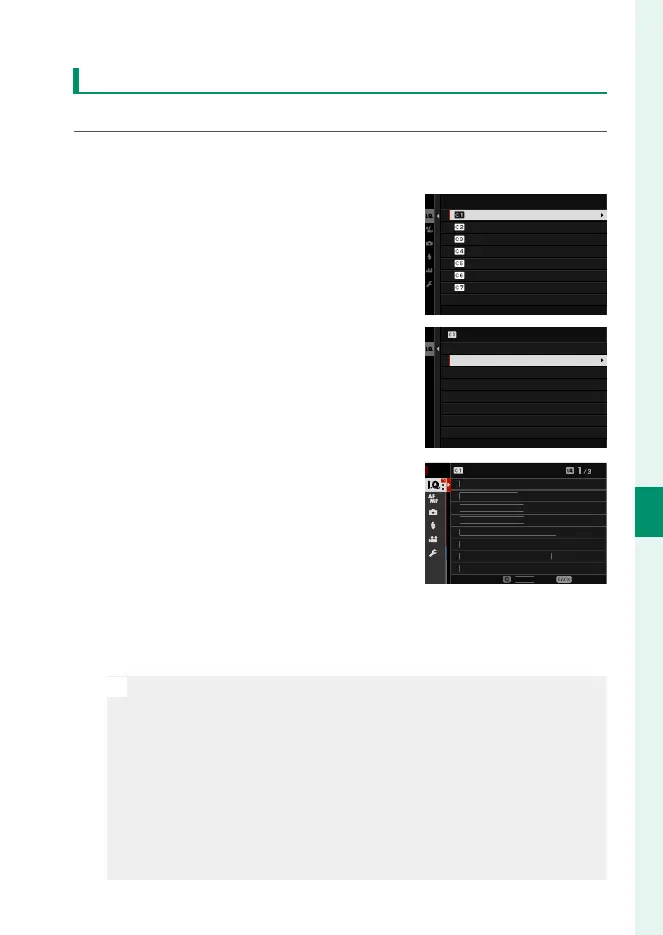
1
Select H IMAGE QUALITY SETTING> EDIT/SAVE CUSTOM
SETTING in the shooting menu and press MENU/OK.
2
Highlight the desired custom set-
tings bank and press MENU/OK.
CUSTOM 2
CUSTOM 3
CREATE NEW
CUSTOM 4
CREATE NEW
EDIT/SAVE CUSTOM SETTING
CREATE NEW
CUSTOM 1
3
Highlight EDIT/CHECK and press
MENU/OK.
SAVE THE CHANGES
COPY
RESET THE CHANGES
ERASE
EDIT CUSTOM NAME
EDIT/CHECK
CUSTOM 1
4
The camera will display a list of shoot-
ing menu items; highlight an item you
wish to edit and press MENU/OK.
Adjust the selected item as desired.
EXIT
AV
IMA
E
IZ
IMA
E
UALIT
RAW RE
RDIN
ILM
IM
LATI
N
M
N
HR
MATI
L
R
RAIN EFFE
T
L
R
HR
ME EFFE
T
L
R
HR
ME FX BL
EDIT/CHECK
CUSTOM 1
5
Press MENU/OK to save the changes and return to the shooting
menu list.
Adjust additional items as desired.
N
If DISABLE is selected for AUTO UPDATE CUSTOM SETTING, red
dots will appear next to the edited items but the changes will not be
saved automatically.
•
To save the changes for selected items, highlight the items in the
list and press Q.
•
To save changes for all items, return to Step 3 and select SAVE THE
CHANGES. To cancel all changes and restore the previous settings,
select RESET THE CHANGES.
•
If you copy an item marked by a red dot, the item will be copied with
the changes intact.


 To Next Page