Actions (for Windows users)
128
7. Press the [Scan/Stop] button on the ScanSnap to finish scanning.
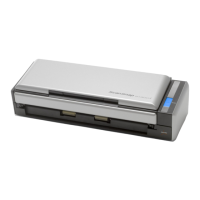
D The [Scan to Print] dialog box appears.
If the [Show "Print" dialog] check box is cleared in step 3., printing is immediately
performed.
8. Check the scanned image in the preview area.
In the [Scan to Print] dialog box, you can specify the printer to be used, the number of
copies and size of the scanned image to be printed, and whether to save the scanned
image in the folder specified for [Image saving folder].
For details about the [Scan to Print] dialog box, refer to the ScanSnap Manager Help.
9. Click the [Print] button.
D The scanned image is printed.
z You cannot start scanning when the [Scan to Print] dialog box is displayed. Close the
[Scan to Print] dialog box before scanning the next document.
z Do not move, delete or rename the scanned image in other applications when the [Scan
to Print] dialog box is displayed.














 To Next Page