How to Perform a Scan (for Mac OS users)
259
How to Perform a Scan
This section explains how to perform scanning with the ScanSnap.
■ Preparation
1. Turn on the computer.
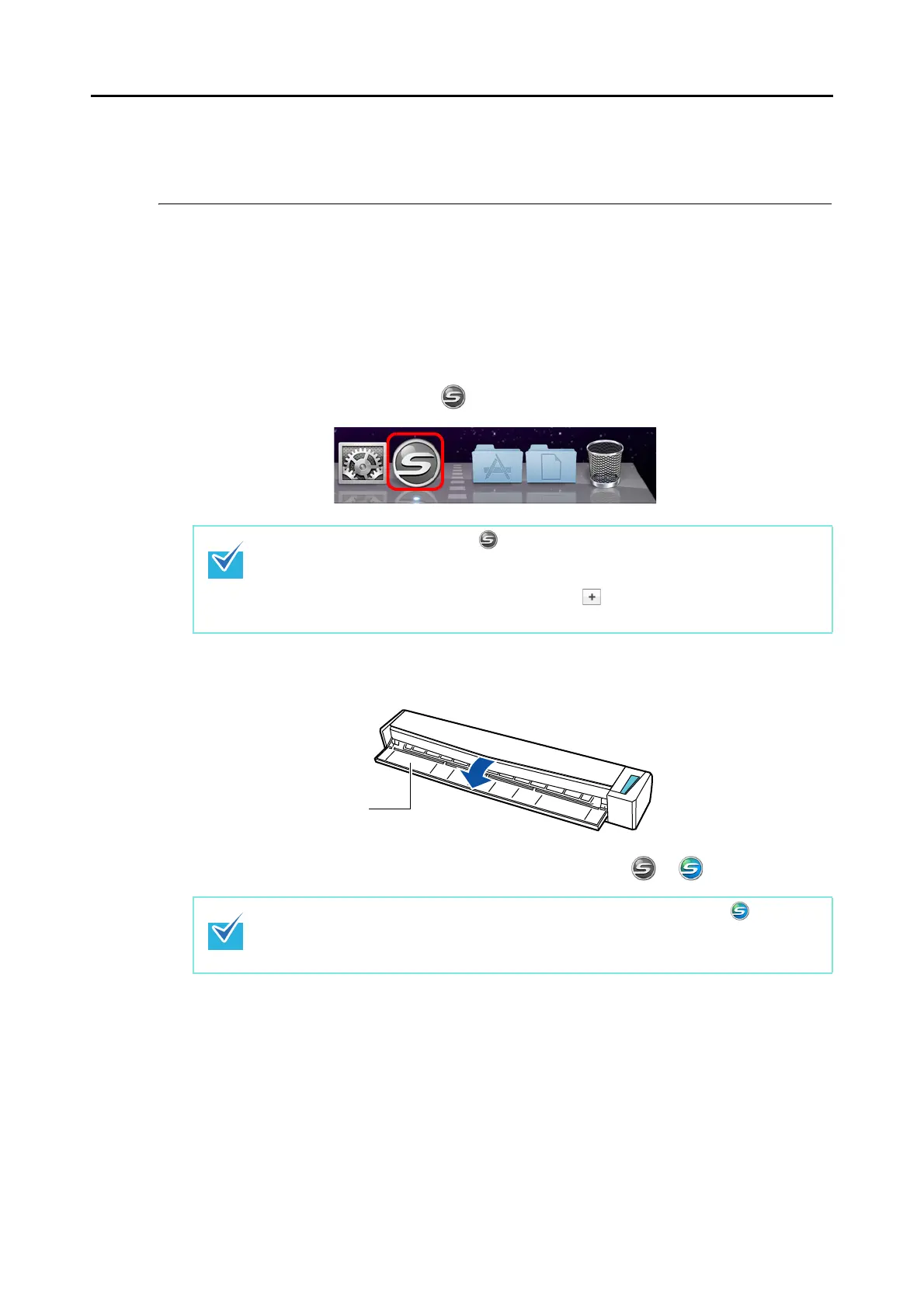
D The ScanSnap Manager icon appears in the Dock when Mac OS starts up.
2. Open the feed guide to turn on the ScanSnap.
D The ScanSnap Manager icon in the Dock changes from to .
There are two ways to perform scanning, either with the Quick Menu or without using the
Quick Menu. For details, refer to the following:
z Using the Quick Menu
(→ page 260)
z Without Using the Quick Menu (→ page 265)
z If the ScanSnap Manager icon is not displayed, select [Applications] and double-
click [ScanSnap] → [ScanSnap Manager] from Finder to start up ScanSnap Manager.
z If ScanSnap Manager does not start automatically when Mac OS starts up, select
[Accounts] → [My Account] → [Login Items] → [] → [ScanSnap Manager] in the
[System Preferences] window to start up ScanSnap Manager.
There may be a slight delay before the ScanSnap Manager icon changes to depending
on your computer's performance, operating environment and load such as when there are
many programs running at the same time.














 To Next Page