Actions (for Windows users)
207
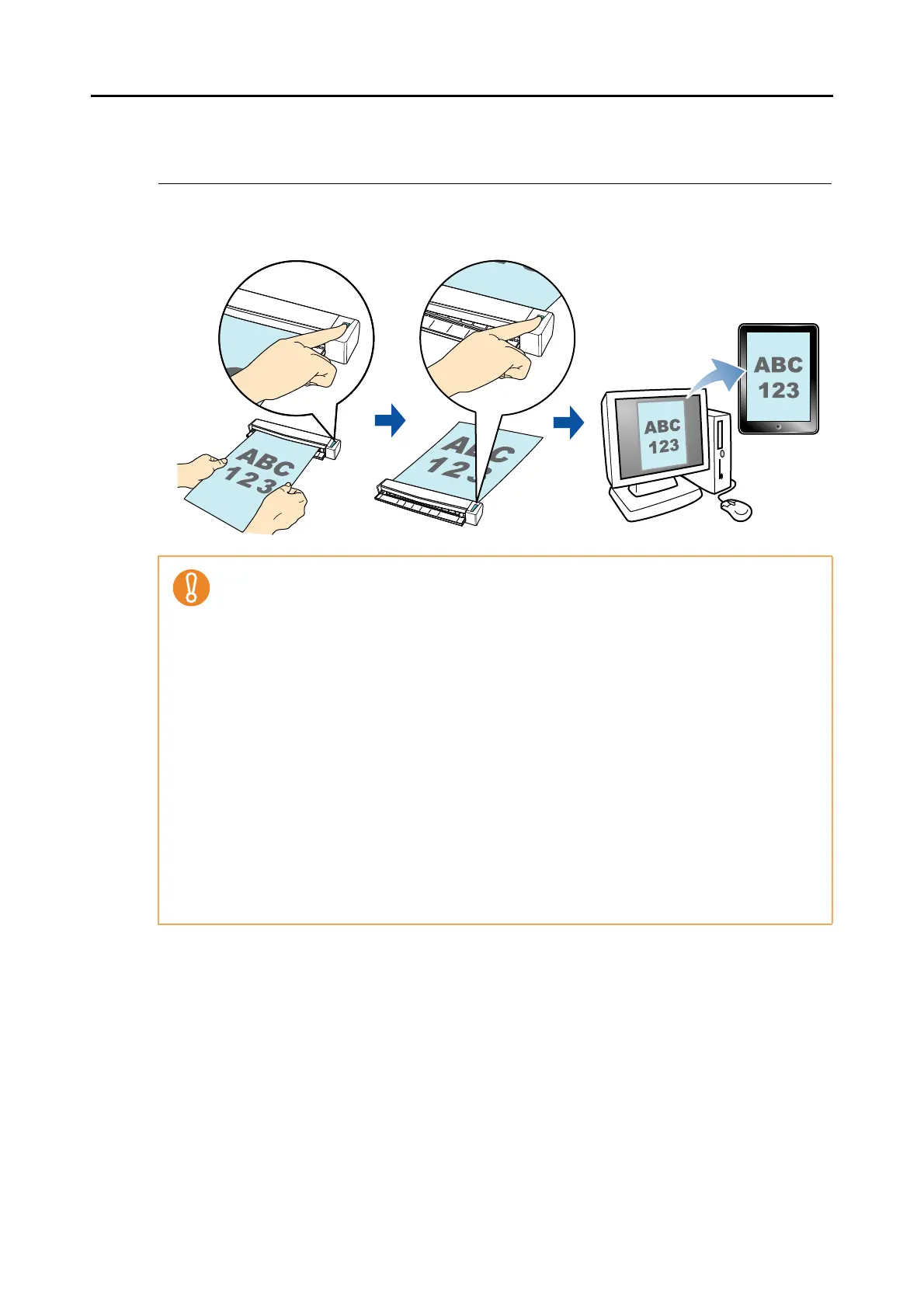
■ Saving Data to a Mobile Device
This section explains how to save the scanned image as a PDF or a JPEG file to a mobile
device.
z Only one mobile device can be connected to the computer.
z You need to have .NET Framework 3.0 installed in order to use this function.
Note that .NET Framework 3.0 is also included in .NET Framework 3.5 (SP1 or later).
It is recommended that you use .NET Framework 3.5 (SP1 or later) by updating Windows.
If .NET Framework 4.0 or later is already installed, you need to install .NET Framework 3.0
separately because .NET Framework 3.0 is not included in the .NET Framework 4.0 or later
version.
z You need to have ScanSnap Connect Application installed in the mobile device in order to
use this function. Download ScanSnap Connect Application for mobile devices from
application stores such as App Store.
ScanSnap Connect Application for mobile devices operate on the following operating
systems:
- iOS 4.2.1 or later
z The number of scanned image files and the maximum file size that can be saved on a mobile
device at once are as follows:
- Number of files: Up to 100
- File size: 2048 MB
z A firewall alert may be displayed when you first launch [Scan to Mobile]. When the alert is
displayed, select [Allow access] or [Unblock].














 To Next Page