ScanSnap Manager Icon and Operations (for Mac OS users)
256
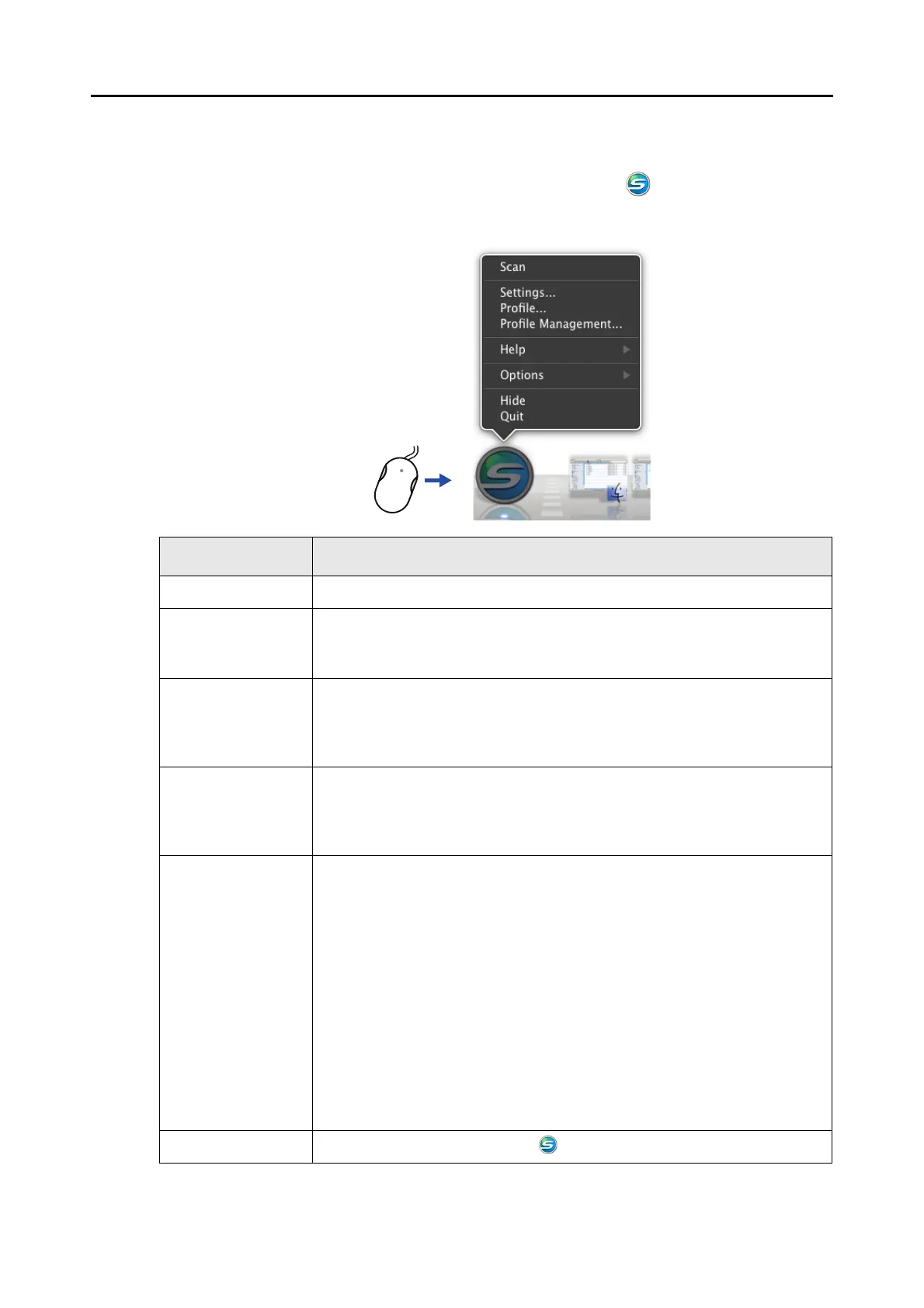
■ ScanSnap Manager Menu
This menu appears when you click the ScanSnap Manager icon while pressing the
[control] key on the keyboard.
Item Function
Scan Starts scanning. Follows the settings configured in [Settings].
Settings Displays the ScanSnap setup window.
You can configure the scan settings in this window.
D "How to Configure Scan Settings" (page 273)
Profile Displays the Profile menu.
You cannot select [Profile] when the [Use Quick Menu] checkbox is selected in
the ScanSnap setup window.
D "Profile Menu" (page 258)
Profile Management Displays the [ScanSnap Manager - Profile Management] window.
You cannot select [Profile Management] when the [Use Quick Menu] checkbox is
selected in the ScanSnap setup window.
D "Profile Management" (page 276)
Help Displays the following menu:
z Help
Opens the ScanSnap Manager Help.
z Troubleshooting
Displays [Troubleshooting] in the ScanSnap Manager Help.
z ScanSnap Portal Site
Opens the ScanSnap global homepage (http://scansnap.fujitsu.com)
z About ScanSnap Manager
Displays the [Version Information] window.
z Preferences
Displays the [ScanSnap Manager - Preferences] window.
z Online Update
Displays the [ScanSnap Manager - Online Update] window (page 430)
windows.
Keep in Dock (*) Adds the ScanSnap Manager icon to the Dock.
Click while pressing the [control]
key on the keyboard














 To Next Page