Using the ScanSnap in Various Ways (for Windows users)
234
■ Scanning Documents Such as Photographs and
Clippings
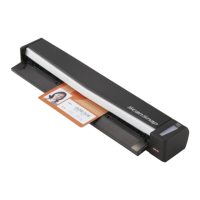
Using the Carrier Sheet allows you to scan documents that can be damaged quite easily such
as photographs, or non-standard size documents that are difficult to load directly such as
clippings.
Change the settings to scan documents such as photographs and clippings in the following
procedure.
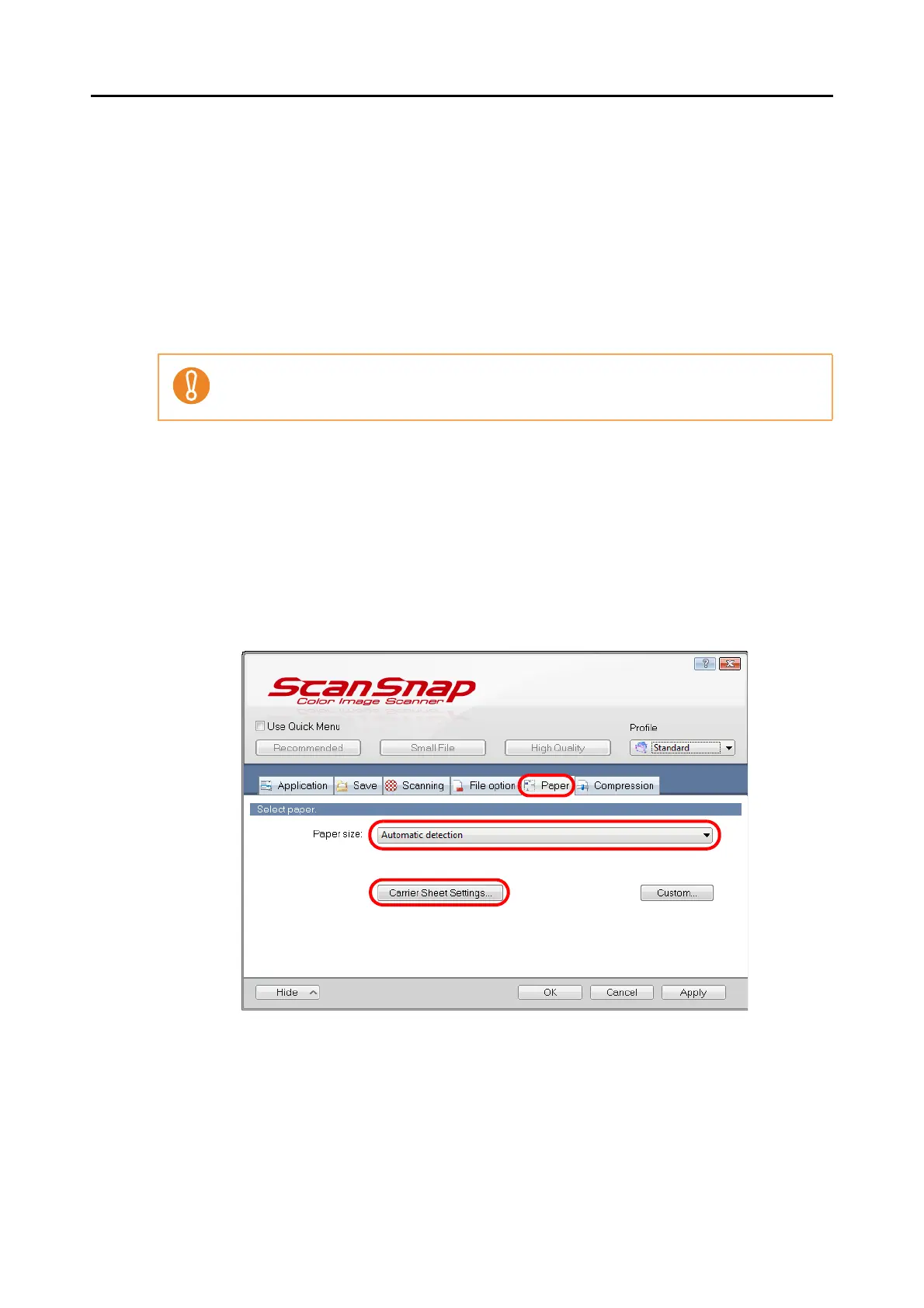
1. Select [Scan Button Settings] from the Right-Click Menu.
For details about the Right-Click Menu, refer to "Right-Click Menu" (page 64).
D The ScanSnap setup dialog box appears.
2. In the [Paper] tab, select [Automatic detection] in [Paper size], and then
click the [Carrier Sheet Settings] button.
D The [Carrier Sheet Settings] dialog box appears.
In the [Scanning mode option] dialog box ([Scanning] tab → [Option] button in the ScanSnap
setup dialog box), the [Correct skewed character strings automatically] check box is disabled.



 To Next Page