ScanSnap Manager Icon and Operations (for Windows users)
64
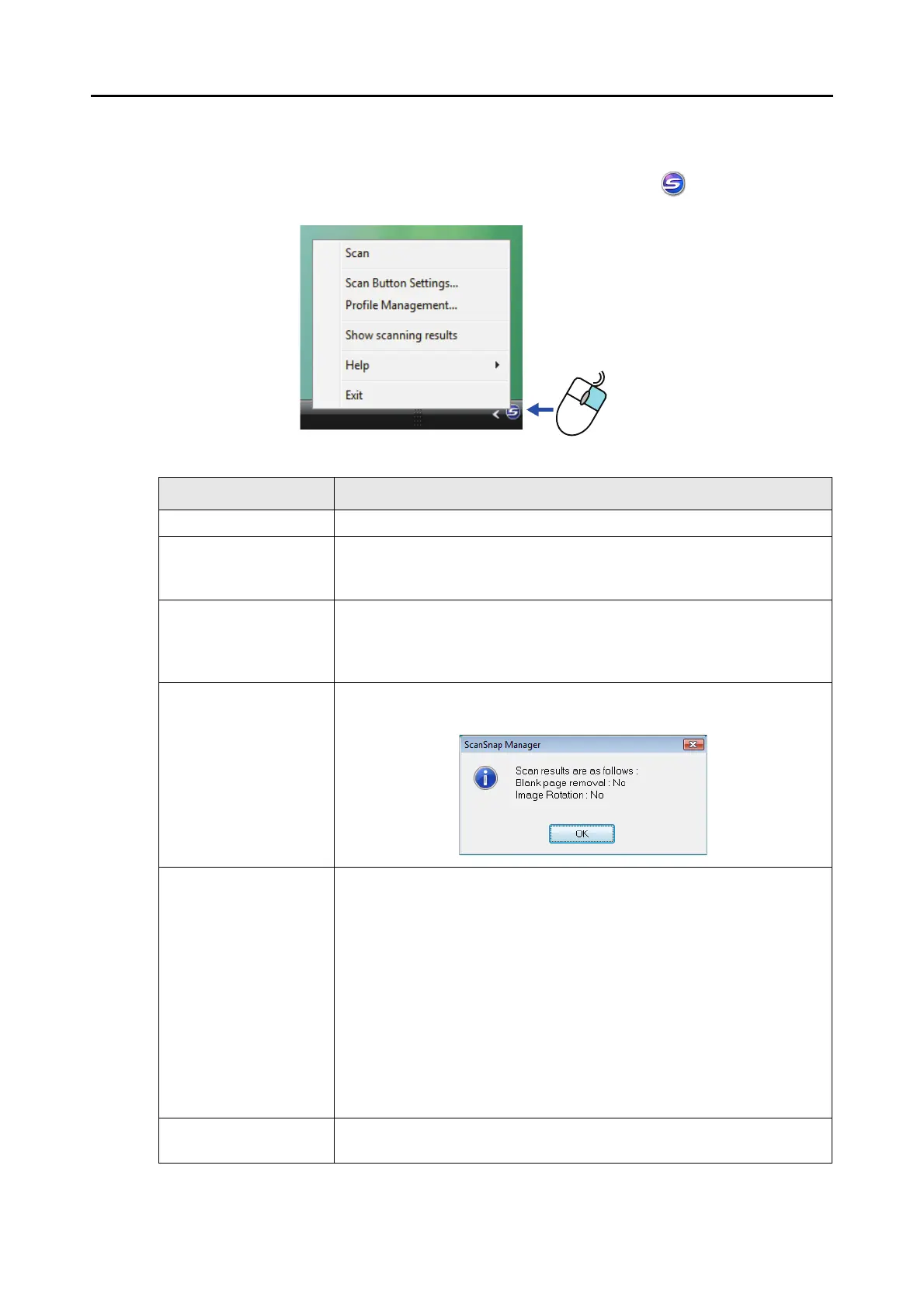
■ Right-Click Menu
This menu appears when you right-click the ScanSnap Manager icon .
Item Function
Scan Starts scanning. Follows the settings configured in [Scan Button Settings].
Scan Button Settings Displays the ScanSnap setup dialog box.
You can configure the scan settings in this dialog box.
D "How to Configure Scan Settings" (page 82)
Profile Management Displays the [ScanSnap Manager - Profile Management] dialog box.
You cannot select [Profile Management] when the [Use Quick Menu] check
box is selected in the ScanSnap setup dialog box.
D "Profile Management" (page 85)
Show scanning results After scanning is completed, a message appears to inform you whether blank
pages are removed or the image is rotated.
Help Displays the following menu:
z Help
Opens the ScanSnap Manager Help.
z Troubleshooting
Displays [Troubleshooting] in the ScanSnap Manager Help.
z ScanSnap Portal Site
Opens the ScanSnap global homepage (http://scansnap.fujitsu.com/).
z About ScanSnap Manager
Displays the [Version Information] dialog box.
z Preferences
Displays the [ScanSnap Manager - Preferences] dialog box.
z Online Update
Displays the [ScanSnap Manager - Online Update] dialog box (page 428).
Exit Exits ScanSnap Manager.
D "Finishing ScanSnap Operation" (page 78)














 To Next Page