Actions (for Windows users)
177
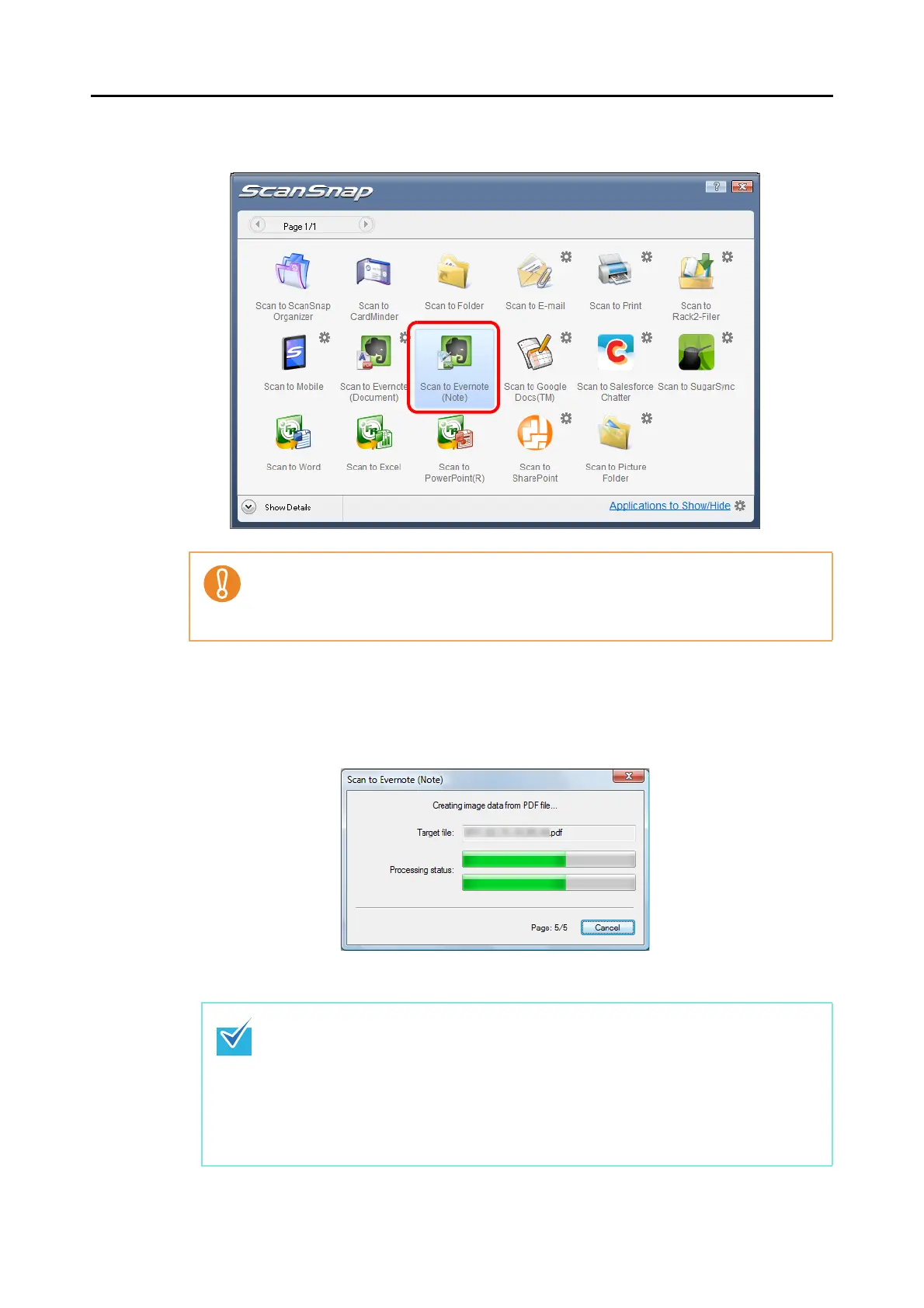
4. Click the [Scan to Evernote (Note)] icon.
D If [PDF(*.pdf)] is selected for [File format] in the [File option] tab of the ScanSnap
setup dialog box, a separate JPEG file will be created from each page of the PDF
file.
The following dialog box is displayed when the JPEG file is being created.
D Evernote for Windows starts up, and the JPEG file is saved to Evernote.
z You cannot start scanning when the Quick Menu is displayed. Save the JPEG file to
Evernote before scanning the next document.
z Do not move, delete, or rename the scanned image in other applications when the
Quick Menu is displayed.
z When you select [PDF (*.pdf)] for [File format] in the [File option] tab of the ScanSnap
setup dialog box, a four-digit serial number is automatically added to the name of the
file which is saved to Evernote.
e.g. When the file name is [ScanSnap], the file is saved as:
ScanSnap_0001, ScanSnap_0002, ScanSnap_0003...
z The file in which the scanned image is saved remains in the folder specified for [Image
saving folder] in the [Save] tab of the ScanSnap setup dialog box even after the
scanned image is saved to Evernote. Delete this file if unnecessary.



 To Next Page