Actions (for Windows users)
183
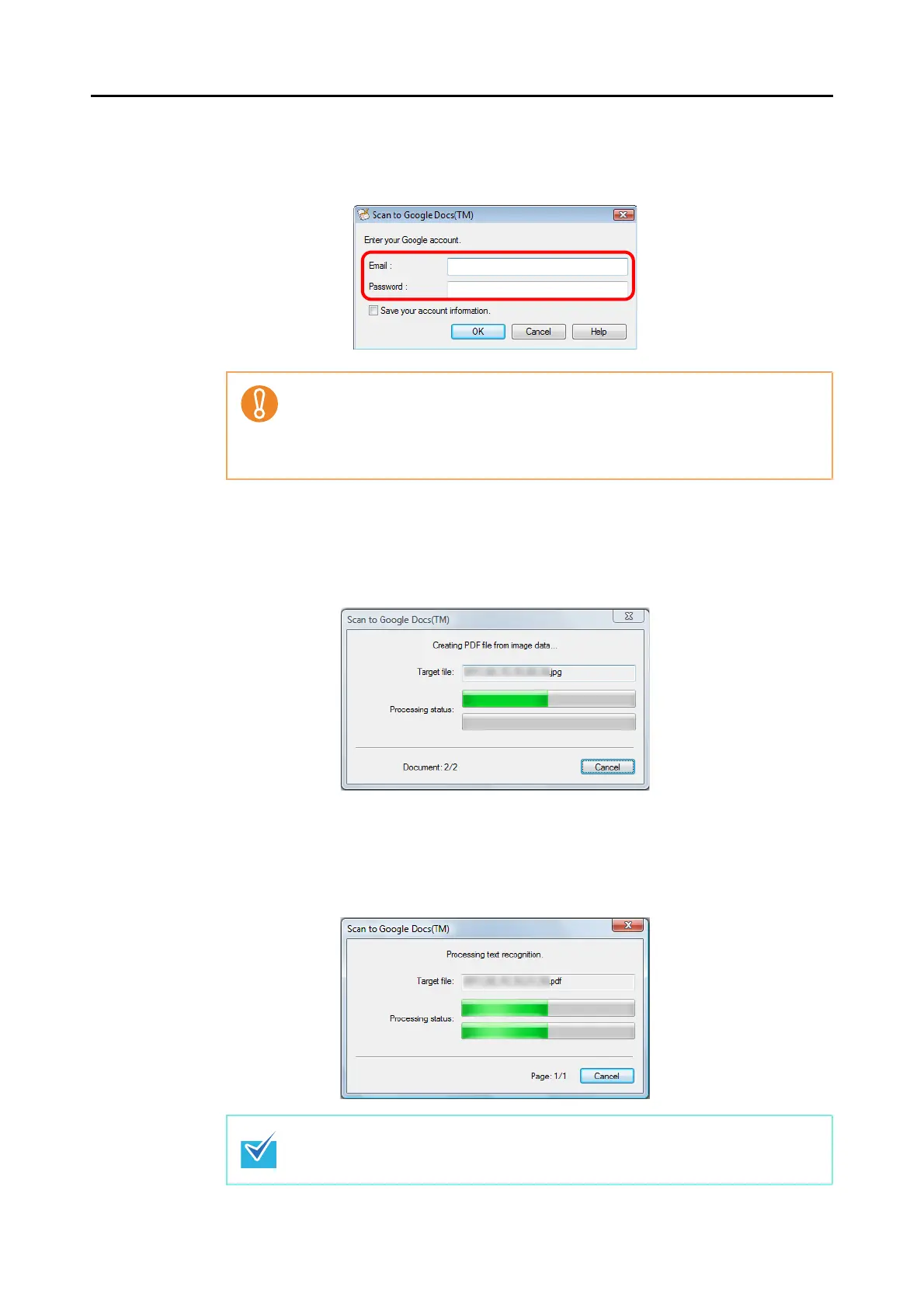
D If you did not specify a Google account in the [Scan to Google Docs(TM) - Options]
dialog box in step 4., the [Scan to Google Docs(TM)] dialog box appears. To
continue, enter your e-mail address and password, and click the [OK] button.
D When you perform a scan with [JPEG(*.jpg)] selected for [File format] in the [File
option] tab of the ScanSnap setup dialog box, a PDF file is created from the JPEG
file
. A separate PDF file is created for each JPEG file.
The following dialog box is displayed when the PDF file is being created.
D If the [Convert to Searchable PDF] check box is selected in the [Scan to Google
Docs(TM) - Options] dialog box in step 4., text recognition is performed according to
the [OCR options] settings in the [Scan to Google Docs(TM) - Options] dialog box.
The following dialog box is displayed during text recognition.
z If the computer is shared with other users, do not select the [Save your account
information.] check box in this dialog box. Otherwise, other users will be able to
log into Google Docs automatically.
z Scan to Google Docs is not available in a proxy environment that requires
authentication upon connecting to the Internet.
Text recognition will be performed if there are any pages containing text which is not
yet recognized. Note that text recognition will be performed on those pages only.














 To Next Page