Actions (for Windows users)
190
Using the Quick Menu
1. Load a document in the ScanSnap.
For details about how to load documents, refer to "How to Load Documents" (page 31).
2. Press the [Scan/Stop] button on the ScanSnap to start scanning.
3. Press the [Scan/Stop] button on the ScanSnap to finish scanning.
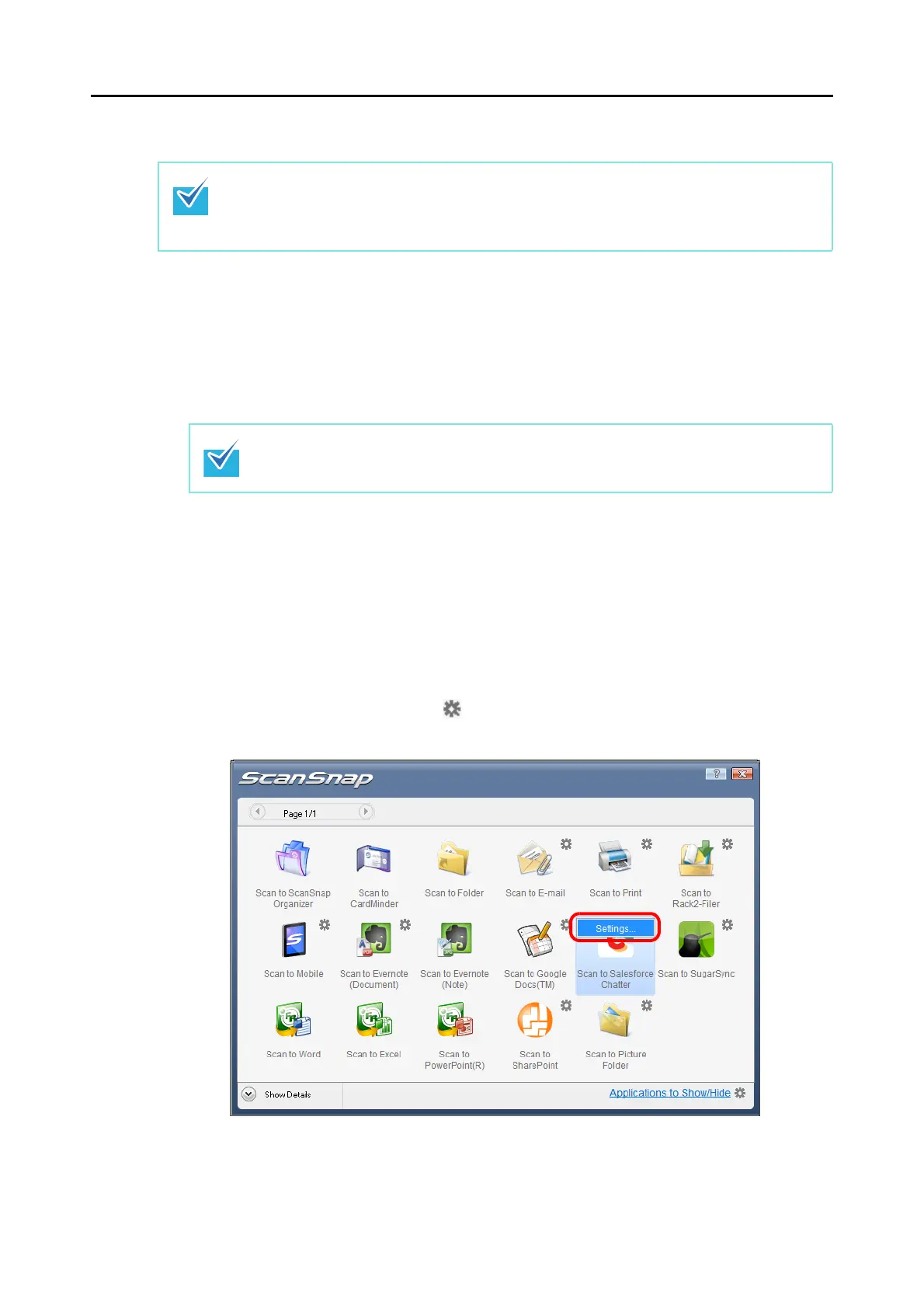
D The Quick Menu appears.
4. Change the settings for [Scan to Salesforce Chatter] (If you do not want
to change any settings, go to step 5.).
1. Move the mouse cursor to the mark on the [Scan to Salesforce Chatter] icon, and
then select the [Settings] menu.
D The [Scan to Salesforce Chatter - Options] dialog box appears.
To use the Quick Menu, you need to select the [Use Quick Menu] check box in the ScanSnap
setup dialog box.
For details about how to perform scanning by using the Quick Menu, refer to "Using the Quick
Menu" (page 67).
Load another document in the ScanSnap when you want to scan multiple sheets. Scanning
starts automatically when a document is loaded.














 To Next Page