Actions (for Windows users)
202
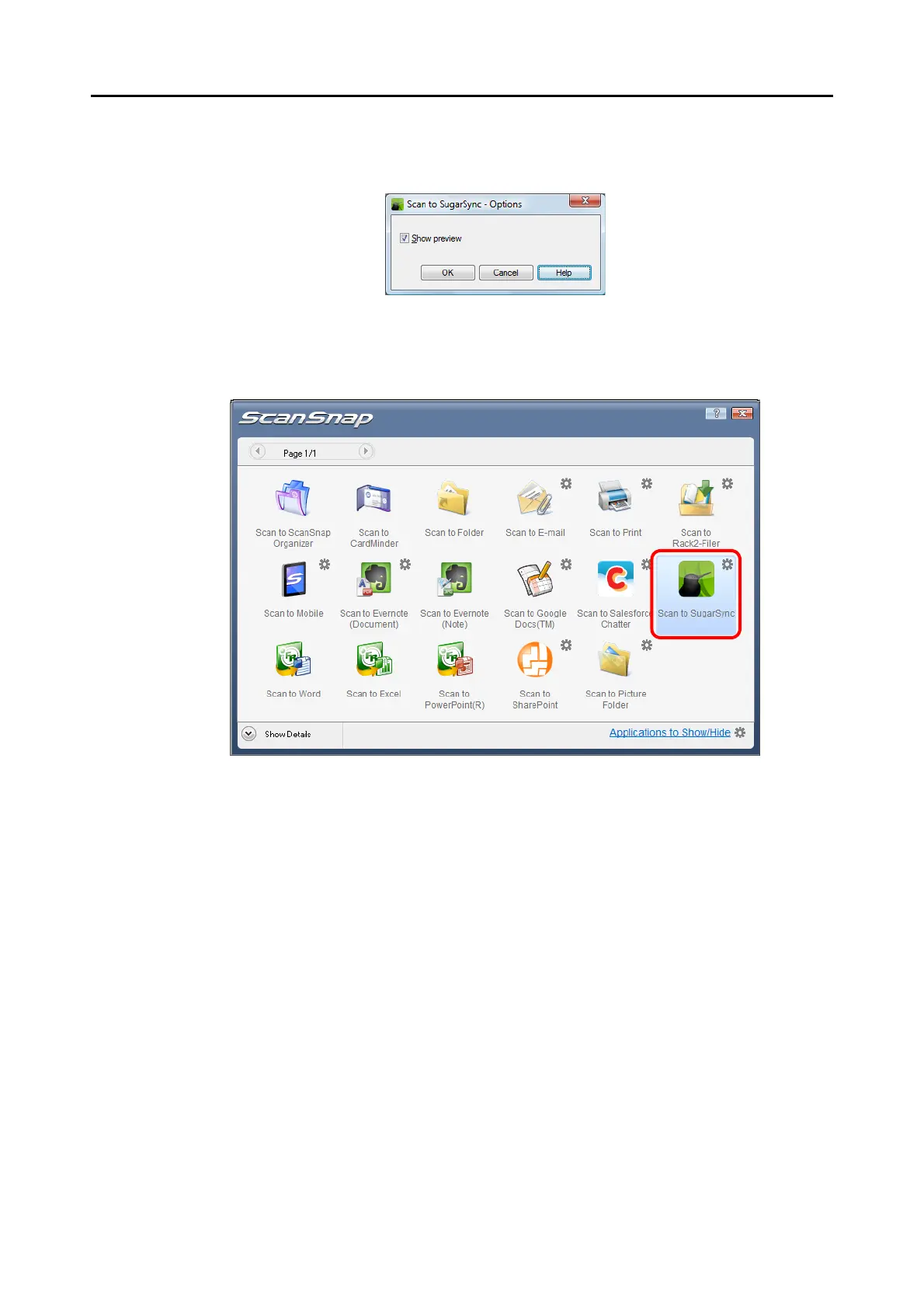
2. Change the setting.
For details about the [Scan to SugarSync - Options] dialog box, refer to ScanSnap
Manager Help.
3. Click the [OK] button to close the [Scan to SugarSync - Options] dialog box.
5. Click the [Scan to SugarSync] icon.
D The [Scan to SugarSync] dialog box appears.
If you clear the [Show preview] check box in step 4., scanned image is directly saved
to your SugarSync folder.














 To Next Page