Actions (for Windows users)
210
4. Press the [Scan/Stop] button on the ScanSnap to start scanning.
5. Press the [Scan/Stop] button on the ScanSnap to finish scanning.
D Scanned images will be sent to the mobile device from the computer.
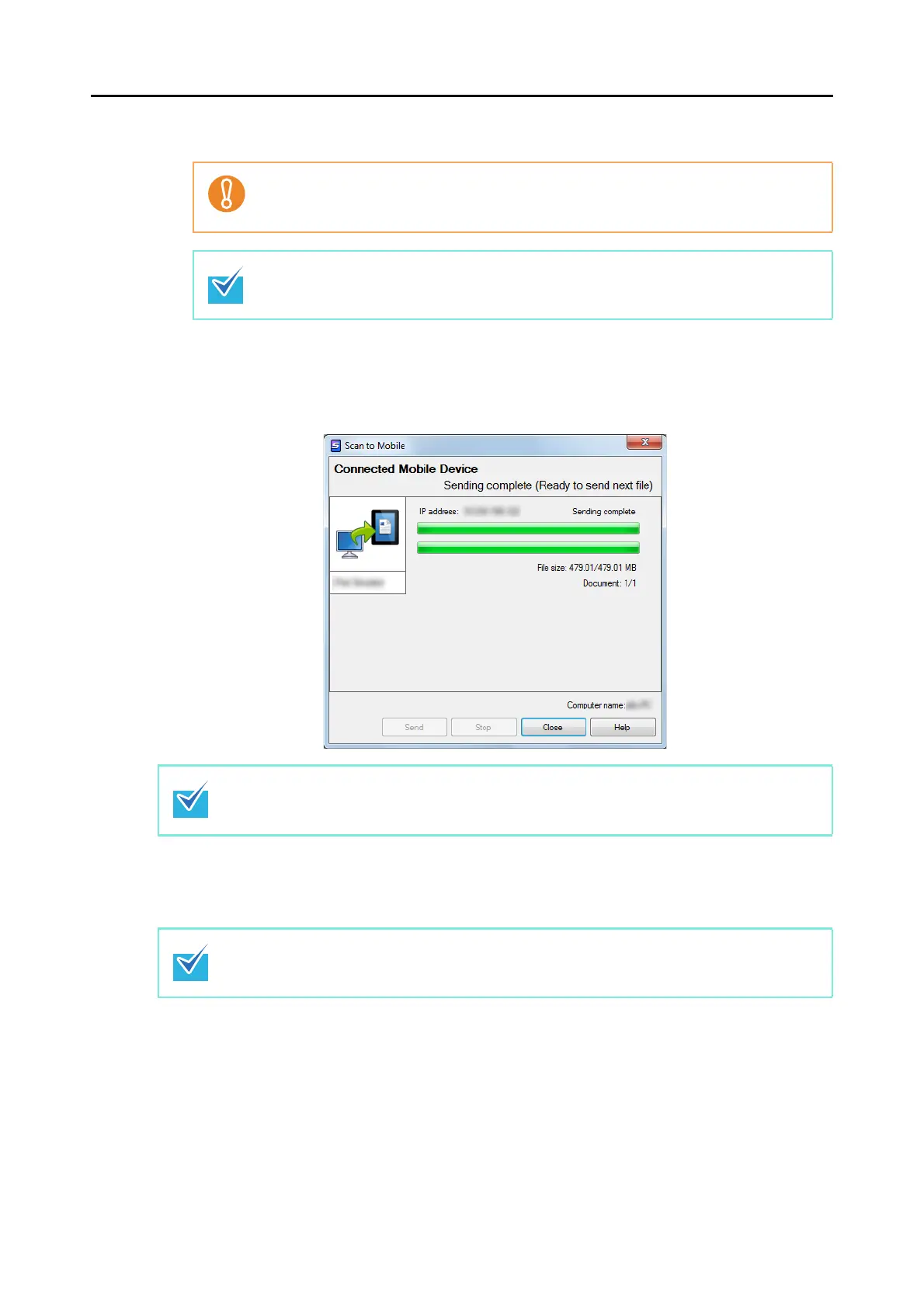
6. Click the [Close] button to close the [Scan to Mobile] dialog box when
sending of the scanned image is completed.
To enable automatic linkage with Scan to Mobile, press the [Scan/Stop] button on the
ScanSnap and start scanning while Scan to Mobile is active (when this application is
currently selected on the taskbar and the [Scan to Mobile] dialog box is brought to front).
Load another document in the ScanSnap when you want to scan multiple sheets. Scanning
starts automatically when a document is loaded.
When you select the [Wait until the [Send] button is clicked] check box in the [Scan to Mobile -
Basic] dialog box, the [Send] button appears in the [Scan to Mobile] dialog box. Click the [Send]
button to send the image to the mobile device.
The [Scan to Mobile] dialog box closes automatically when the mobile device is disconnected
from the computer.














 To Next Page