Actions (for Mac OS users)
343
Using the Quick Menu
1. Load a document in the ScanSnap.
For details about how to load documents, refer to "How to Load Documents" (page 31).
2. Press the [Scan/Stop] button on the ScanSnap to start scanning.
3. Press the [Scan/Stop] button on the ScanSnap to finish scanning.
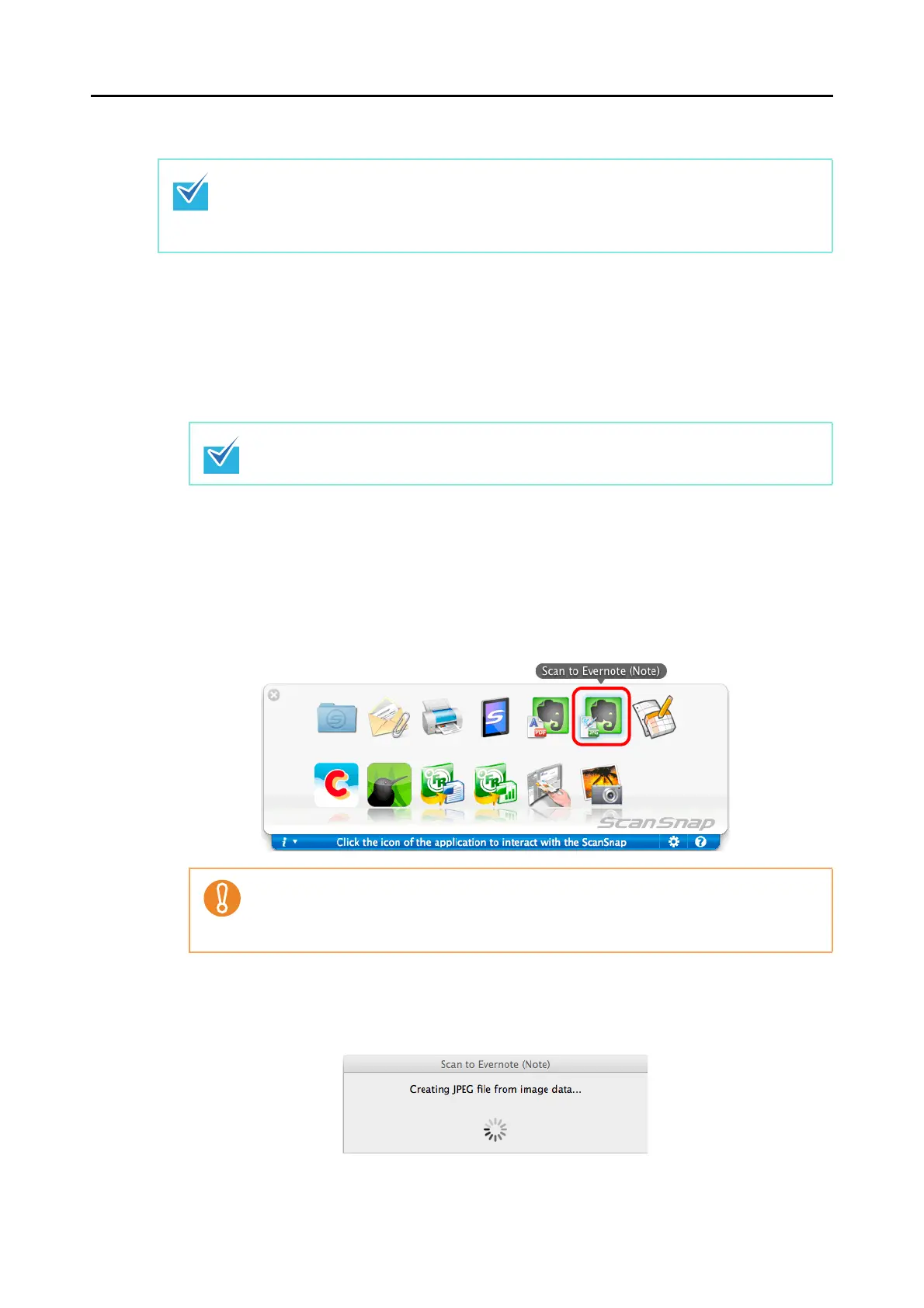
D The Quick Menu appears.
4. Click the [Scan to Evernote (Note)] icon.
D If [PDF(*.pdf)] is selected for [File format] in the [File option] tab of the ScanSnap
setup window, a separate JPEG file will be created from each page of the PDF file.
The following window is displayed when the JPEG file is being created.
D Evernote for Mac starts up, and the JPEG file is saved to Evernote.
To use the Quick Menu, you need to select the [Use Quick Menu] checkbox in the ScanSnap
setup window.
For details about how to perform scanning by using the Quick Menu, refer to "Using the Quick
Menu" (page 260).
Load another document in the ScanSnap when you want to scan multiple sheets.
Scanning starts automatically when a document is loaded.
z You cannot start scanning when the Quick Menu is displayed. Save the JPEG file to
Evernote before scanning the next document.
z Do not move, delete, or rename the scanned image in other applications when the
Quick Menu is displayed.














 To Next Page