Actions (for Mac OS users)
363
6. Load a document in the ScanSnap.
For details about how to load documents, refer to "How to Load Documents" (page 31).
7. Press the [Scan/Stop] button on the ScanSnap to start scanning.
8. Press the [Scan/Stop] button on the ScanSnap to finish scanning.
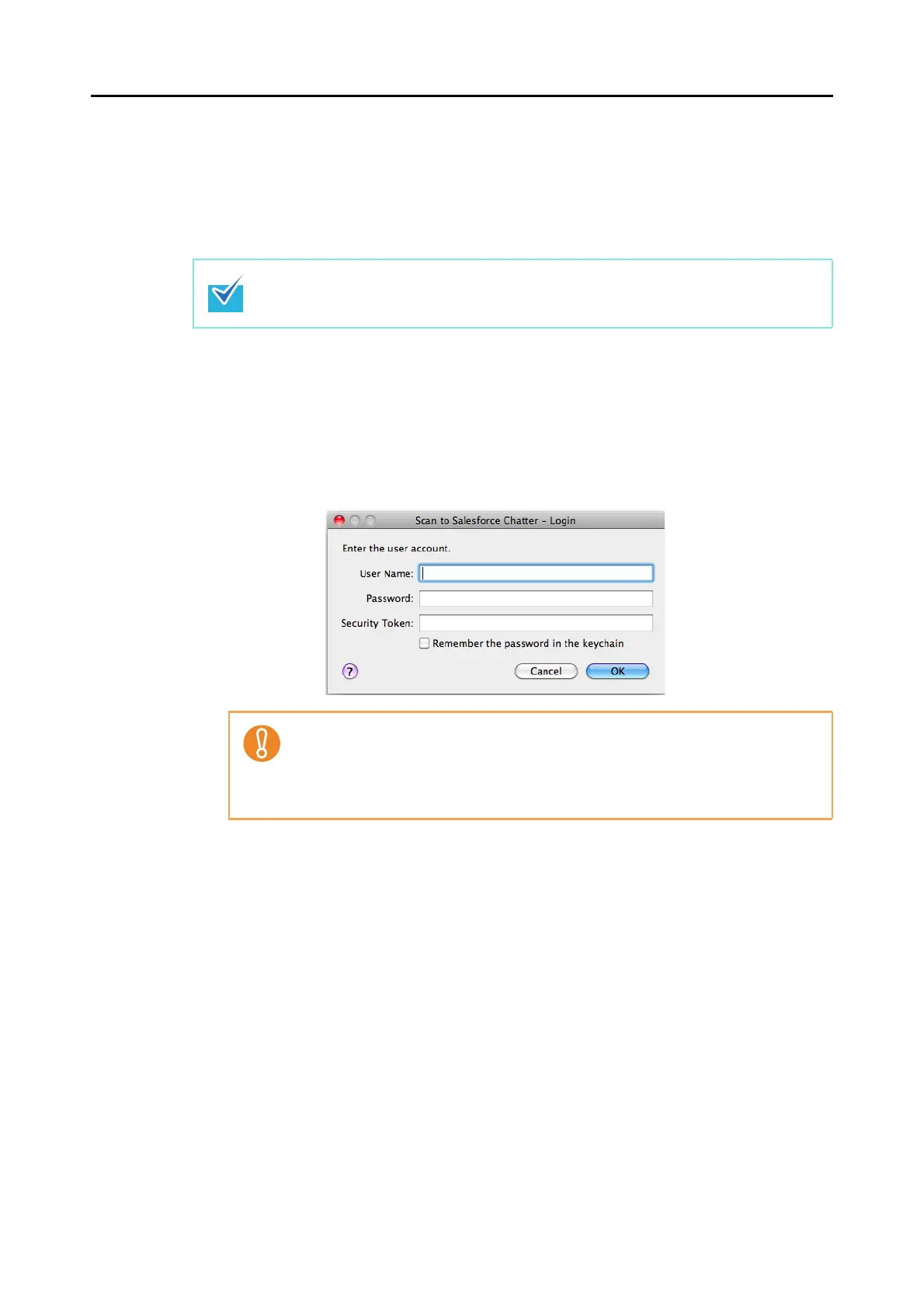
D If you did not specify a Salesforce account in the [Scan to Salesforce Chatter -
Options] window in step 3., the [Scan to Salesforce Chatter - Login] window appears
when the scanning is completed. To continue, enter your user name and password,
and click the [OK] button. Enter a security token if needed.
D The [Scan to Salesforce Chatter] window appears.
Load another document in the ScanSnap when you want to scan multiple sheets. Scanning
starts automatically when a document is loaded.
z If the computer is shared with other users, do not select the [Remember the
password in the keychain] checkbox in this window.
Otherwise, other users will be able to log into Salesforce automatically.
z Scan to Salesforce Chatter is not available in a proxy environment that requires
authentication upon connecting to the Internet.



 To Next Page