Actions (for Mac OS users)
372
8. Press the [Scan/Stop] button on the ScanSnap to finish scanning.
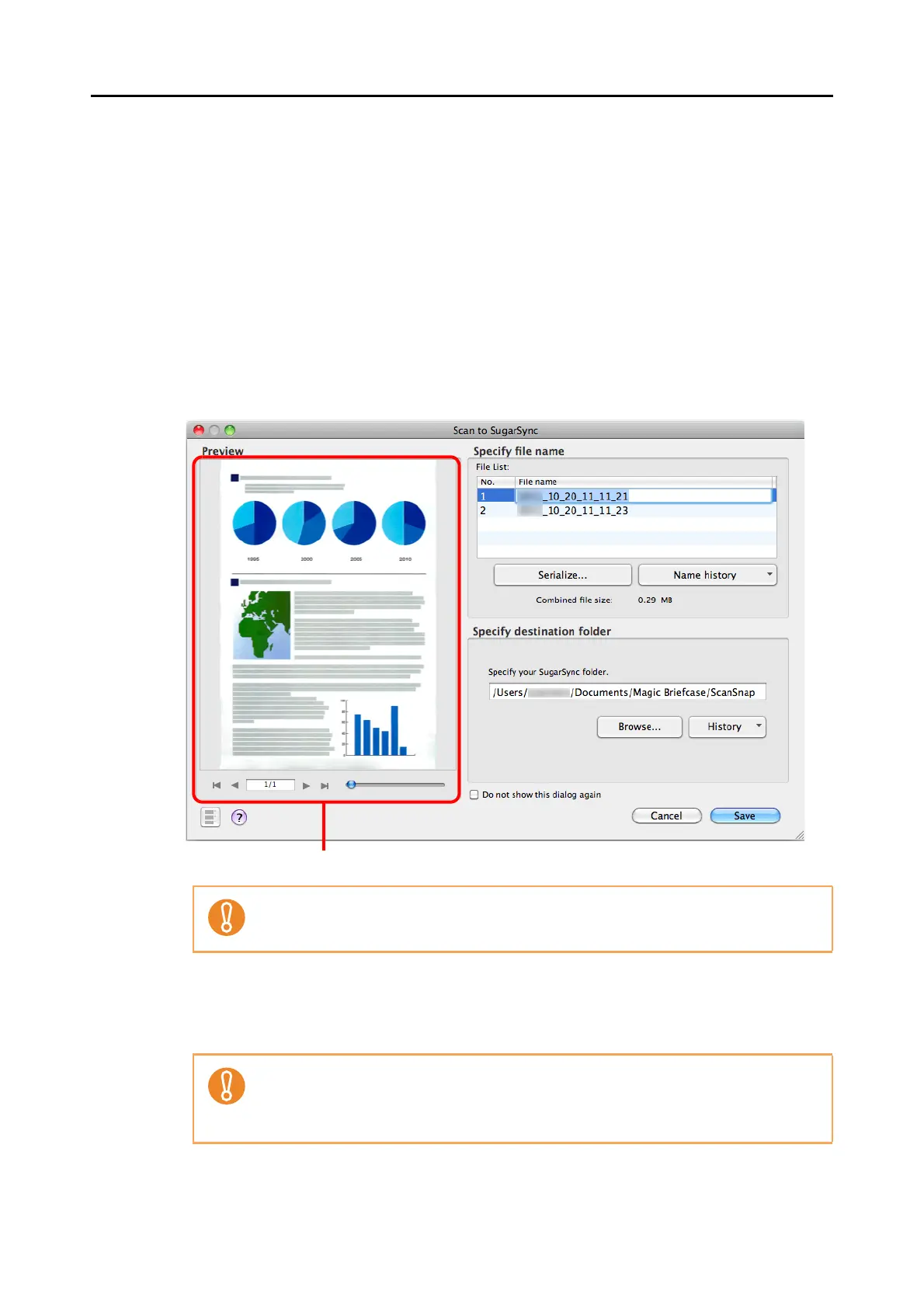
D The [Scan to SugarSync] window appears when the scanning is completed.
If you clear the [Show preview] checkbox in step3., scanned image is directly saved
to your SugarSync folder.
9. Check the scanned image in the preview area.
In the [Scan to SugarSync] window, you can rename the file and specify your
SugarSync folder.
For details about the [Scan to SugarSync] window, refer to the ScanSnap Manager
Help.
10.Click the [Save] button.
D The scanned image is saved to your SugarSync folder.
The file will not be synced with SugarSync unless you select a SugarSync folder as the
destination folder.
z You cannot start scanning when the [Scan to SugarSync] window is displayed. Close
thie window before scanning the next document.
z Do not move, delete or rename the scanned image in other applications when the
[Scan to SugarSync] window is displyed.


 To Next Page
 Loading...