Garmin © 2005–2006 22 nüvi Owner’s Manual
ManaGinG files on your nüVi
NOTE: If the drives are
not named automatically,
see your operating
system’s Help le or page
69 of this manual to learn
how to rename the drives.
TIP: You can also drag
and drop les to and from
your drives.
TIP: To help manage the
les, add folders.
Transferring Files on a Windows
®
Computer
1. Connect the nüvi to your computer.
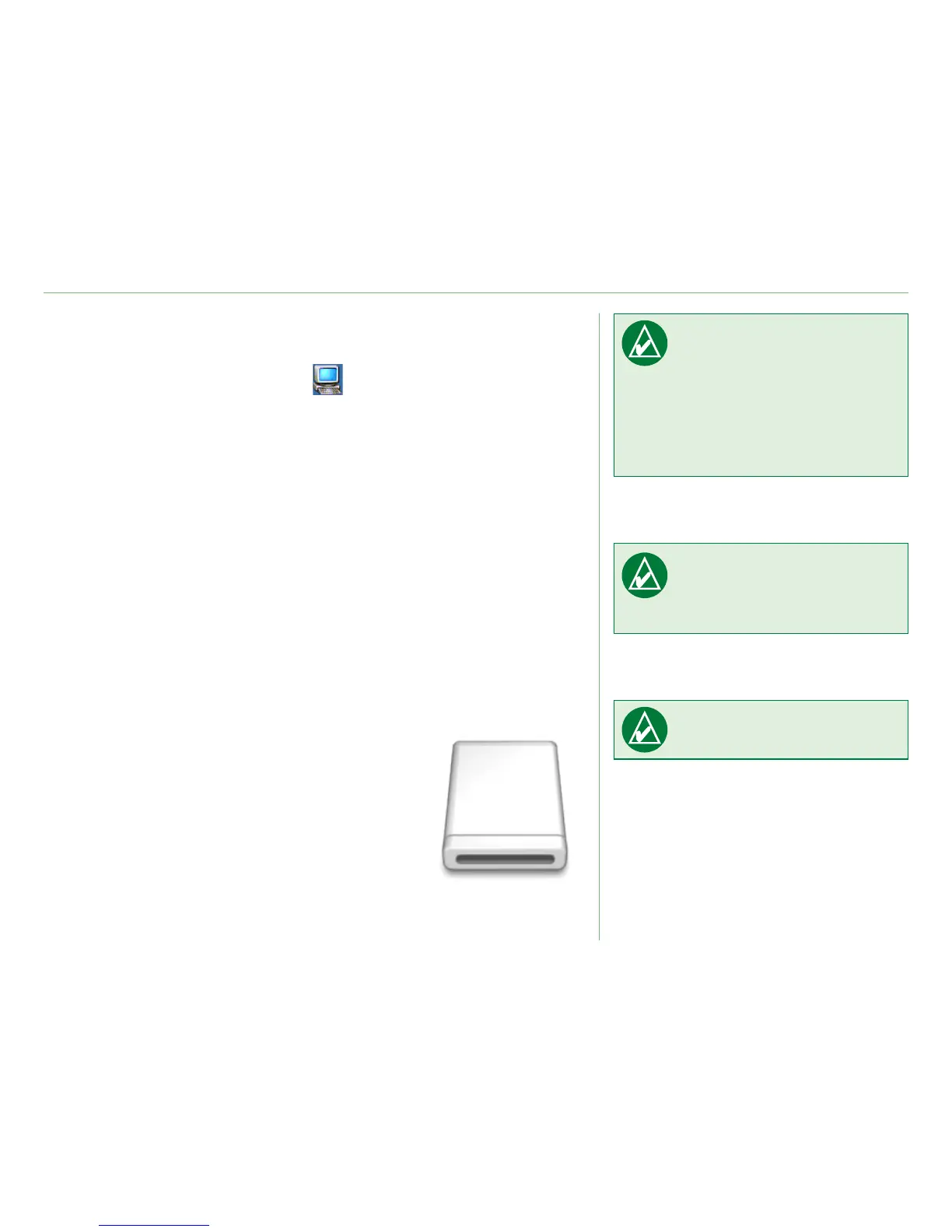
2. Double-click
My Computer on your computer’s
desktop.
3. Browse your computer for the le you want to copy.
4. Highlight the le, and select
Edit > Copy.
5. Open the “
nuvi” or “nuvi sd” drive.
6. Select
Edit > Paste.
Transferring Files on a Mac
®
Computer
1. Connect the nüvi to your computer. Your drive should
mount onto your Mac desktop as two mounted volumes
(drives); the “nuvi” and “nuvi sd” volumes.
2. Browse your computer for the le you want to copy.
3. Highlight the le, and select
Edit > Copy.
4. Double-click the volume icon to open the “
nuvi” or “nuvi
sd” drive.
5. Select
Edit > Paste.
Volume icon





 To Next Page