Garmin © 2005–2006 44 nüvi Owner’s Manual
cusToMizinG The nüVi
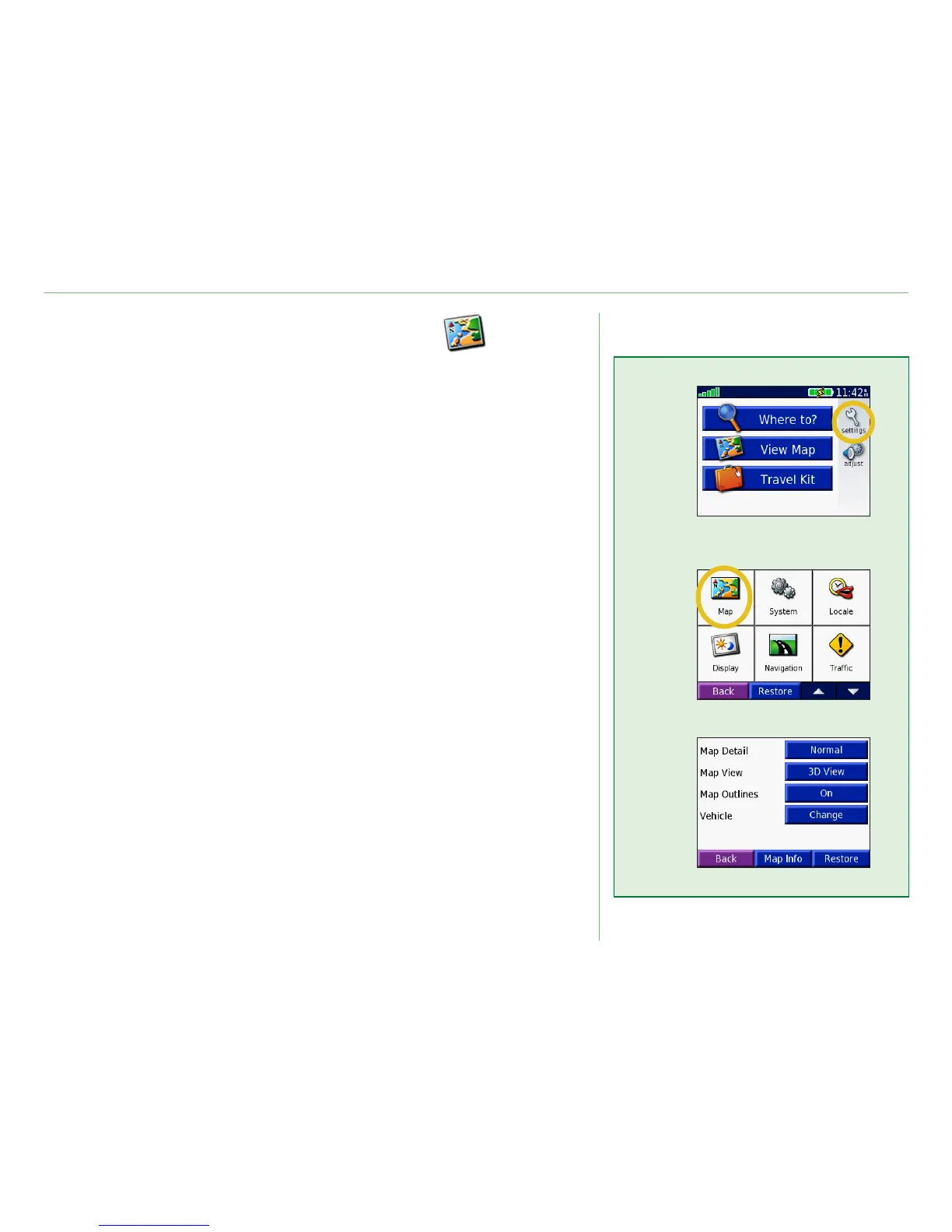
Changing the Map Settings
Map Detail—adjust the amount of detail shown on the map.
Displaying more detail causes the map to redraw slowly.
Map View—change the perspective of the Map page.
•
Track Up—display the map in 2 dimensions (2D) with your
direction of travel at the top.
• North Up—display the map in 2D with North at the top.
• 3D View—display the map in 3 dimensions (3D), Track Up
orientation. This is the default map view.
Map Outlines—turn on or off the supplemental map outlines.
Vehicle—touch Change to change the icon used to display your
position on the map. Touch the icon you want to use, and then
touch OK. Download additional vehicle icons at www.garmin
.com/vehicles.
Map Info—view the maps loaded on your nüvi and their version.
A check mark indicates the map is enabled. Touch the check mark
next to the map to disable that map.
Restore—restore the original map settings.
➊
➋
➌





 To Next Page