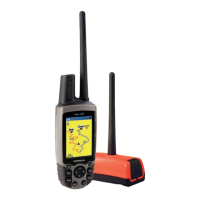
Astro
Dog Tracking System Owner’s Manual 13
Dog Tracking
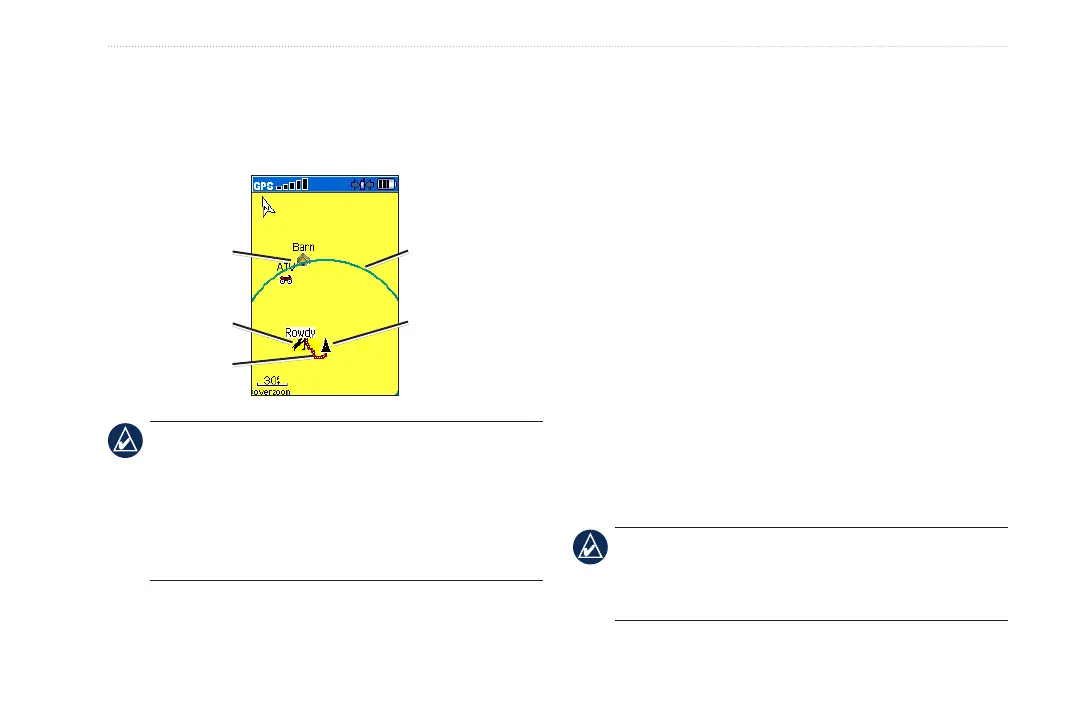
2. Observe a dog icon and the name of the dog on the
map. A track showing the dog’s movements is also
displayed.
3. Observe your current location and track on the map.
Your position is
indicated by the
black pointer
Accuracy Circle
Dog status icon
Dog’s track
Marked
locations on
map
NOTE: When the Map page is in the Track Up
orientation mode, objects on the map appear to rotate
around your position. Actually, as you move, the entire
map reorients in the direction you are facing. To make
the objects remain stable, set the orientation to North
Up by following instructions for general map set-up on
page 56.
To learn more about the Map page features and custom
settings, refer to page 56.
Adding dogs to the Dog List
If you purchased your Astro 220 as a kit, the DC 20
provided in the kit was linked to the Astro 220 at the
factory. If you have additional DC 20 units, you can link
them to the Astro 220 using the setup wizard in the Dog
List.
To add a new dog to the list:
1. With the Dog Tracker page open, press MENU > Dog
List > <Add New>. Press ENTER to open the setup
wizard.
2. Follow the setup wizard instructions using the
ROCKER and ENTER keys to select and conrm
options. By default, the new dog is named Dog and an
ID number is randomly assigned.
NOTE: The setup wizard may indicate that there is a
conict with the ID number of another dog. To resolve
the conict, follow the setup wizard instructions and as
indicated in the following section.




 To Next Page