18 Astro Dog Tracking System Owner’s Manual
Mark Location
Marking Hunting Specic Locations
When you press the MARK key, the Mark Location
Menu appears with the New option highlighted. All of the
items shown mark your current location, and some assign
a special hunting related name and symbol to the marked
location. Choose from Covey, Truck, ATV, Lodge, Camp,
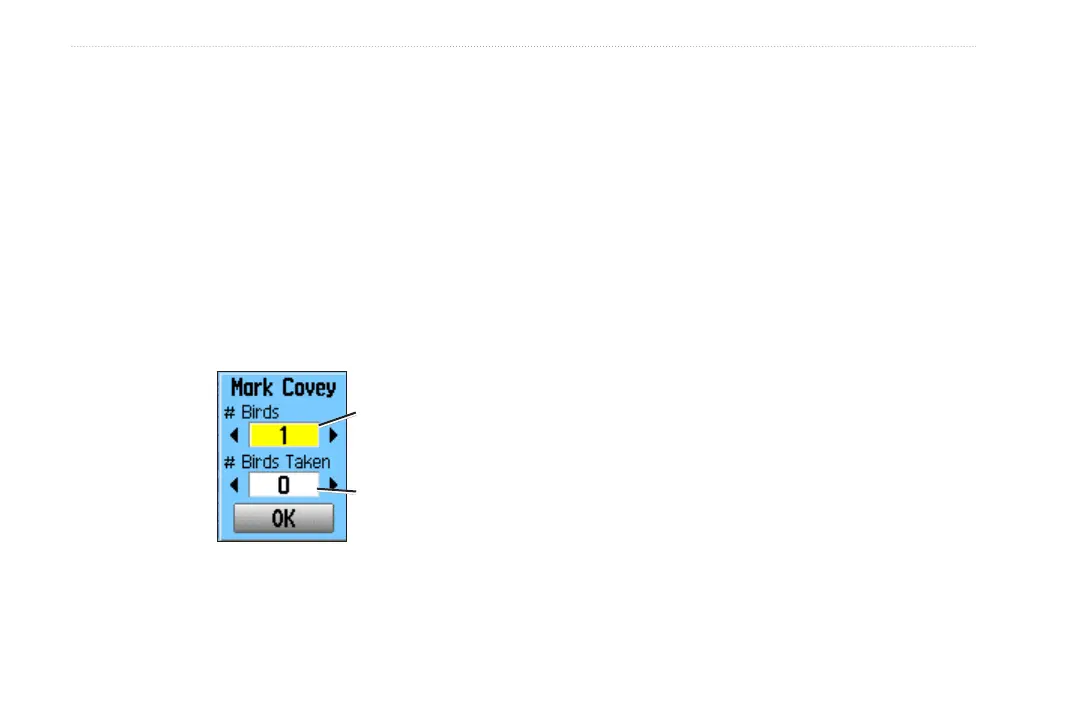
Blind, or Tree Stand. The Mark Covey option opens a
window for entering data about a bird covey location for
later review. You can enter the estimated number of birds
ushed and the number taken and then select OK to mark
that location.
When you mark
this location
the date and
time plus bird
information is
recorded to aid
in nding this
covey site again,
and to aid in managing bird numbers.
Marking a Location Using the Map
You can quickly create a location using the Map page,
when you use the ROCKER key to pan the map and
move the arrow to a map item.
To mark a location using the Map page:
1. Press MAP, and use the ROCKER to move the
pointer to the map item you want to mark as a
location.
2. Press ENTER to capture the pointer location and open
the information page for the map item.
3. Select Save. If the map item selected contains no
information, a “No map information at this point. Do
you want to mark a location here?” message appears.
Select Yes.
4. To change any information on the Location page,
select the appropriate eld, and press ENTER to open
the on-screen keypad. After entering and conrming
your changes, select OK.
Enter the number of
birds ushed
Enter the number of
birds taken




 To Next Page