42 Astro Dog Tracking System Owner’s Manual
GPS Applications
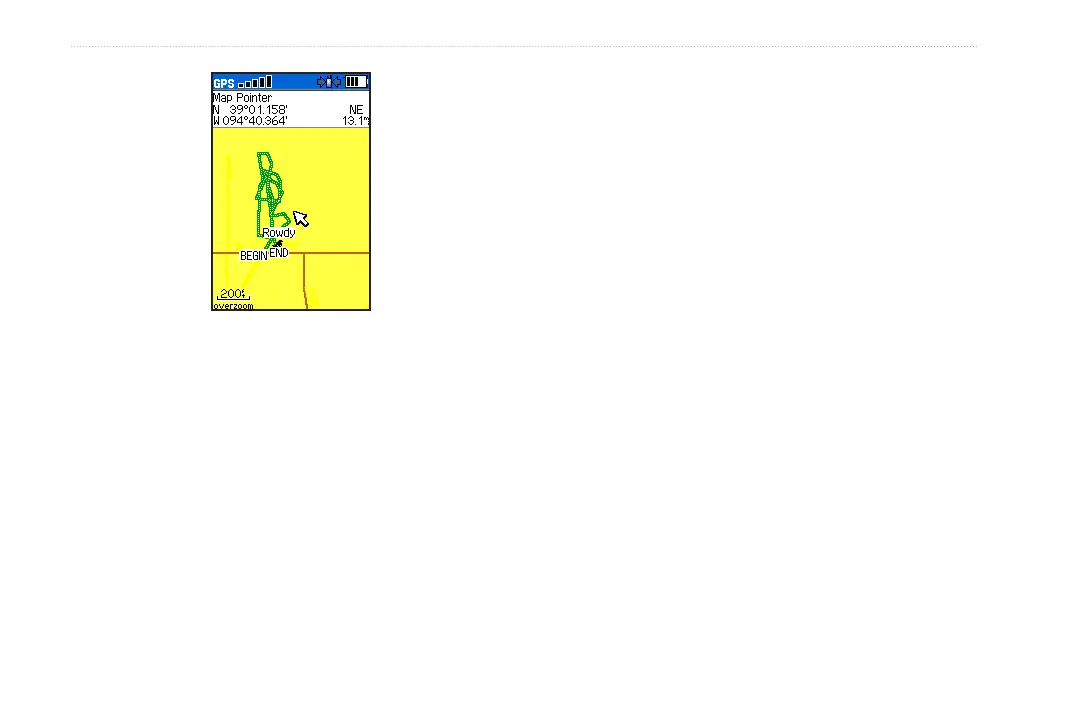
Saved track on the map
To calculate the area of a track:
1. With the Track page open and the Track Log on, press
MENU to open the Options Menu.
2. Select Area Calculation to open the Area Calculation
page.
3. Press ENTER to start the area calculation. As you
begin to move and dene the area’s boundaries, a
Stop button appears at the bottom of the page.
4. When nished dening the area, press ENTER to
open the page with a Save button.
5. Press
ENTER to save the new track to the Saved
Tracks list on the Tracks page
Track Proles
After you save a track, you have a record of the path you
traveled and a track altitude prole.
To view a track prole:
1. Open the Saved Track page, and press MENU >
select Prole to view the Track Prole.
The beginning and end of the track is marked by a
ag. You can scroll across the track prole by pressing
left or right on the ROCKER.
As you scroll across the prole, the elevation for each
point on the prole is shown at the top of the page,
and the distance from the Begin point and the End
point are shown at the bottom.
2. At any point along the prole, you can press ENTER
to show that point on the map.
3. Press MENU > select Zoom Ranges and Hide
Symbols options. To zoom ranges only, press up or
down on the ROCKER.




 To Next Page