46 Astro Dog Tracking System Owner’s Manual
GPS Applications
To navigate a saved route:
1. Press MENU twice > Advanced > GPS Applications
> select Routes to open the Routes page.
2. Select a saved route, and press ENTER to open the
Route page.
3. Select Navigate.
4. To stop navigating, press MENU > select Stop
Navigation.
Using the Follow Roads option on the Routing Setup
page increases the number of turns and shows an Active
Route page with a list of turns. If you selected the Off
Road option, you can view only the list of points for a
route from the Active Route page. See Routing Setup on
page 59.
To preview the turns for an active route:
1. On the Routes page, select a saved route, and press
ENTER to open the Route page for the selected route.
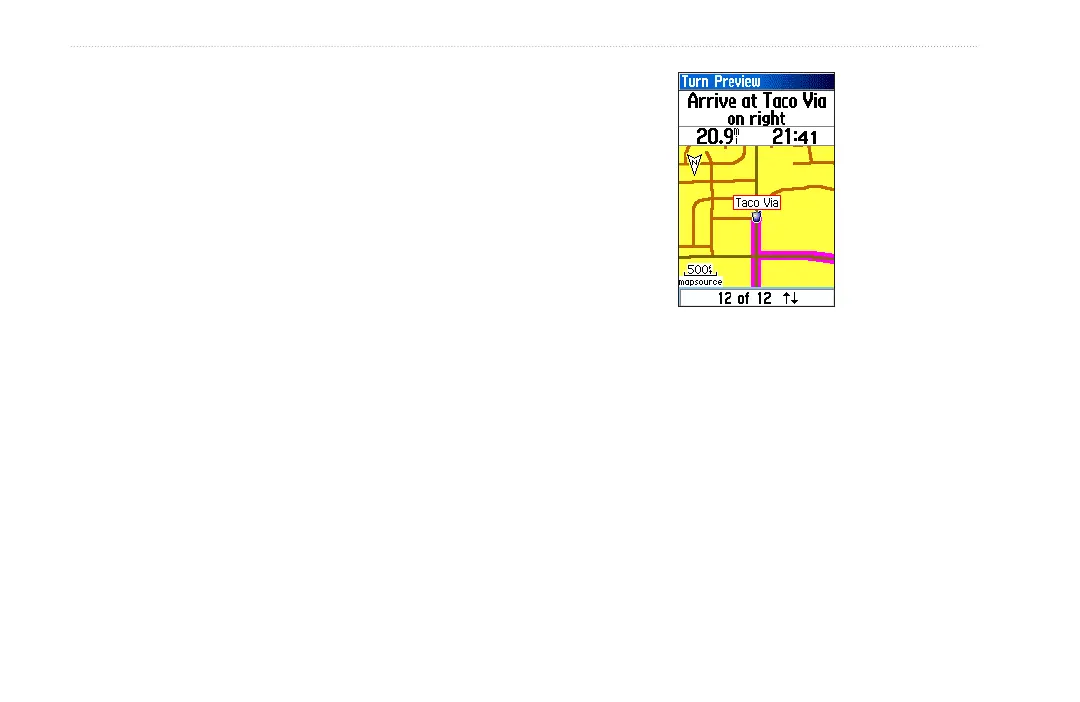
Turn Preview Page
2. Select Navigate to begin navigation and show the
route on the Map page.
3. To view the list of turns on the route, select Active
Route from the GPS Applications Menu. To view an
individual turn on the list, use the ROCKER to select
it, and press ENTER.
The Turn Preview page shows the turn and guidance
text and a small eld at the bottom shows the turn
number in sequence and total turns in the route.




 To Next Page