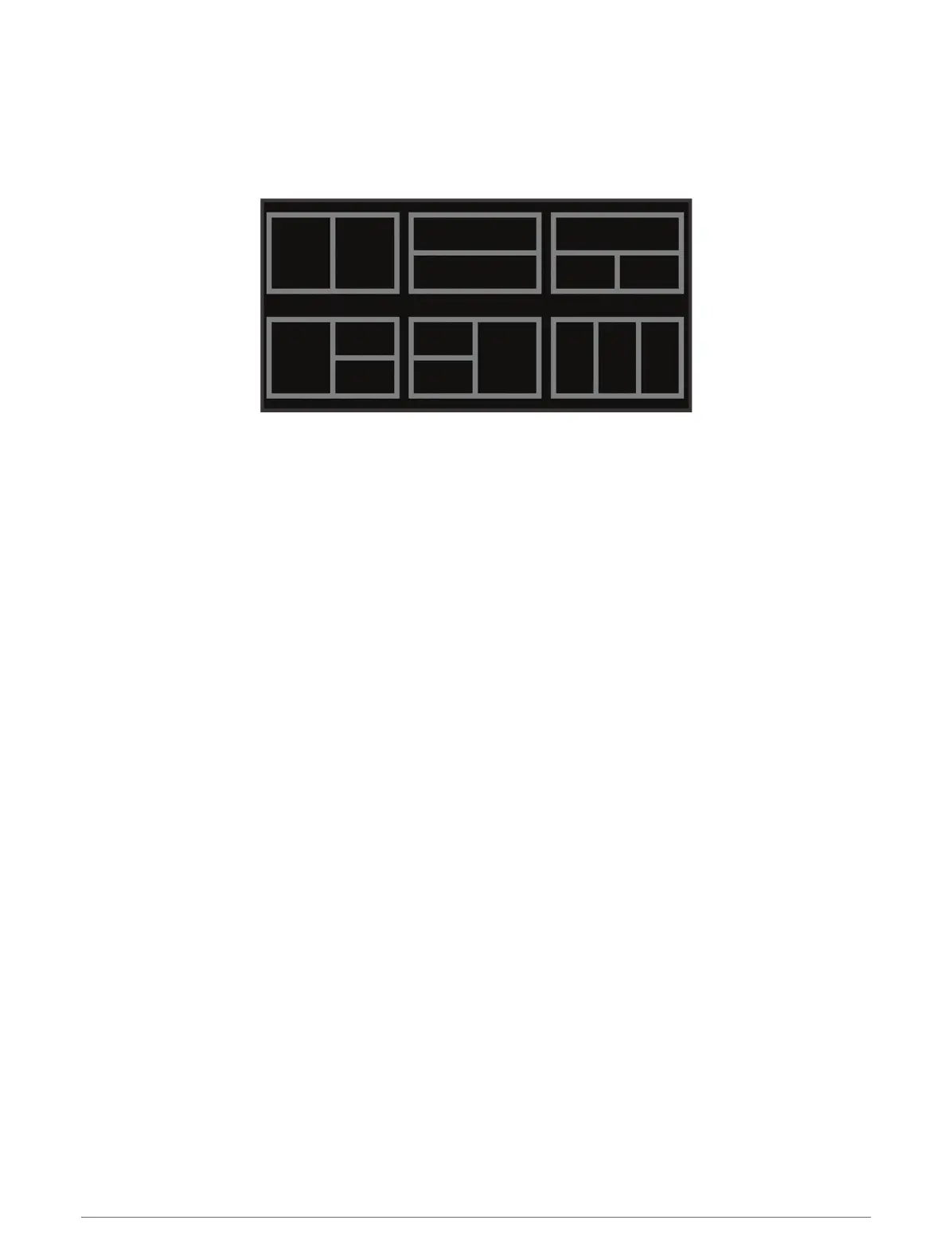
Creating a New Combination Page with the ECHOMAP Plus 60
You can create a custom combination page to suit your needs.
1 Select Combos > Customize > Add.
2 Select a layout.
3 Select an area.
4 Select a function for the area.
5 Repeat these steps for each area of the page.
6 Select Data, and customize the data shown.
7 Select Next when you are done customizing the page.
8 Enter a name for the page, and select Done.
9 Use the arrow keys to resize the windows.
10 Select to BACK to exit.
Creating a New Combination Page with the ECHOMAP Plus 40
You can create a custom combination page to suit your needs.
1 Select Combos > Customize > Add.
2 Select the first function.
3 Select the second function.
4 Select Split to choose the direction of the split screen (optional).
5 Select Next.
6 Enter a name for the page.
TIP: Select SELECT to select the letter.
7 Use the arrow keys to resize the windows.
8 Use the arrow keys to select a location on the home screen.
9 Select BACK to exit.
Customizing the Chartplotter 9




 To Next Page