ORIUS ™ 833 User’s Guide Series Rev 3 3-4
3.2 Image Notes
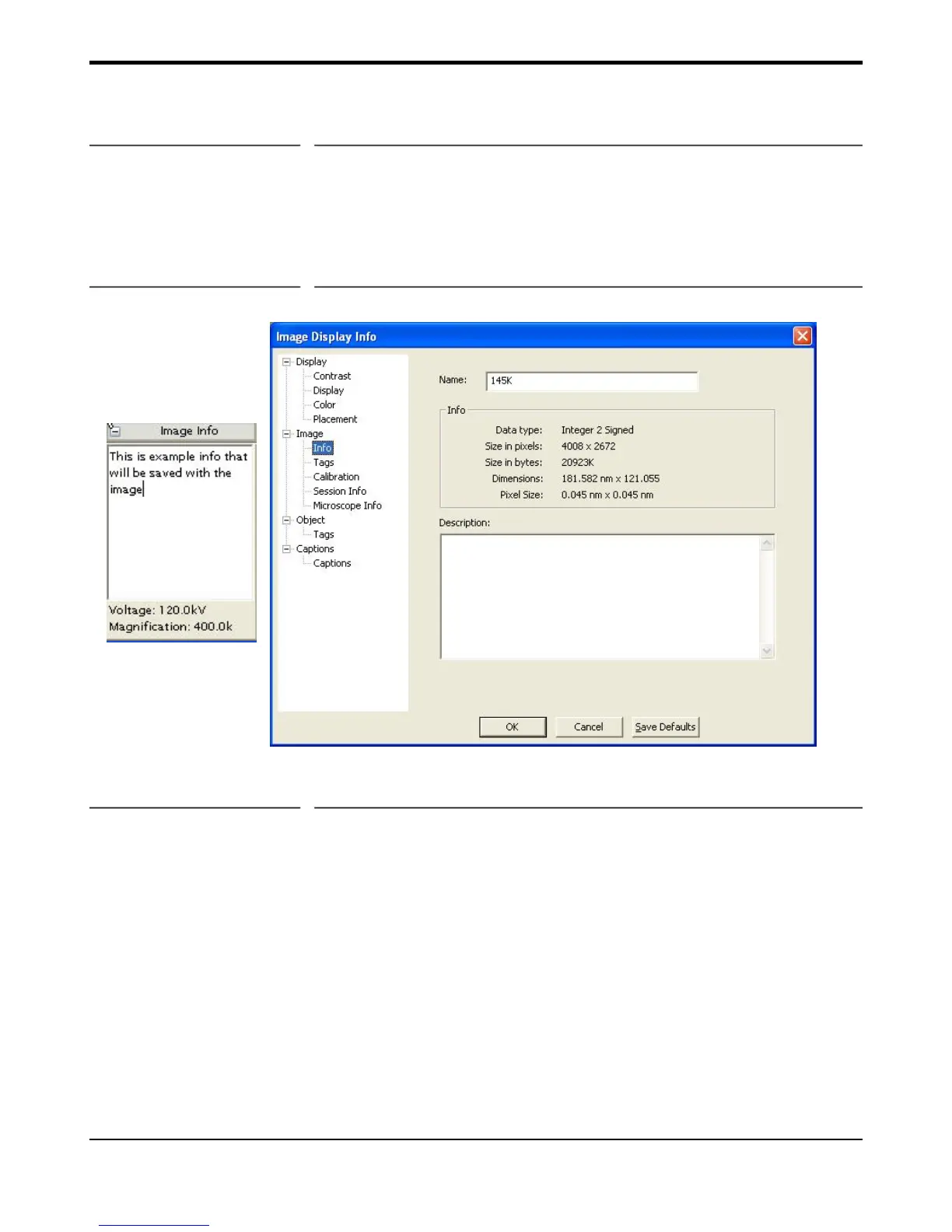
The user can type in notes about the image in the Info area of the floating window called Image Info and also the
ImageDisplay Info window as shown in Figure 3-3. To access this window, right click on the image and select
ImageDisplay from the menu. On the left pane of the window select “Image Info”. The right pane will be
refreshed with the information regarding the image. You can alter the name of the image and enter pertinent
info in the “Description” area. This information will automatically be saved with the image file.
Figure 3-3a Image Info
3.3 TEM Session Information (Global Info)
Before acquiring any images, it is recommended to enter the correct information about the sample, operator,
TEM name, etc. On the Image Display Info window (Figure 3-3a) select “Session Info” in the left hand panel to
refresh the right panel with the entry areas for sample, operator, TEM, etc... This function can also be accessed
under the File, Global Info menu (Figure 3-3b). The global information is saved automatically with every image
that is acquired.
In addition to the standard information fields, the user can create custom fields such as ID#, Lot#, etc.. This is
done by clicking on the “Tool” icon button. The following dialog window will appear in which you can input
the custom field that you want to create:


 To Next Page