ORIUS ™ 833 User’s Guide Series Rev 3 3-10
3.5.5 Camera Setup for View and Acquire
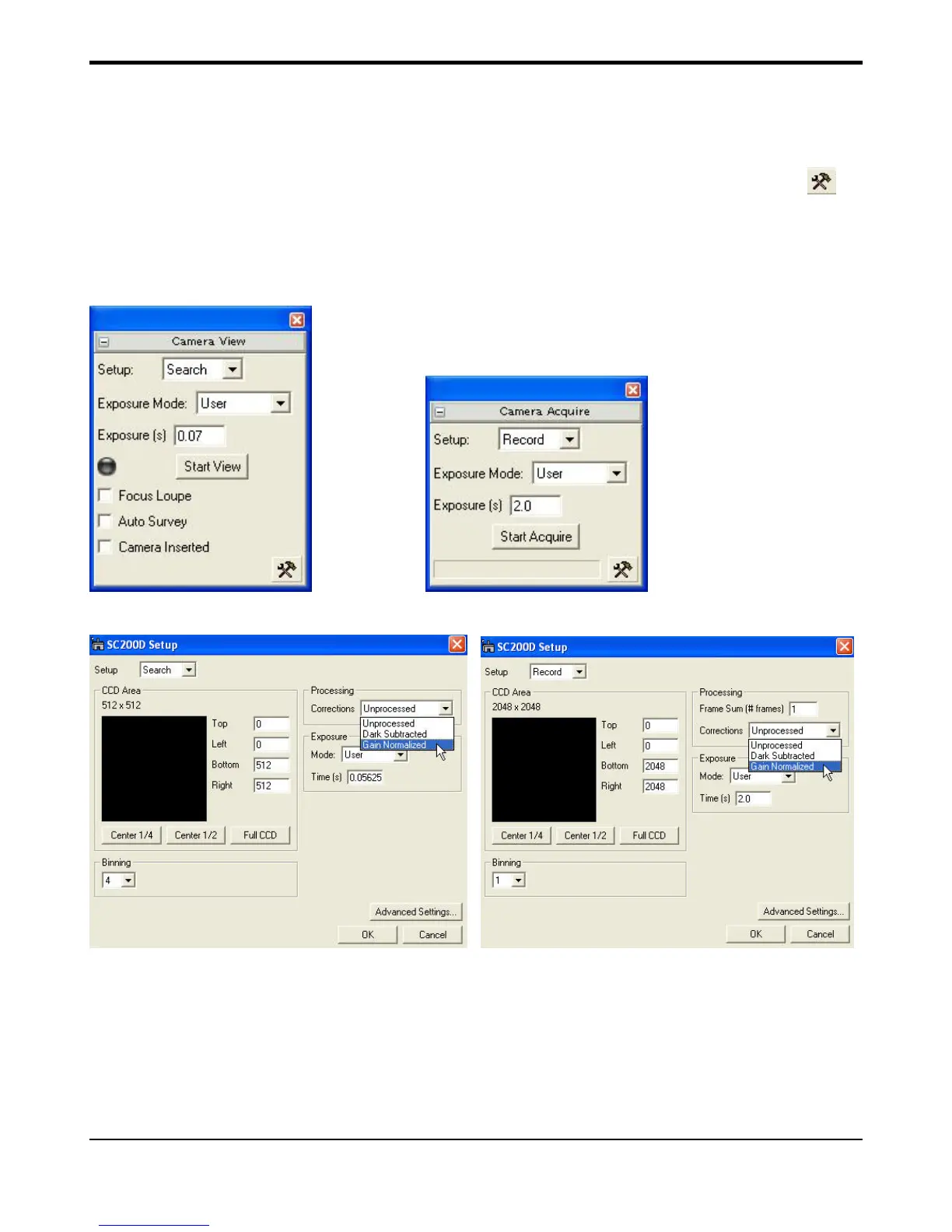
In each of the Camera View and Camera Acquire dialog windows (Fig. 3-11) there is a “Setup”
button that gives the user access to detail configurations for each of the operation modes (Fig. 3.12a-b).
Usually the user does not have to make any changes after the camera has been installed and setup.
There are settings that could affect the performance of the camera so their description is offered here
for the user to understand in case of any inadvertent changes made.
Figure 3-11
Figure 3-12a Camera View setup Figure 3-12b Camera Acquire setup
Binning should be set at 4 Binning should be set at 1
Under the area called Processing, the user can select to use an unprocessed image or a Gain
Normalized image. By default the camera is setup to use Gain Normalization. Additionally, multiple
frames can be collected by entering a value in the Frame Sum entry box. If frame summing is not
desired, by default this should always be set to 1.


 To Next Page