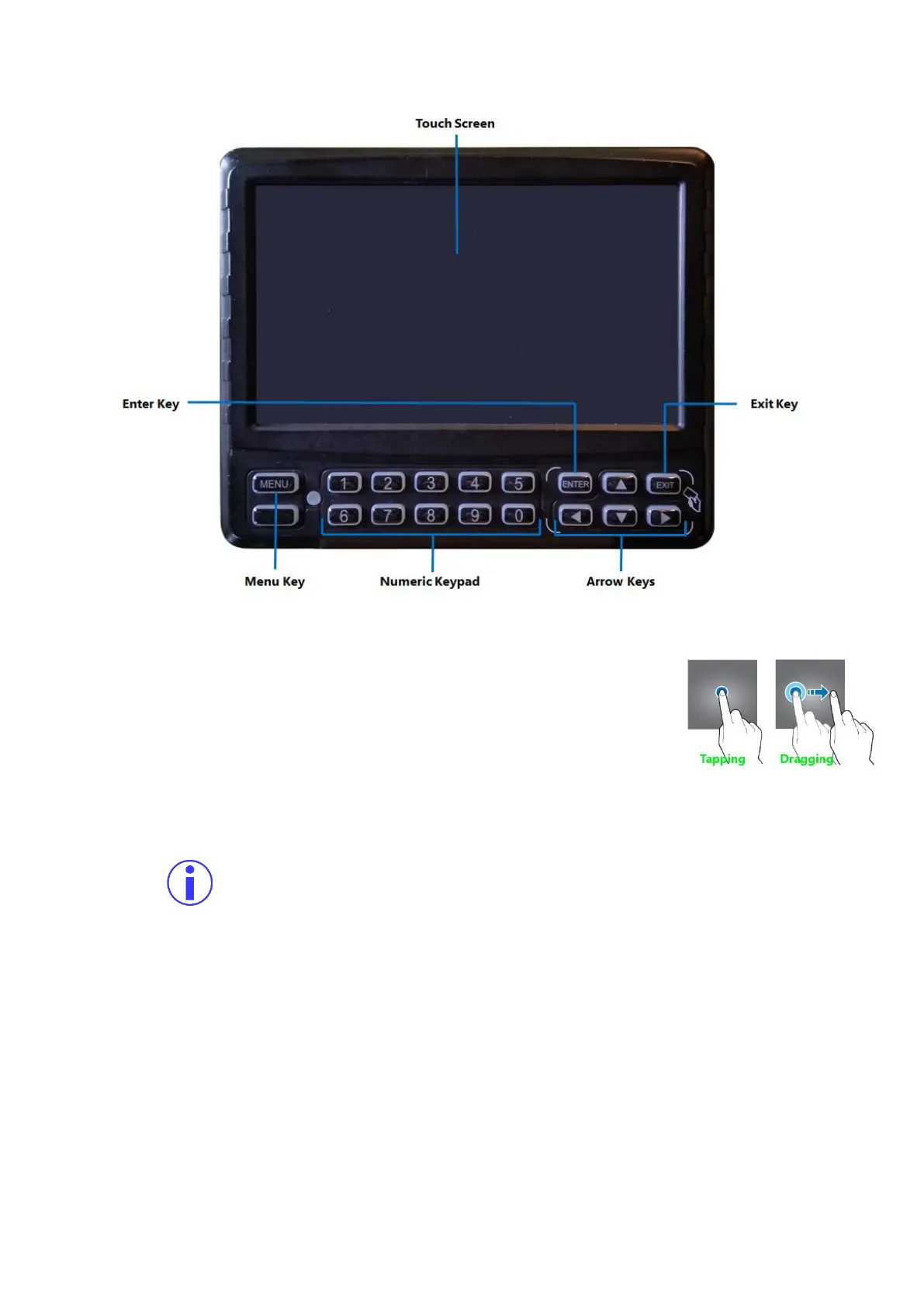
Figure 3-3 Front View of the ICD2
▪ Touch Screen: A single tap anywhere on the screen (when showing video
streams) will bring up the on-screen quick menu. Another single tap
anywhere on the screen will hide the quick menu again. At all times,
tapping on an on-screen field, tab or button in the menu system will select
it. Tapping, holding and dragging will also work for sliders and moveable
items – allowing you to perform click-and-drag actions.
▪ Menu Key: When viewing video streams, pressing this button will immediately jump to the main
menu screen.
Access to the main menu requires that the user is logged into the system with a correct
username and password.
▪ Exit Key: Pressing this button will move the user back to the previous screen. If viewing video
streams, then pressing this button will toggle between showing and hiding the on-screen quick
menu (similar to a single tap on the touch screen).
▪ Arrow Keys: These buttons can be used to move the cursor or menu highlight to the left and
right as well as up and down in order to select a button or menu item.
▪ Enter Key: Pressing this button will select the highlighted menu item (similar to tapping on it).
▪ Numeric Keypad: These buttons are used for entering numeric input.



 To Next Page