6.4.3 IPC Setup
Navigate to: Main Menu
→
Setup
→
Surveillance
→
IPC Setup
This subsection enables you to easily search for and configure the Digital IP camera connected to the
Y35 HD v3.
Selecting and Setting Up an IP Camera
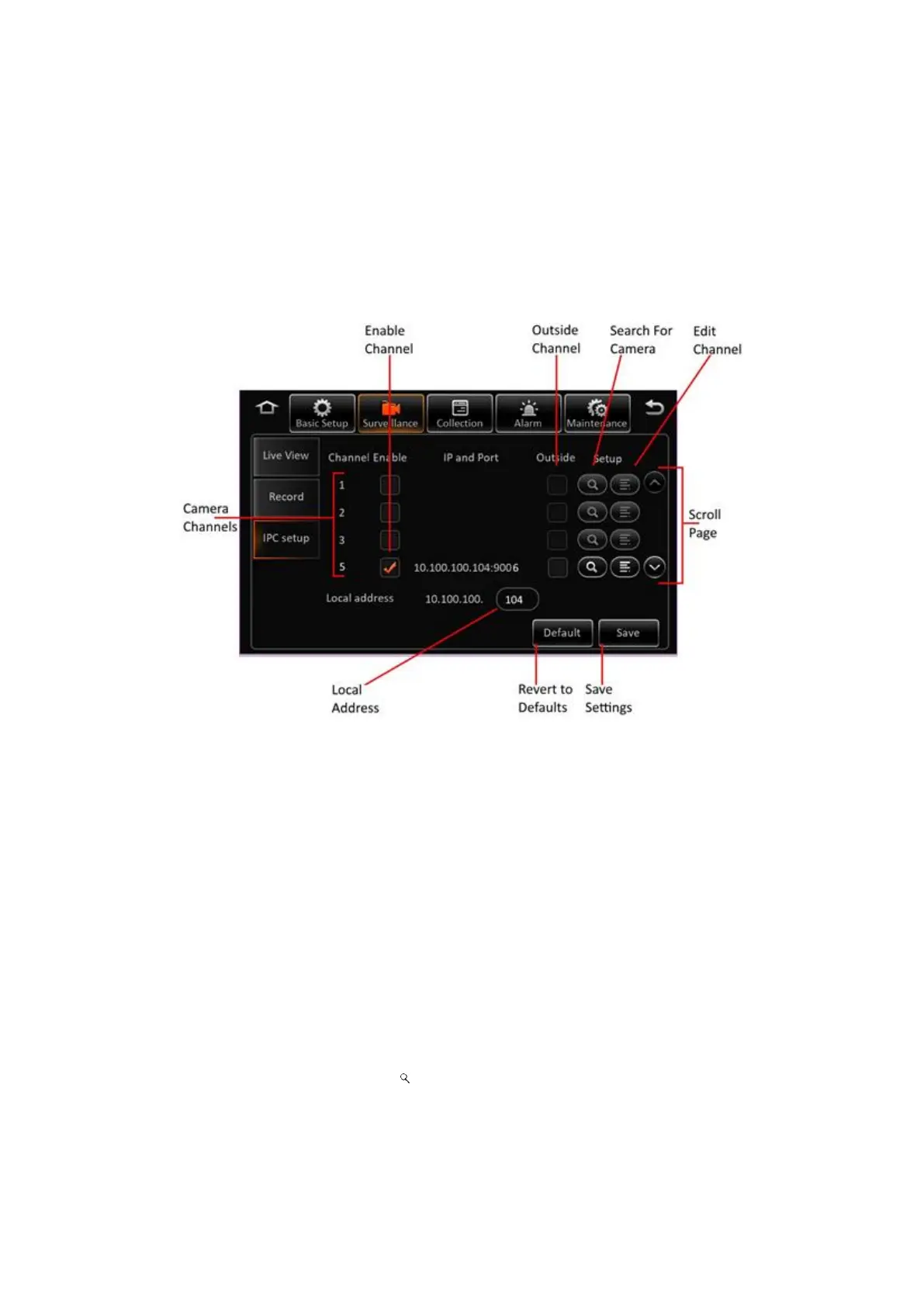
Figure 6-4 4 IP Camera Setup Screen
▪ Camera Channels: The available camera channels are listed on the screen along with their
associated settings.
Please Note: On a Y35 HD v3 there is only One IP camera channel, channel 5.
▪ Scroll Page: Use the (^) and (v) buttons to scroll the list of camera channels up and down
respectively.
▪ Enable Channel: The checkbox toggles the camera between enabled and disabled.
▪ Outside Channel: This checkbox marks an outside camera.
▪ Local Address: This is a numeric text field to set the local address.
▪ Search for Camera: Click on the ( ) icon to search for an available IP camera to bind to the
associated channel. This will display the IP camera search screen where you can select the
desired camera for this channel.


 To Next Page