The available IP camera will be displayed in a list together with the default settings for IP
address, port and protocol type which have be automatically configured by the Y35 HD v3.
Step 1 : Click on the checkbox to select the associated camera.
Step 2 : Click on the (OK) button to bind the camera to the selected channel.
At any time, you may click the (Refresh) button to re-scan and update the list. You may also
click on (Cancel) to return to the previous screen.
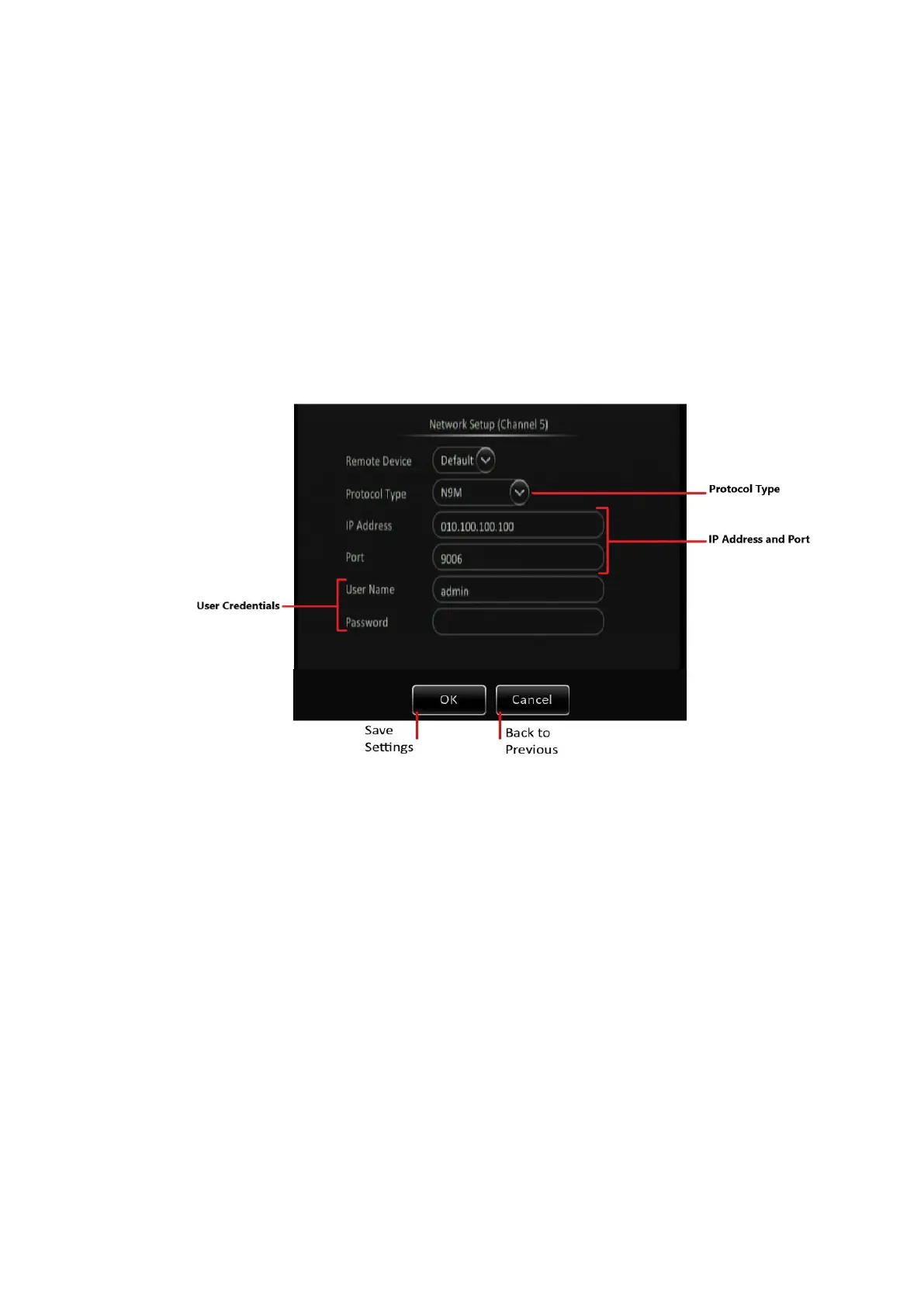
▪ Edit Channel: Click on the ( ) button to edit the settings for the IP camera which is bound to
that associated channel. This displays a pop-up screen with the settings that you can configure.
Figure 6-5 4 IP Camera Settings Configuration Screen
The settings for the IP Camera will be displayed and can be edited:
Protocol Type : The only currently available protocol type is N9M.
IP Address : Numeric text field for the IP address.
Port : Numeric text field for the port number.
User Name : Alphanumeric text field for the user name.
Password : Alphanumeric text field for the password.
Click the (OK) button to save the settings for this camera. At any time, you may also click the
(Cancel) button to return to the previous screen.


 To Next Page