If more than 1 camera channel was selected during the previous step, all selected channels will
be displayed in quad screen mode (2x2 grid layout). With a Finger Mouse or ICD2, you can
easily select a single channel to view in full screen by double-clicking on it.
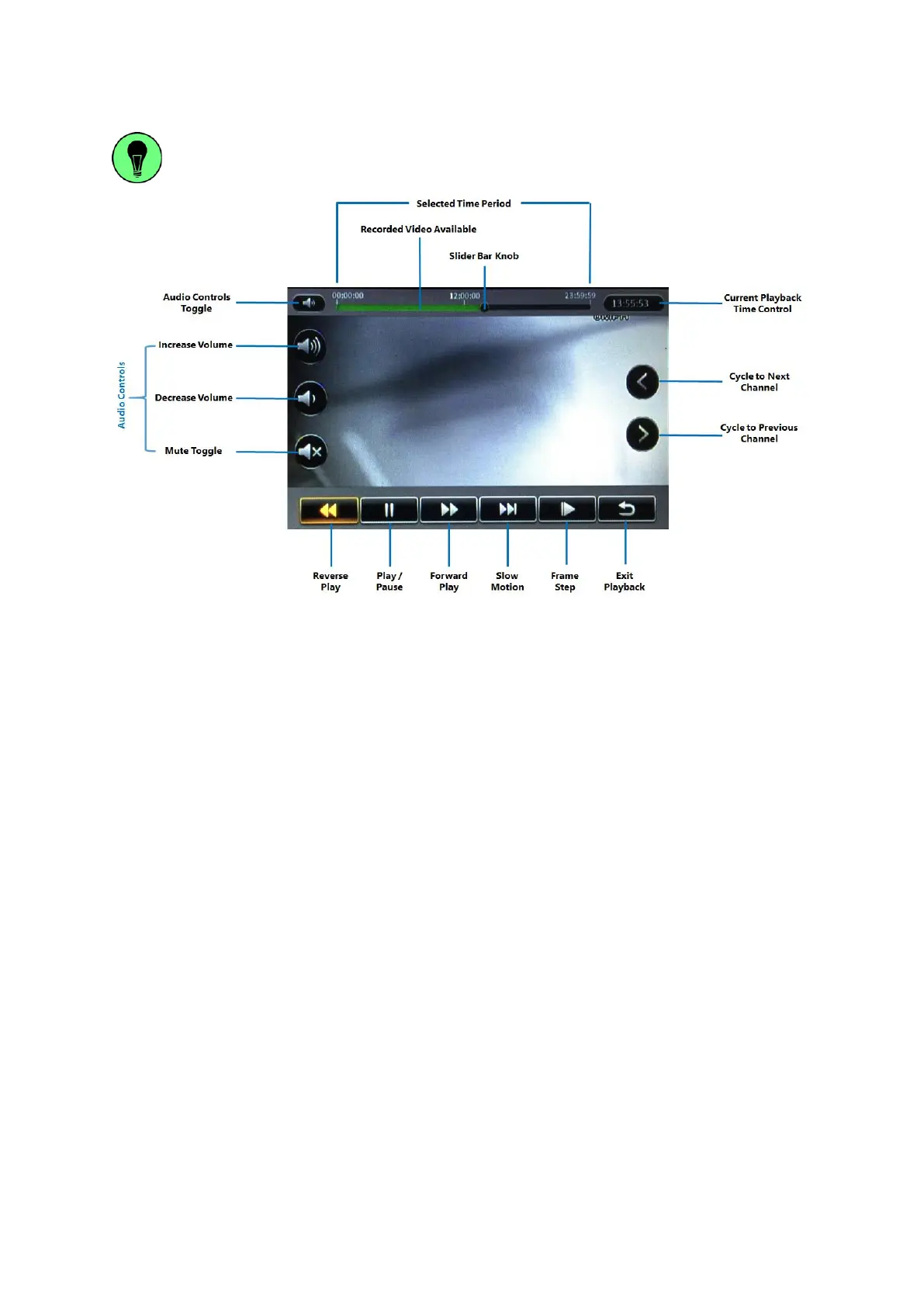
Figure 5-6 REC Search Playback Controls
▪ Selected Time Period: This time bar represents the selected time period.
▪ Recorded Video Available: The green shaded areas in the time bar lets you easily identify where
the recorded video is available.
▪ Slider Bar Knob: Using a Finger Mouse or an ICD2, you can click-and-drag this moveable knob
to the specific time where you wish to view the recorded video.
▪ Audio Controls Toggle: This toggle button lets you show or hide the audio controls.
▪ Increase Volume: Increase the volume of the audio in the video recording currently being played
back.
▪ Decrease Volume: Decrease the volume of the audio in the video recording currently being
played back.
▪ Current Playback Time Control: This shows the current playback time. Clicking on it will bring
up the time control dialog which allows you to key in a specific time (in hh:mm:ss 24-hour time
format) from which to begin the playback.



 To Next Page