▪ Scroll Time Scale: After zooming in, the entire days’ time scale will not be able to fit on the
screen display. Click the (<) and (>) buttons to scroll the time scale to the left and right
respectively.
▪ Camera Channels: This shows the camera channels for which the recorded video is available.
Use the checkboxes to select/deselect the camera channels which are to be included in the
playback.
▪ Scroll Camera Channels: When more than four camera channels have recorded video available,
click the (^) and (v) buttons to scroll up and down in the list of available channels.
▪ Recorded Video Available: The colored bar shows the times for which recorded video is available.
The bar is colored coded to indicate the type of video available.
GREEN: Normal recorded video at this time period.
RED: Recorded video at this time period has alarm events.
YELLOW: Recorded video at this time period is locked.
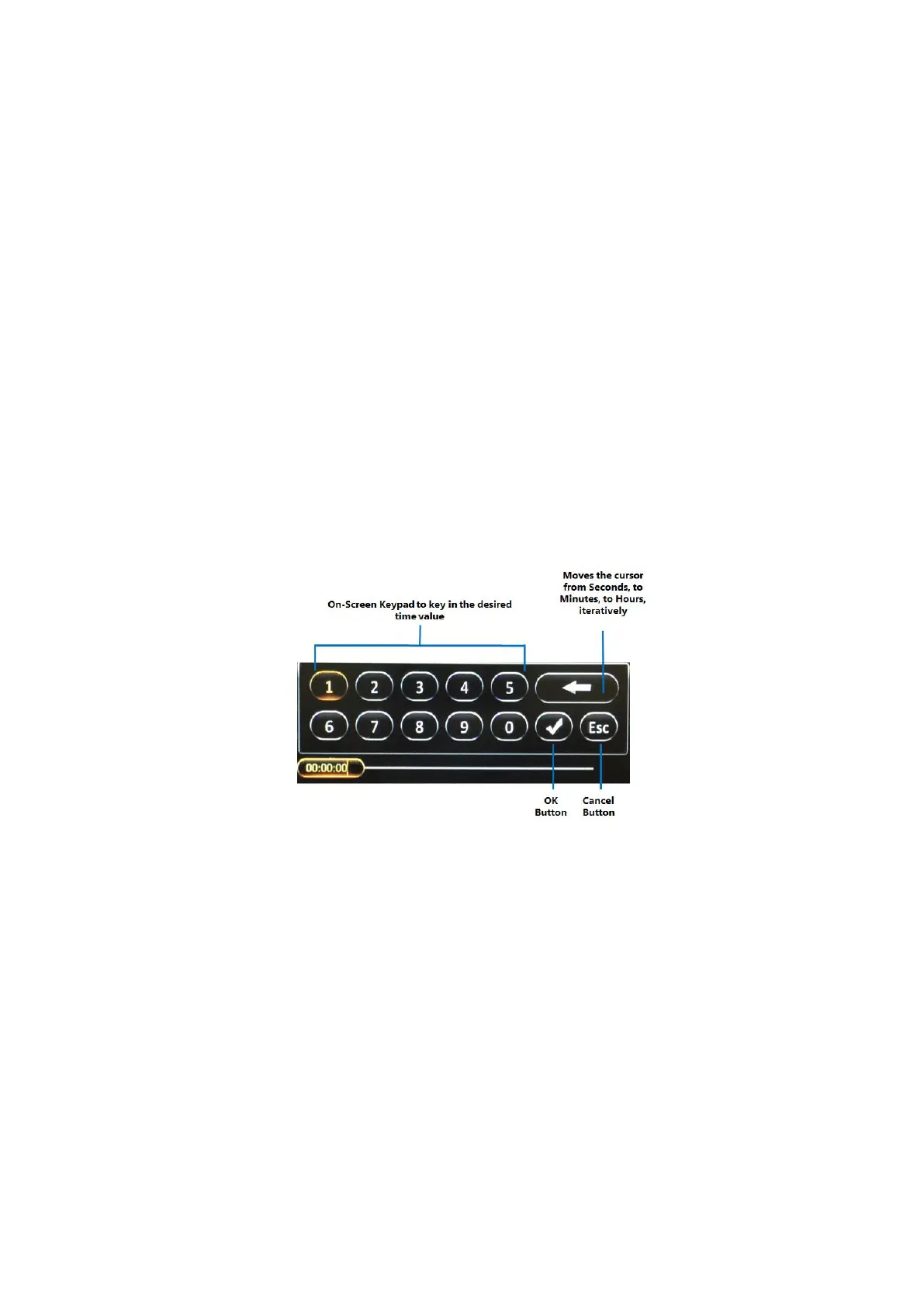
▪ Playback Start Time: This shows the selected playback time. Clicking on it will bring up the time
control dialog which allows you to key in a specific time (in hh:mm:ss 24-hour time format) from
which to begin the playback.
▪ Playback Start Time Marker: This vertical blue dotted line indicates the playback start time across
the camera channels. If you are using a Finger Mouse or an ICD2, you can click and drag left
and right along the colored bars to quickly move the marker in order to select a different
playback start time.
▪ Playback Video: After selecting the playback start time and specifying the camera channels,
clicking (Playback) will proceed to the playback screen for the recorded video.
▪ Export Video: Clicking the (Export) button will allow you to export the recorded video as a clip
from a specified start and end time.
REC Search Step 4: Playing the Recorded Video
If you are using a Finger Mouse, toggle the on-screen controls by pressing the Right Button, whereas
with the ICD2, you would just tap anywhere on the video. If there is no user input, then the on-screen
playback controls will auto-hide after 15 seconds of inactivity.



 To Next Page