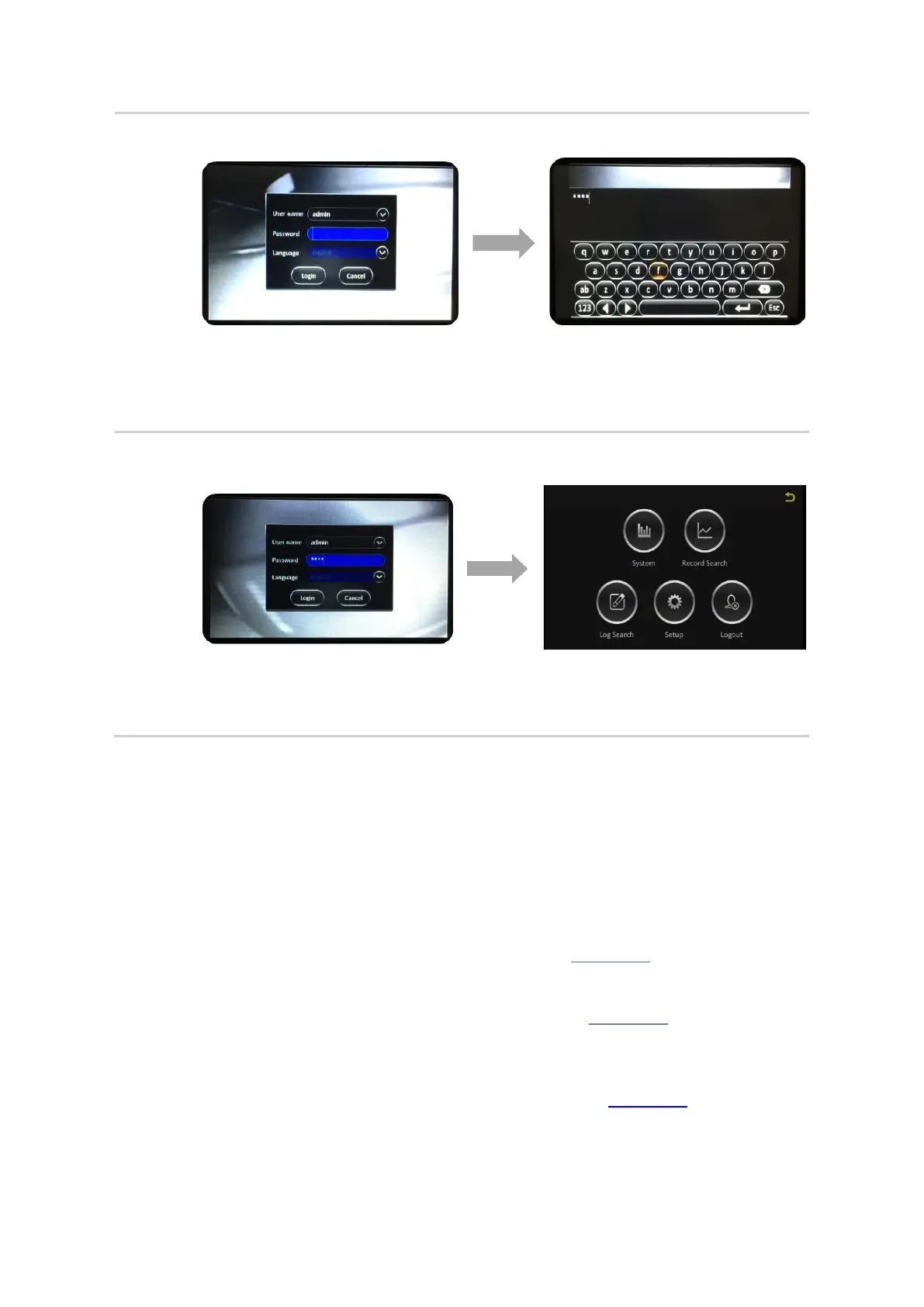
▪ Click on the Password field to enter the password.
▪ Using the on-screen keyboard which is displayed, key in the password. For this
initial login, please key in the default password, which is: admin
▪ When done, press the Enter ( ) key on the on-screen keyboard.
▪ Click the (Login) button.
▪ The Main Menu will be shown
▪ Click on the (Setup) button to go to the device configuration screen.
Understanding the Setup Menu System for System Configuration
The Y35 HD v3 comes with a comprehensive setup menu system where you will be able to tailor almost
every aspect of the device operations to your unique fleet requirements.
The configuration options in the menu are broken into 5 major sections:
▪ Basic Setup – where you will be able to configure all the basic device preferences and
operational settings. For a detailed explanation, please see Section 6.3.
▪ Surveillance – where you will be able to configure camera viewing; recording settings, as well
as set up new cameras. For a detailed explanation, please see Section 6.4.
▪ Collection – where you will be able to configure all the settings related to collection of vehicle
and operations data from the device sensors, and also configure settings for taking snapshots
based on pre-set triggers. For a detailed explanation, please see Section 6.5.


 To Next Page