41
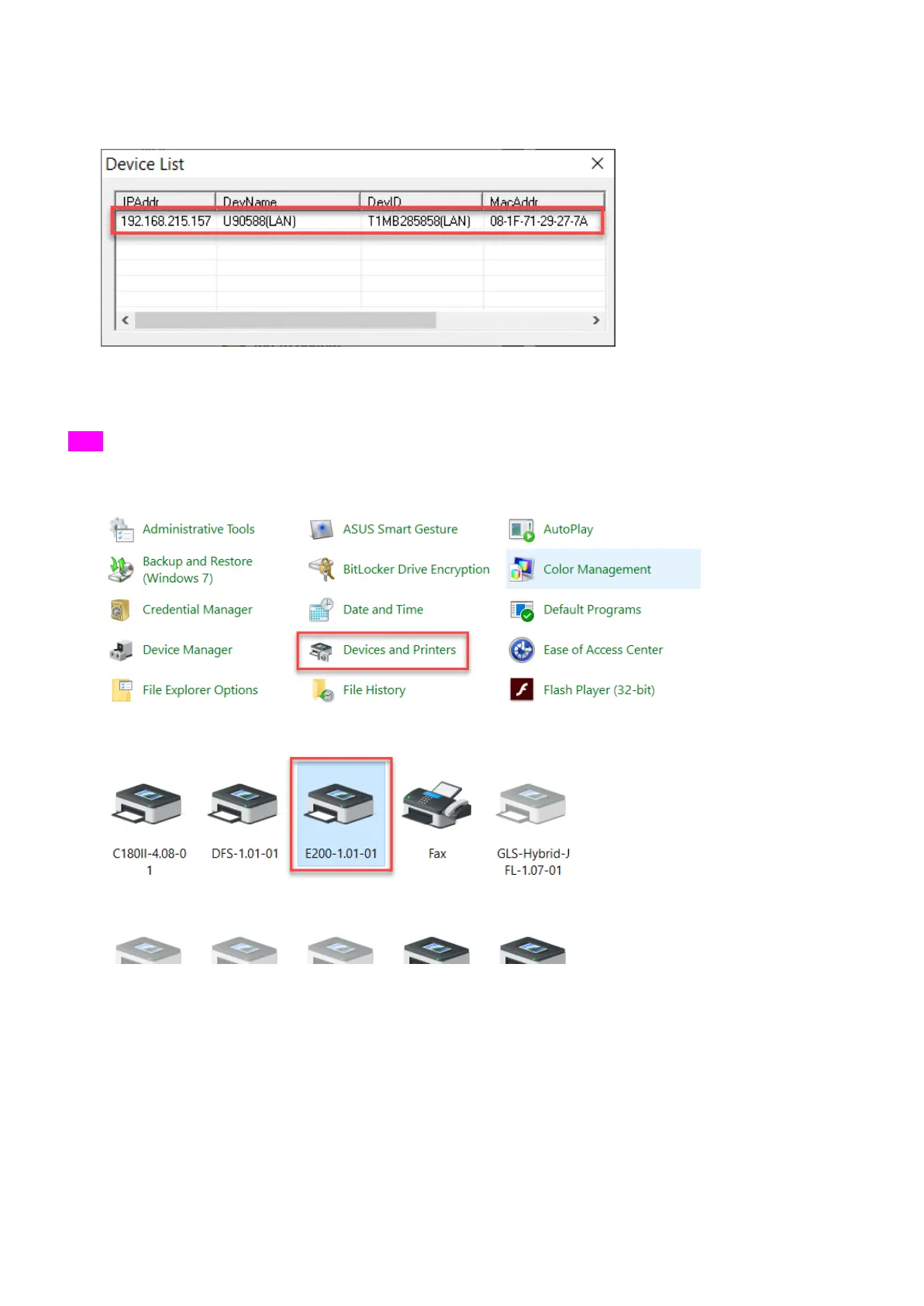
6) Double click your machine from the Device List and the setting is complete. Pleae check your serial number
of the machine to make sure the connection is correct if you have many machines.
7) WiFi/LAN Connection setting is completed.
USB
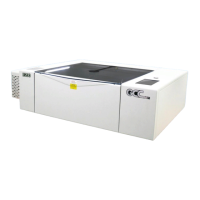
1) Go to “Control panel” “Devices and Printers”
2) Double click “E200” printer driver to open the printer driver window
3) Click “Printer” “Properties” on the menu bar to open the properties window.


 To Next Page