49
Installing the Application Script
1. After configuring the EPM 7700 Large Faceplate wizard or Tabular Data Screen
wizard, select “Special \ Scripts \ Application Scripts…” from the
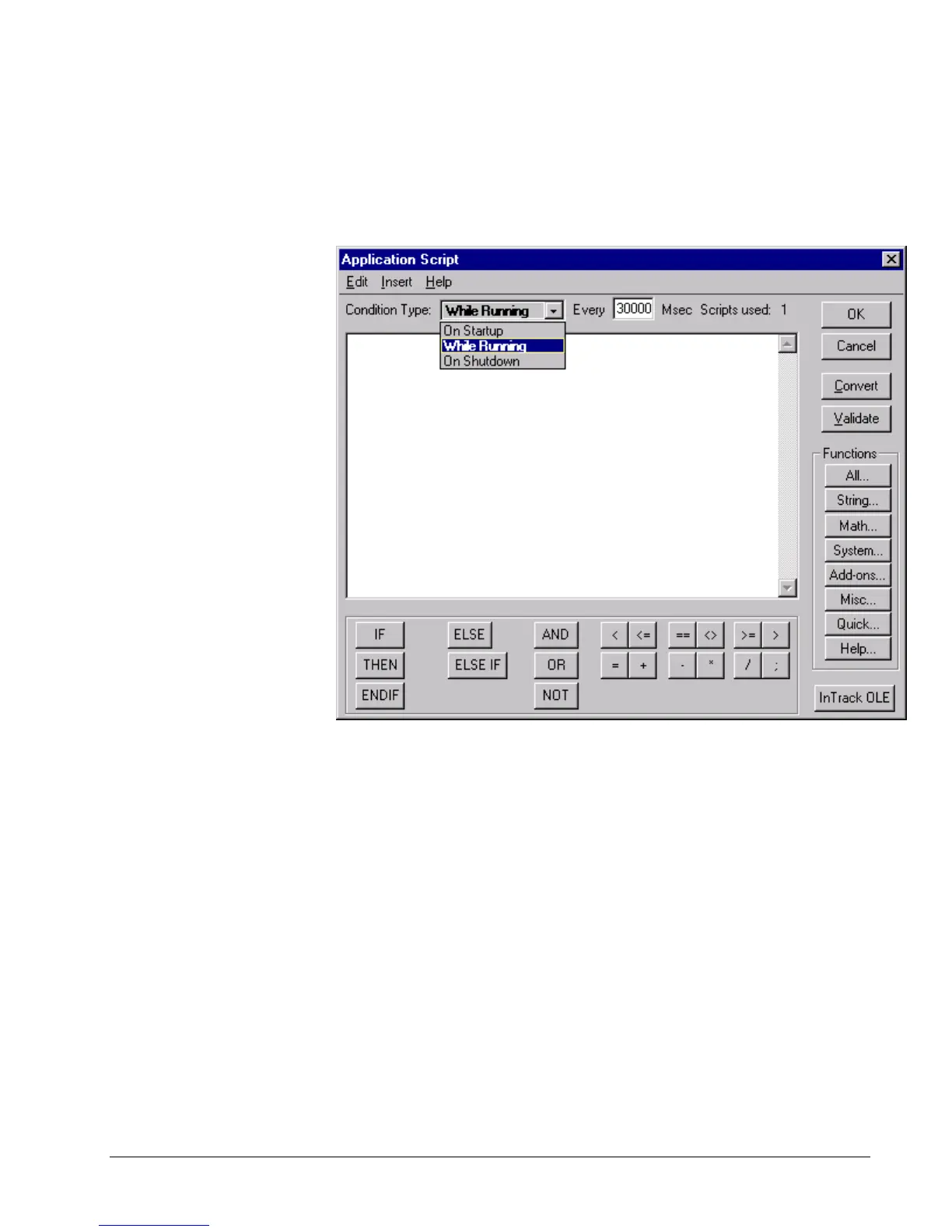
WindowMaker main menu. The Application Script Dialog box opens:
2. Select “While Running” from the Condition Type drop down list, and enter
“30000” in the “Every … Msec” text box next to the Condition Type drop down
list.
3. Use Notepad.exe to open the file “EPM7700 Application Script.txt”, located in
the Intouch directory of the PC. Select (highlight) all the file text and copy it to
the clipboard using the CTRL-C keyboard command.
4. Switch back to WindowMaker and paste the clipboard contents into the
Application Script dialog text box, using the CTRL-V keyboard command.
5. From the dialog box menu, select Edit \ Find… to bring up the Replace dialog
box as shown in the example below. In the “Find What” field, type in
“DeviceNm”. In the “Replace With” field type in the Device Name used to
configure the Large Faceplate wizard. Click the “Replace All” button to modify
the text, then click the Cancel button to close the Replace dialog.



 To Next Page