27
EN SmartFan
Locking the control unit
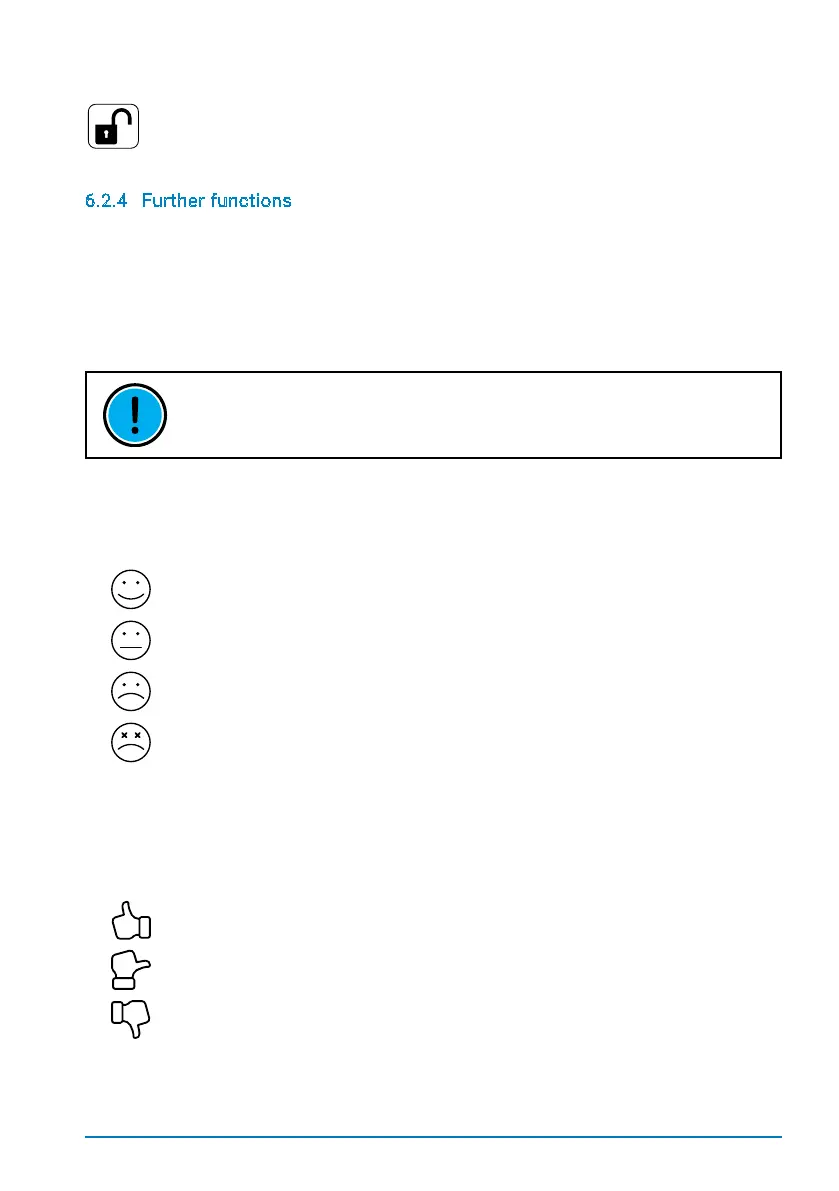
The Lock icon is used to lock the TOUCH control unit. Through typing in a PIN, the
system goes into management mode, preventing deactivation of the system and thereby
protecting rooms against increased humidity.
6.2.4 Further functions
Filter change
Anintegratedmeterisusedtodeterminewhenalterchangeisneeded.Thisiscalculated
onthebasisoftheairowvolumes.Whenalteristotallycloggedup,thelterstatusicon
onthemainscreenwillstartblinking,indicatingtheneedtochangethelter.Oncethelter
hasbeenchanged,thelterstatusmenuisusedtoresetthemeter.
THE OPTIMAL TIME FOR CHANGING A FILTER IS DEPENDENT ON LOCAL
CONDITIONS AND CAN THUS VARY.
Filter status
Thelterstatusmenucanbeusedtodisplaythecurrentlterstatus(dirtlevel).
Filter not dirty
No action needed.
Filter quite dirty
Orderareplacementlter.
Filter very dirty
Changethelterinthenearfuture.
Filter totally clogged up
Changethelterimmediately.
Ventilation behaviour
The system information area also shows details of the ventilation level. A thumb icon is
used to show the level.
Optimal ventilation
Rooms are being properly ventilated. No action needed.
Sufcient ventilation
Rooms are being adequately ventilated. Monitor ventilation behaviour.
Insufcient ventilation
Rooms are not being properly ventilated. Increase the fan speed immediately.


 To Next Page