Sync Data with Neostrack app/
STRAVA/TrainingPeak
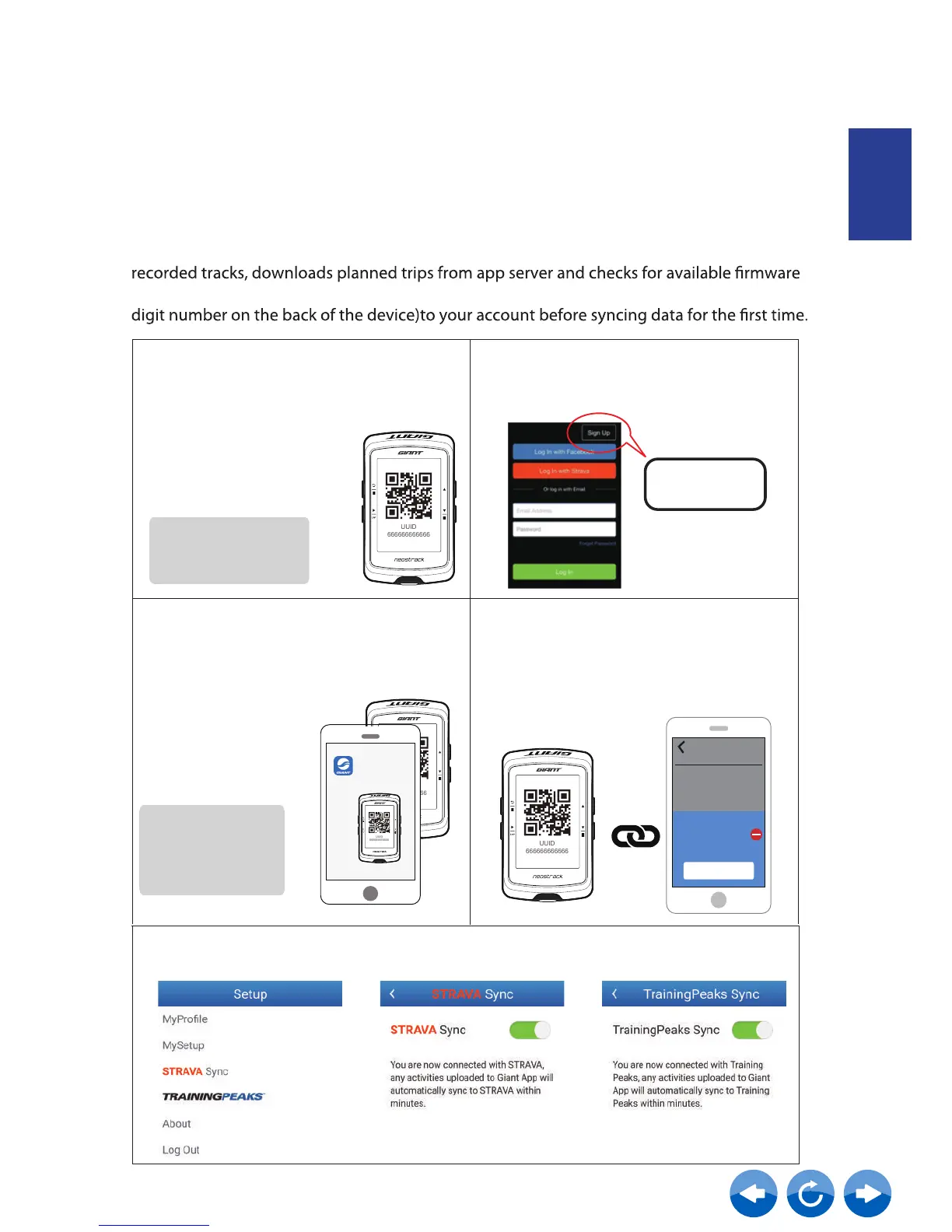
Add UUID to Neostrack app account
a.
b.
Login
After installing Neostrack APP,
Please (1) sign up for rst time users ,
(2) Log in for users who already have an
account.
c.
Note: UUID is the 16
digit number on the back
of the device.
Each device has
its own unique UUID.
And each UUID can
only be added to 1
account.
Finish
Add your device
Successfully added!
My Devices
6666666666666666
d. If a "Successfully added!" message pops
up on your Neostrack App, it means you
have successfully added your device UUID
to your account. If not, please press "Retry"
to scan again or enter your 16 digit UUID
number on the back of your device
manually.
Note:
With access to the internet, your Neostrack computer automatically updates GPS data, uploads
updates. To sync data correctly from/to your device, you must add your device UUID (16
ENGLISH
Go to Setup>System>UUID. After
entering, you will see a QR code
(It requires the Neostrack App
scanner to scan it).
After logging into Neostrack App, pair
your device using the WLAN option, and
just tap “SCAN NOW” to add your device
to your Neostrack app account.



 To Next Page