Connect To A Network
It is required to set up a connection to a network before syncing data.
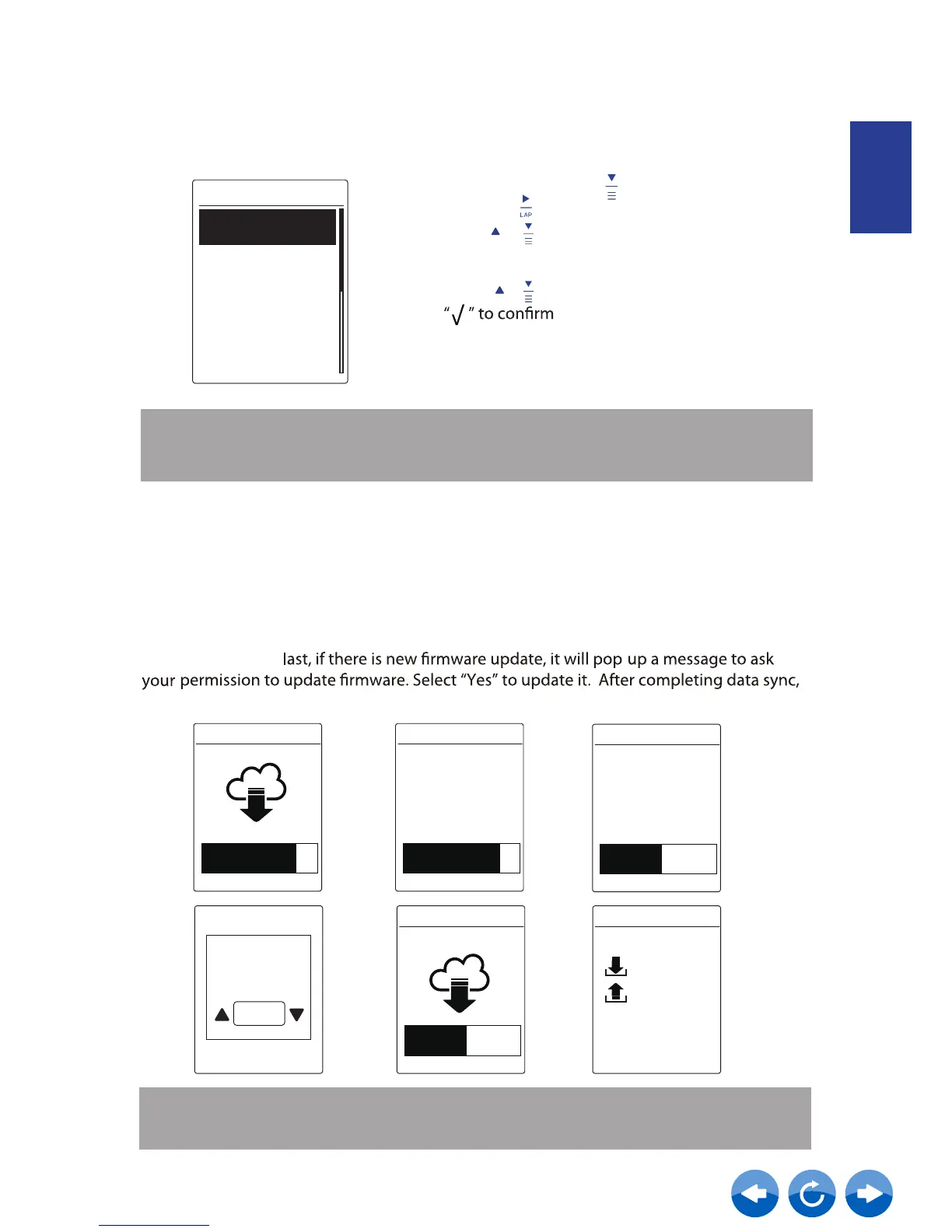
First of all, the device will start to update GPS data in your device. Then, if you have planned
routes in Neostrack App, it will download the planned routes. Thirdly, it will upload your
tracks
you will see a summary of the syncing data.
Sync Data
To perform Sync(WLan), please make sure your device UUID is successfully added to your
Neostrack app account and connected to a wireless network; then, just let your device
smartly guide you through the syncing process.
Download routes
4 of 5
Upload activities
3 of 6
1 of 1
Firmware update Summary
Yes
Firmware update
available.
Download?
GPS update
Firmware update
v
v
v
v
5/5
1/1
6/6
routes
activities
Note:
Note: If a “AP/Password Incorrect” message pops up, it means your saved network is not
available or your password of saved network has been changed. Please go to page 30:
Network (WLAN) to learn how to set up a new network connection.
Firmware updates usually take longer to download and install, select “NO”
if you prefer to update it on your next sync.
GPS update
ENGLISH
Connect
Hotspot 1
Hotspot 2
Sweet Home
1. In Main menu, press to select Sync(WLan)
and press .
2. Press
or hotspot and press ok.
/ to choose one available network
3.
Press to enter password and choose
password.
/
4. A “Connected. Please press any button to exit.”
message pops up. Press any button to start
syncing data.
Neostrack App



 To Next Page