Template Module, Version 2.2, 15.11.2022 / Version - 07.07.2020
Setting up connections
Gigaset IP BASE / SBG IE-UK-International en / A31008-M3037-S301-1-X119 / settings_WebUI.fm / 3/12/24
40
Setting up connections
So that you can make calls, you need at least one VoIP account (connection) for internet
telephony: This can be provided via a provider or a PABX. You will receive access data for regis-
tration (username, login name, password etc.).
Each telephony device must be assigned at least one connection. Devices can have different
connections for incoming and outgoing calls.
Displaying connections
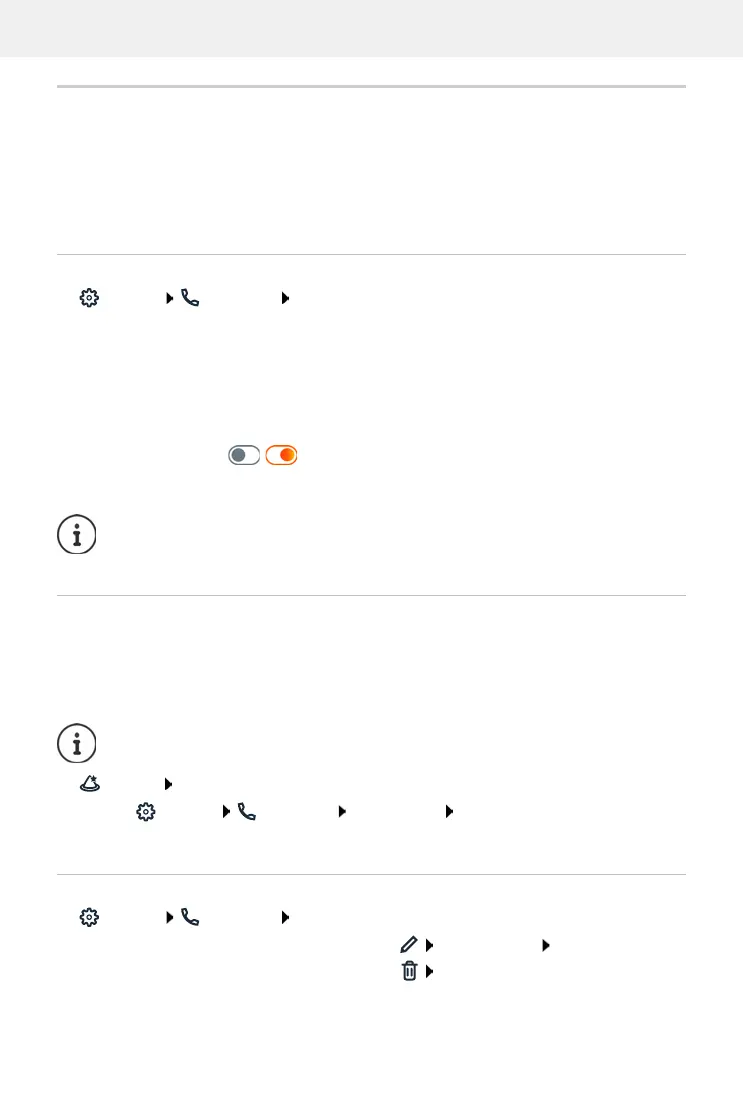
Settings Telephony Connections . . . the connections already set up are listed
with the following information:
Adding a new connection
Gigaset provides provider profiles for setting up VoIP connections in which the basic parameters
are set appropriately for a provider. All you have to do is enter the access data. If there is no
profile for your provider, configure it manually.
To set up connections, use the wizard SIP Connection.
Wizards SIP Connection
The wizard takes you step by step through all necessary configuration steps.
Editing/deleting connections
Settings Telephony Connections . . . the set up connections are listed
Name Name of the connection; the name of the connection is set when
setting up the connection and can be changed.
Provider Telephone provider providing the connection
Phone numbers Telephone numbers available for the connection
Status Status of the connection (Registered/Not registered)
Activation / = the connection is deactivated/activated
If you do not need a connection temporarily, you can deactivate it.
The status of registration is updated dynamically.
If all the data has been entered correctly, it will take about three to ten seconds for a
line to show as Registered.
You need access data from an IP telephony provider (username, login name, pass-
word etc.).
or:
Settings Te le ph ony Connections Add
Edit connection:
next to the entry, click make changes Save
Delete connection:
next to the entry, click confirm with Ok



 To Next Page