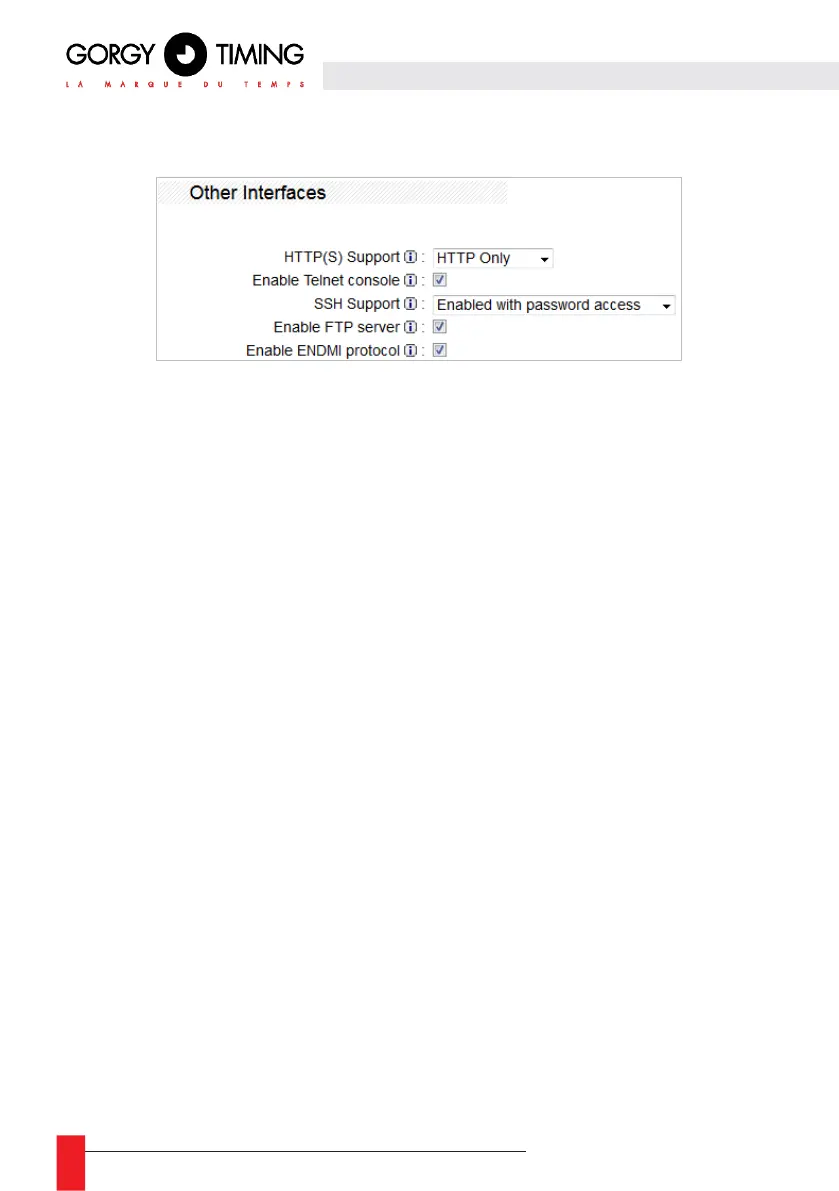
C. Other interfaces
HTTP(S) support
► Use this page to restrict access to the Web page to HTTP requests only, HTTPS
requests only, or both.
Users can provide their own security certificates for HTTPS.
To do this, two ssl.cert and ssl.key files must be placed in the .cfg folder at the root of
the embedded file system accessible via FTP or SCP. For example, in FTP with the
windows command prompt this procedure allows a certificate to be imported:
1. In the Start menu, type “cmd” in the search field and then launch cmd.exe
2. Enter the command cd <location>, where <location> is the path to the folder
containing the ssl.cert and ssl.key files
3. Enter the command ftp <<address>, where <address> is the IP address of the
module onto which you want to install the certificates
4. Enter login (default login: root)
5. Enter password (default password: gtmt)
6. Enter command cd .cfg
7. Enter command put ssl.cert
8. Enter command put ssl.key
9. Enter command quit
The image below shows the messages displayed. Here, the certificate files are in :\Users\
xgerault\Certificates and the IP address of the module is 192.168.0.128.


 To Next Page