16
Understanding the Display Icons
Your PSR-310 features a high contrast, white backlit Liquid Crystal Display
(LCD) to provide important information about the status of the radio while
you are programming and using it. The LCD includes a row of icons at the
top that provides information about the status of the scanner while it is oper-
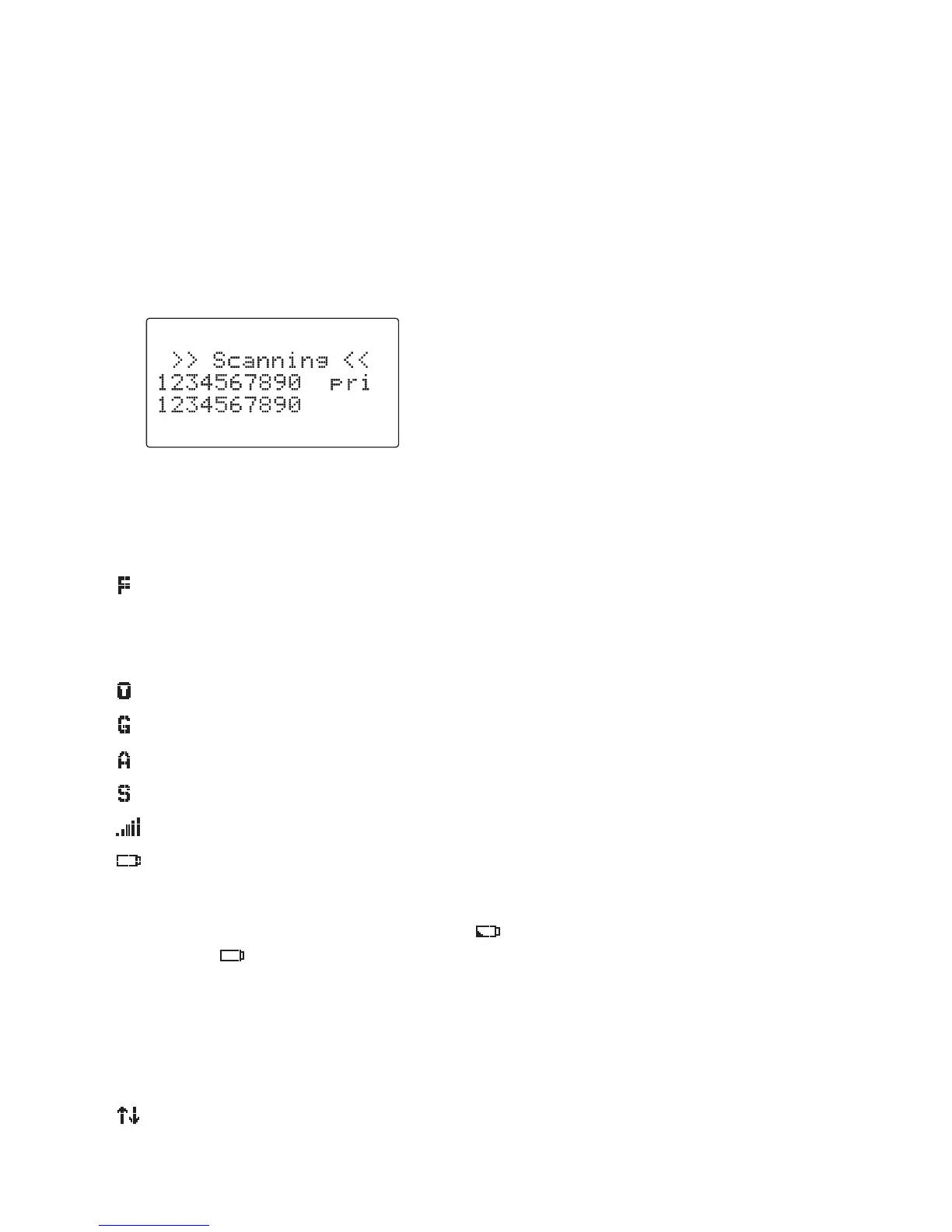
ating. Beneath this row of icons, there are 4 rows of 16 characters each that
provide alphanumeric information for frequencies, object names, Scan List
status and menu information. Figure 4 provides an example of the display
that is shown while the radio is scanning.
Figure 4 - Scanning Display
The top row of icons are defined as follows:
The Function Key (FUNC) has been pressed. FUNC acts as a “shift” key
and typically enhances in some way the action of the button that follows
it. When using FUNC, press the FUNC key first and release it, then press
the next key.
The scanner is currently receiving trunking control channel data.
The attenuator is set for Global mode.
The attenuator is currently active.
The radio's squelch circuit is open.
Signal meter indicating strength of the received signal.
Battery status indicator. All black indicates battery is fully charged. An
animated icon indicates the Ni-MH or Ni-Cd battery is being chaged. (Bat-
tery Type Selection should be NiMH or NiCad and radio connected to
external power.) Indicator shows to that the battery is weak. All brank
flashes ( ) approximately once every second when the radio is connect-
ed to external power and the internal battery charger circuit is active.
NOTE: The “internal battery charger circuit active” indicator provides an in-
dication that the battery charger circuit is active, and does not provide posi-
tive indication that the batteries are actually being charged. Batteries will not
charge unless the yellow battery holder is used.
Menu position and search direction indicators.



 To Next Page