43
When finished, press the
Save
softkey to store your SRVC search as a new
object.
Once your SRVC object is saved, you can use it while scanning, or launch
the SRVC search by itself by pressing the
SRCH
softkey after navigating to
the SRVC object in Manual Mode.
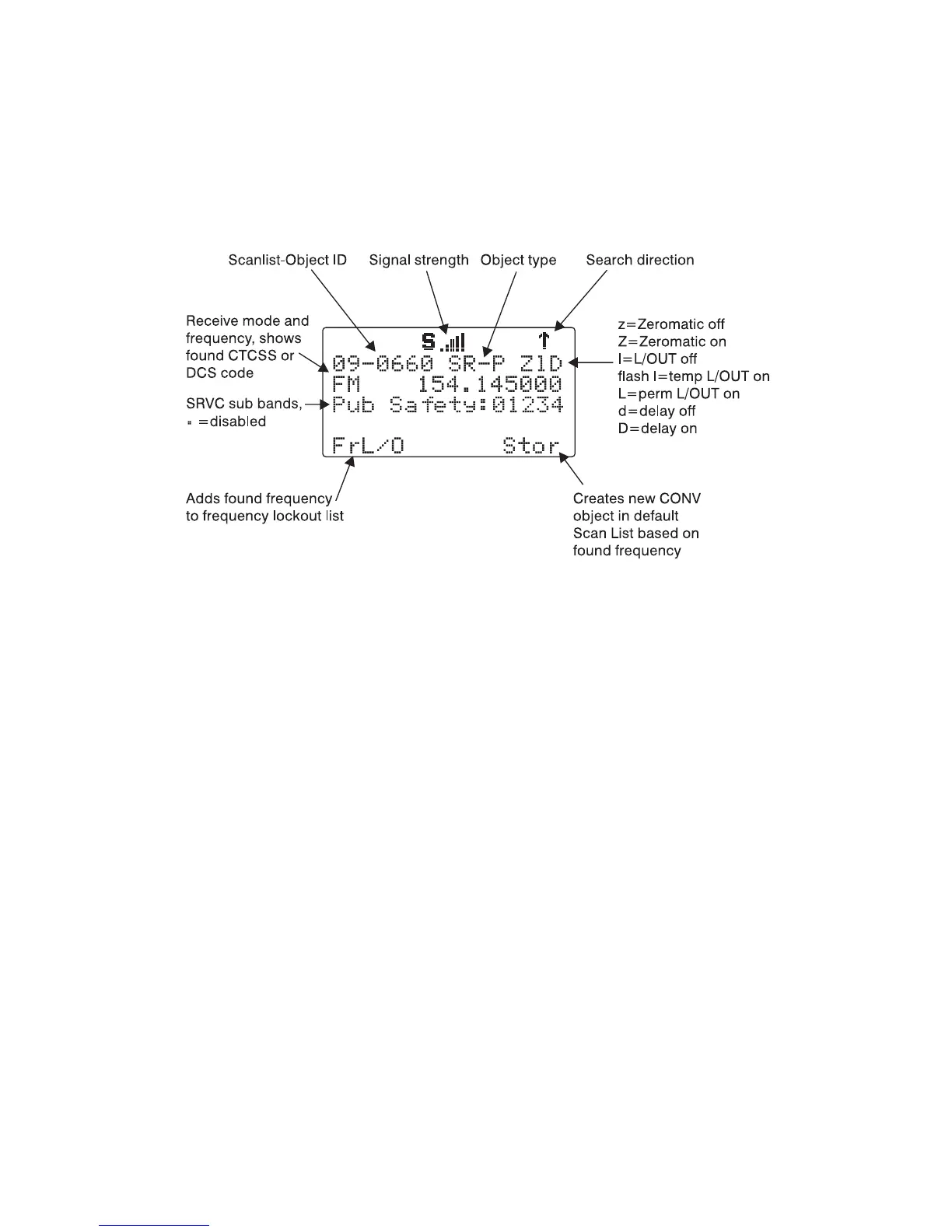
When the SRVC search stops on an active frequency, the display will appear
as follows:
To resume searching, press the
5
key.
Now, take a few moments to practice setting up each of the different search
object types by experimenting and creating some SRVC, LMIT and SWPR
objects.
HINT: Remember that there is context sensitive help available for each menu
item in the object menus. Just press FUNC, then SEL to view the help, and
SEL again to exit the help screen.
These are just a few of the many ways you can incorporate different types of
search objects in your Scan List configurations. And, just a few of the many
ways that each of the individual search types can be configured to your pref-
erences and needs. Be sure to refer to the Detailed Menu Reference section
of the manual for detailed information for each of the search object types.
Grouping Objects with Scan Lists
By default, new objects are automatically assigned to Scan List 01. Now that
you have entered a variety of new objects that are, by default, members of
Scan List 01, you may want to separate these objects into separate Scan
Lists so that you can easily enable or disable groups of objects as needed
depending on what you want to scan. There are 20 regular Scan Lists avail-
able, a special “FAV” Scan List for one-button access to your favorite Scan-
nable Objects, and a Skywarn Scan List.



 To Next Page