36 Chapter 4, Getting Started
P/N 115191-IE, Manual revision: AB Haemonetics
®
TEG
®
6s User Manual
To log into the TEG analyzer:
1. Using the touch screen keyboard on the Login screen, enter your user
name in the Username box.
2. Move the cursor to the Password box by doing one of the following:
Touch the Password box
Touch the return key
3. Enter your password, and then touch login.
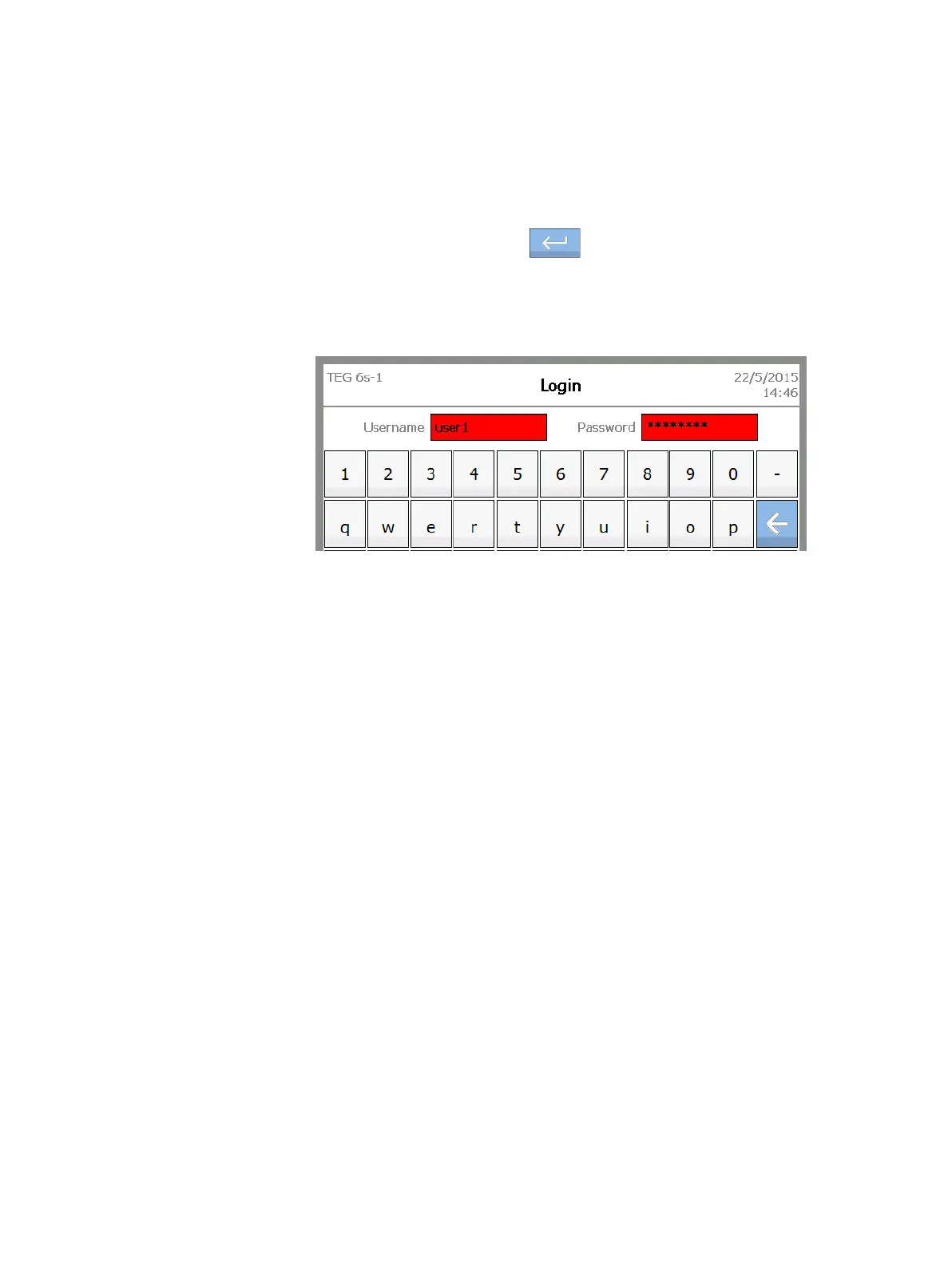
If your login attempt fails, the Username and Password boxes are highlighted
in red, as shown below. If this occurs, re-enter your user name and password.
Figure 4-4, Failed login - Username and Password fields highlighted in red
Update your
password
When you are logged into the TEG analyzer, you can update your password at
any time from the Settings screen.
To update your password:
1. From the Home screen, touch settings.
2. On the Settings screen, touch Update password.
3. On the Update Password screen, in the Update Password and Confirm
Password boxes, enter your new password according to the following
criteria:
The password cannot contain your user name.
The minimum length of the password is 8 characters.
The maximum length of the password is 12 characters.
The password must contain at least one numeric character or symbol
(the special characters “&” and “#” are not accepted).
The password cannot be a duplicate of any of your previous eight
passwords.


 To Next Page