Harman EASY Touch Control Owners Manual
16
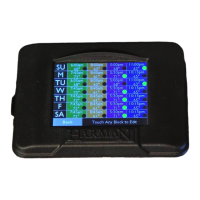
The Schedule screen gives you the ability to set temperatures you want your
home to be throughout the day.
Here’s How:
• Press Set Schedule to get to the scheduling screen (see instructions on
adjacent page)
• Set schedule for all seven days of the week
• Return to scheduling screen
• Press Schedule On or Schedule Off icon
The Schedule icon will have a through it if schedule is on but the time is not
set. This also may occur due to power outage.
The Schedule icon will have a over it when temperatures are overridden by
adjusting the up and down arrows on the home screen. Scheduling will resume
at the next time period.
Notes:
• When scheduling is on, a small clock icon will show on top right of the home screen
• You can choose to change any of these settings at any time
• If you unplug your stove at the end of the heating season, the EASY Touch Control
will remember your schedule setting
• Scheduling will not work in Constant Burn mode. Constant Burn will override
scheduling to maintain the consistent burn you set
• The day and time must be set for scheduling to function
Schedule
スケジュール画面では、ご希望の温度に室温を一日中キープするための設定を選ぶ事が
出来ます。
設定方法
・スケジュールボタンを押し、スケジュールページを開きます。(方法は次ページを参考
にしてください)
・1週間のスケジュールを設定します。
・スケジュールの最初の画面に戻ります。
・オンまたはオフボタンを押してください。
スケジュールアイコンが、黄色い斜め線になっていたら、スケジュールがオンになって
いても、時間設定がされていないため起動していないことを意味します。
この現象は、停電や電源切れでも発生します。
ホーム画面で設定温度を手動で変更した場合、スケジュールアイコンに緑色+マークが
表示されます。設定されている内容は次のスケジュールの時の再開されます。
注記:
・スケジュール設定がオンの時は時計のアイコンがホーム画面右上に表示されます。
・スケジュールの設定はいつでも好きな時に変更できます。
・シーズンオフに本機の電源を抜いて保管しても、本機で設定した内容は保存されてい
ます。
・本体出力モードとスケジュールは併用できないため、本体出力モードがオンの場合は
そちらが優先されます。
・必ず本機の日時設定を合わせてからご使用ください。


 To Next Page