43
CONTENTS
CFV 100C
User Manual
2.2 TOUCH DISPLAY
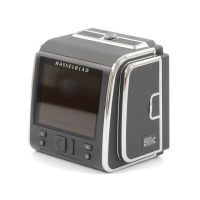
The rear screen is a tilting touch display and is touch sensitive and easy to operate. Use it
the same way as on a smartphone. For example, swipe to scroll, tap to select, or spread and
pinch to zoom in or out of images or the focus point. Users can also navigate by using the
buttons under the touch display.
The touch display has Live View, Control Screen, Main Menu, and Browse Mode. Users can
take photos, view the camera status, set parameters, and browse files in different views. This
section will introduce Live View, Control Screen, and Browse Mode displays. For Main Menu
displays, refer to the Settings section.
Touch Display Operations
Touch Controls
Action Function
Tap/Press Select and confirm.
Double Tap Zoom in to 100%. Double tap again to zoom out to
full view.
Spread (move two fingers apart) Zoom in when browsing images.
Pinch (move two fingers close) Zoom out when browsing images.
Swipe Left Switch the image or move the image left when browsing
images. On Control Screen, switch to Main Menu.
Swipe Right Switch the image or move the image right when
browsing images. In Main Menu, switch to Control
Screen. In sub menus, return to the previous menu.





 To Next Page