EasyManua.ls Logo

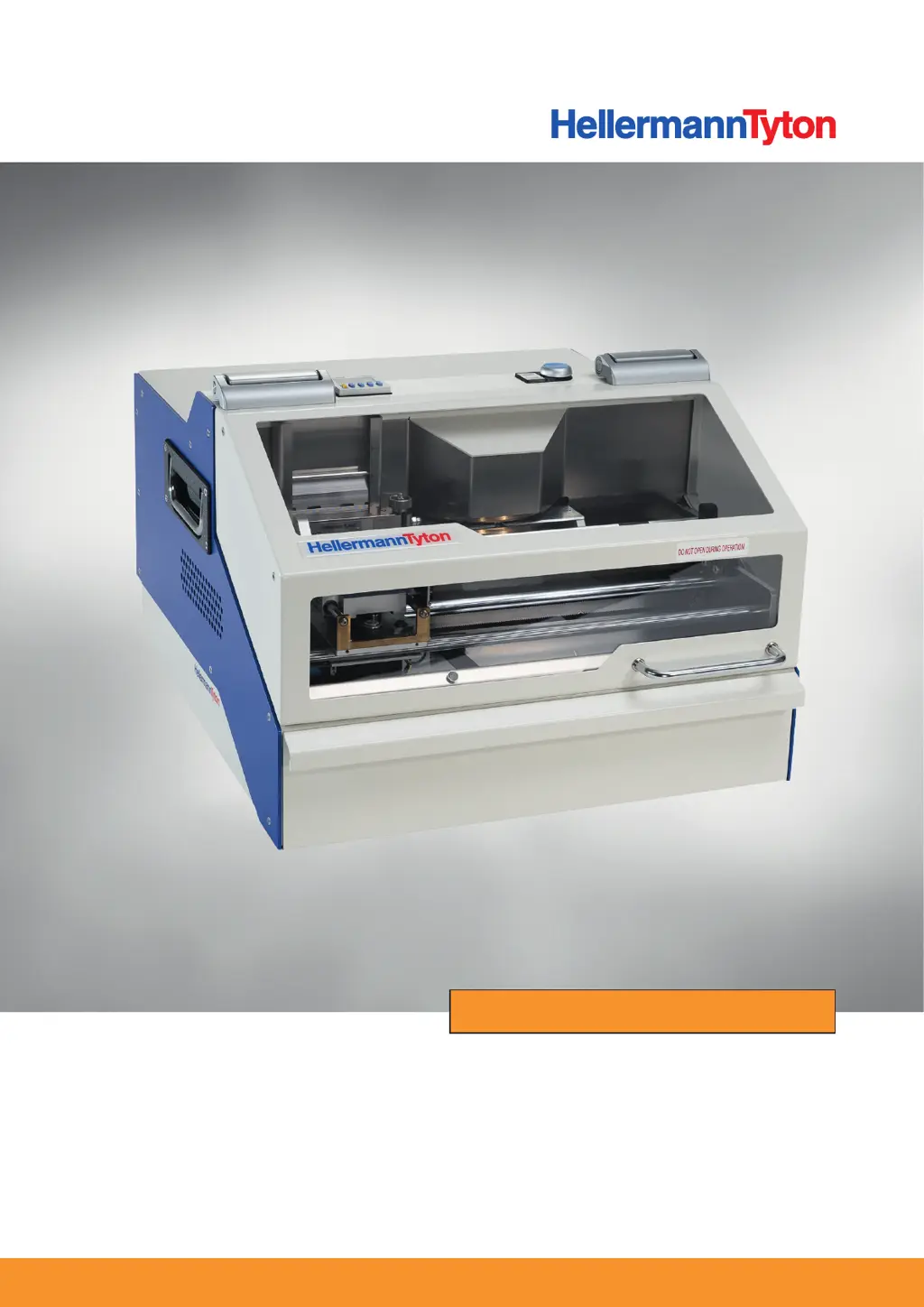
HellermannTyton M-BOSS Compact - User Manual

HellermannTyton M-BOSS Compact
53 pages
Print Icon
To Next Page IconTo Next Page
Loading...
M-BOSS Compact
Operating Instructions
Betriebsanleitung

Table of Contents

Questions and Answers

  • N
    Nancy HernandezAug 28, 2025
    What to do if the HellermannTyton Power Tool displays 'X-Move'?
    • H
      heather68Aug 28, 2025
      If the HellermannTyton Power Tool displays 'X-Move', it indicates that the carriage is blocked towards the ejector or during embossing. Open the working area and remove any foreign objects or incorrectly embossed markers. Check the sensor and sensor connection, and then execute "Restore".
  • D
    davisgaryAug 29, 2025
    What to do if HellermannTyton Power Tool shows 'X-End' error?
    • J
      jacobdixonAug 29, 2025
      If the HellermannTyton Power Tool shows 'X-End', it indicates an X-sensor discharge chute malfunction. Check the sensor for foreign objects or soiling. Clean with a dry brush or compressed air if necessary. Check the sensor and sensor connection, and then execute "Restore".
  • C
    Curtis MooneyAug 29, 2025
    What to do if the HellermannTyton Power Tool displays 'X-Home'?
    • M
      Michael ChavezAug 30, 2025
      If the HellermannTyton Power Tool displays 'X-Home', it indicates an X-sensor magazine malfunction. Check the sensor for foreign objects or soiling. Clean with a dry brush or compressed air if necessary. Check the sensor and sensor connection, and then execute "Restore".
  • X
    xmackAug 30, 2025
    What to do if HellermannTyton Power Tool displays 'Y-End'?
    • G
      Gregory Bradley DDSAug 30, 2025
      If the HellermannTyton Power Tool displays 'Y-End', it indicates restricted movement of the embossing drum or a sensor XY malfunction. Open the working area, check the embossing drum and relieve it if necessary. Also, check the sensor and sensor connection, and then execute "Restore".
  • S
    Stephanie GarciaAug 25, 2025
    What to do if the HellermannTyton Power Tool displays 'Machine no answer'?
    • E
      ehornAug 25, 2025
      If the HellermannTyton Power Tool displays 'Machine no answer', it indicates a connection error. To resolve this, execute "Restore". If the issue persists, restart the Metal Printer Monitor, PC/Notebook, and M-BOSS Compact.
  • M
    Mark SuttonAug 31, 2025
    What to do if the HellermannTyton Power Tool displays 'X-End/Home during embossing'?
    • M
      Michael GreeneSep 1, 2025
      If the HellermannTyton Power Tool displays 'X-End/Home during embossing', it means the X-carriage is blocked or there is a malfunction of the Y-carriage sensor. Remove the blockage, check the sensor for foreign objects or soiling, clean the sensor with a dry brush or compressed air if necessary, check the sensor and sensor connection, and then execute "Restore".
  • A
    anthonysmithSep 1, 2025
    What to do if HellermannTyton Power Tool displays 'Drum Home during embossing'?
    • J
      justin49Sep 1, 2025
      If the HellermannTyton Power Tool displays 'Drum Home during embossing', it indicates that the embossing drum is blocked or there is a malfunction of the embossing drum sensor. Remove the blockage. Check the sensor for foreign objects or soiling. Clean the sensor with a dry brush or compressed air if necessary, check the sensor and sensor connection, and then execute "Restore".
  • B
    Brian EricksonSep 2, 2025
    Why is the embossed text on the marker wrong with the HellermannTyton Power Tool?
    • C
      Carlos AlvarezSep 2, 2025
      If the embossed text on the marker is wrong, it's due to a wrong link to the Excel table. Check and re-link the Excel table.
  • L
    Linda BakerSep 2, 2025
    Why is there a shifted type face on the marker embossed by the HellermannTyton Power Tool?
    • D
      Dana OneillSep 3, 2025
      If there's a shifted type face on the marker, it's due to incorrect embossing coordinates. Check the embossing coordinates and correct them if necessary.
  • L
    Laura WilsonSep 3, 2025
    What to do if the HellermannTyton Power Tool stops or does not start up?
    • A
      ashley14Sep 3, 2025
      If the device stops or does not start up, it may be due to the organiser unit being open. Close the organiser unit.

Summary

User Information

Field of Application

Details the intended use and scope of the M-BOSS Compact system.

Used Labels and Symbols

Explains various labels and symbols used throughout the manual for clarity.

Safekeeping of Documents and Validity

Instructions on how to store and maintain the operating instructions.

EC Conformity

States the device's compliance with relevant EU directives.

Safety Information

Warning Instructions Representation and Layout

Describes how warning instructions are structured and their meaning.

Danger Grading of Warning Instructions

Explains the severity levels of warnings (DANGER, WARNING, CAUTION, NOTE).

Intended Use

Defines the proper application and purpose of the M-BOSS Compact system.

Misuse

Lists prohibited uses of the device and potential liabilities.

Safety Devices

Details the safety mechanisms integrated into the device.

Basic Safety Instructions

General safety guidelines for operating the device, including electrical and injury risks.

Limitations of Use

Specifies environmental and operational constraints for using the device.

Personnel Qualification

Outlines the necessary qualifications and training for operators.

Operator Obligations

Lists the responsibilities of the device operator.

Layout and Function

Layout Overview

Identifies the main components of the M-BOSS Compact device from different views.

Organiser Unit

Describes the organiser unit's function and capacity for storing markers.

Drawer Insert

Details the drawer insert's role in holding embossed markers and unused materials.

Magazines

Explains the different types and capacities of marker magazines.

Stainless Steel Marker

Provides information on the material, properties, and specifications of the markers.

Control Elements

Identifies and explains the function of various control elements and indicators.

Function Description

Describes the overall function of the device and its interaction with software and accessories.

Initial Operation

Device Placement

Instructions on how to properly position the device for operation.

Connecting the Device

Steps for connecting the device to power and a PC via USB.

Installing Device Software

Overview of the software installation process, including downloading files.

Installing Drivers

Step-by-step guide for installing the necessary device drivers.

Installing Device in Operating System

Procedures for integrating the device into the PC's operating system.

Installing Metal Printer Monitor

Instructions for installing the Metal Printer Monitor application.

Installing TagPrint Pro Software

Guide on how to download and install the TagPrint Pro software.

Operation

Switching On the Device

Steps to power on the device and start the Metal Printer Monitor.

Filling and Inserting the Magazine

Procedures for correctly filling and inserting marker magazines.

Performing a Single Embossing

Detailed steps for creating a single embossed marker using TagPrint Pro.

Performing Serial Embossing

Guide on how to perform serial embossing using the TagPrint Pro software.

Removing the Marker

Instructions on how to safely remove embossed markers from the device.

Emptying the Drawer

Steps to safely empty the drawer containing embossed markers.

Emptying the Organiser Unit

Procedures for emptying the organiser unit after operation.

Troubleshooting

Marker Errors

Common errors related to markers and their solutions.

Device Errors

Identifies device-specific errors and provides troubleshooting steps.

Software Errors

Lists potential software-related issues and their resolutions.

Organiser Unit Errors

Addresses errors specific to the organiser unit's operation.

Servicing

Preparation and Follow-up Tasks

Essential steps to take before and after performing servicing work.

Regular Maintenance Work

Defines the maintenance tasks to be performed at different intervals.

Cleaning Agents and Materials

Lists the recommended cleaning agents and materials for maintenance.

Cleaning Light Sensors and Light Barriers

Steps for cleaning optical sensors and light barriers.

Cleaning and Lubricating Guide Rods

Instructions for cleaning and lubricating the device's guide rods.

Cleaning Working Area and Drawer

Procedures for cleaning the internal working area and the marker drawer.

Cleaning Exterior Housing

How to clean the external casing of the device.

Cleaning Inside of Folding Cover

Steps for cleaning the interior surface of the folding cover.

Adjusting the Gripper

How to adjust the gripper for correct marker positioning.

Relieving the Embossing Drum

Procedures for addressing issues with the embossing drum.

Replacing Power Input Fuse

Steps for safely replacing the device's power input fuse.

Decommissioning

Decommissioning the Device

Instructions for safely shutting down and disconnecting the device.

Putting Device Back into Operation

Steps to follow when reconnecting and restarting the device.

Technical Data

M-BOSS Compact Specifications

Technical specifications for the M-BOSS Compact system.

Stainless Steel Marker Specifications

Technical details and dimensions of the stainless steel markers.

Customer Service and Spare Parts

HellermannTyton M-BOSS Compact Specifications

General IconGeneral
MaterialSteel
Method of PrintingEmbossing
TypeManual
Power SupplyManual
Marking MaterialStainless Steel, Aluminum
Label Width6mm, 9mm, 12mm
Character SetAlphanumeric and symbols