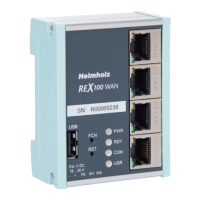
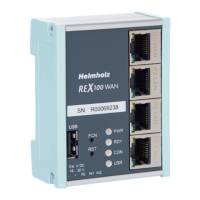
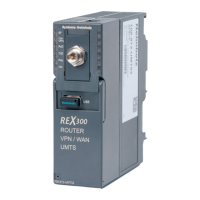
Depending on the device type, the router is connected to:
- a machine (PLC) connected on the REX
- the website of a connected machine
- the integrated web server of the device (router)
The device configuration is not up to date.
This means: the configuration of a newly created device has not yet been transferred to the device or the changed
configuration of an existing device has not yet been transferred to the device/no synchronization has been carried
out. This symbol can be displayed in connection with any of the symbols named above.
Example of the visual representation of the information points on the status of the interfaces in the
"simple view
".
13 Resetting to factory settings
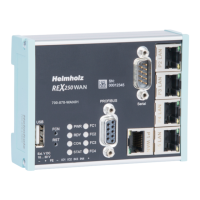
To reset the REX 200/250 to factory settings, the following steps are necessary:
• Start REX -> Apply power or press RST button (Reset)
• Wait until the RDY LED flashes green (about 30 seconds)
• Insert the supplied tool (SIM card ejector) into the opening below FCN. Press and hold the FCN
button until the FC4 LED lights orange (about 10 seconds)
• Press FCN again -> FC3 LED turns orange
• Press FCN again -> FC2 LED turns orange
• Press the FCN one last time, whereupon all FC LEDs go out
• FC3 LED flashes orange -> factory settings are being loaded
When the PWR and RDY LEDs turn green again (after about 70 seconds), the REX 200/250 is ready for use
again and can be configured.
Already changed login and IP address data of the LAN interface are reset (default:
192.168.0.100/24). No USB stick/storage medium may be connected to the REX 200/250.


 To Next Page