QuickStart Guide REX 200/250 | Version 5 | 26.05.2021 18
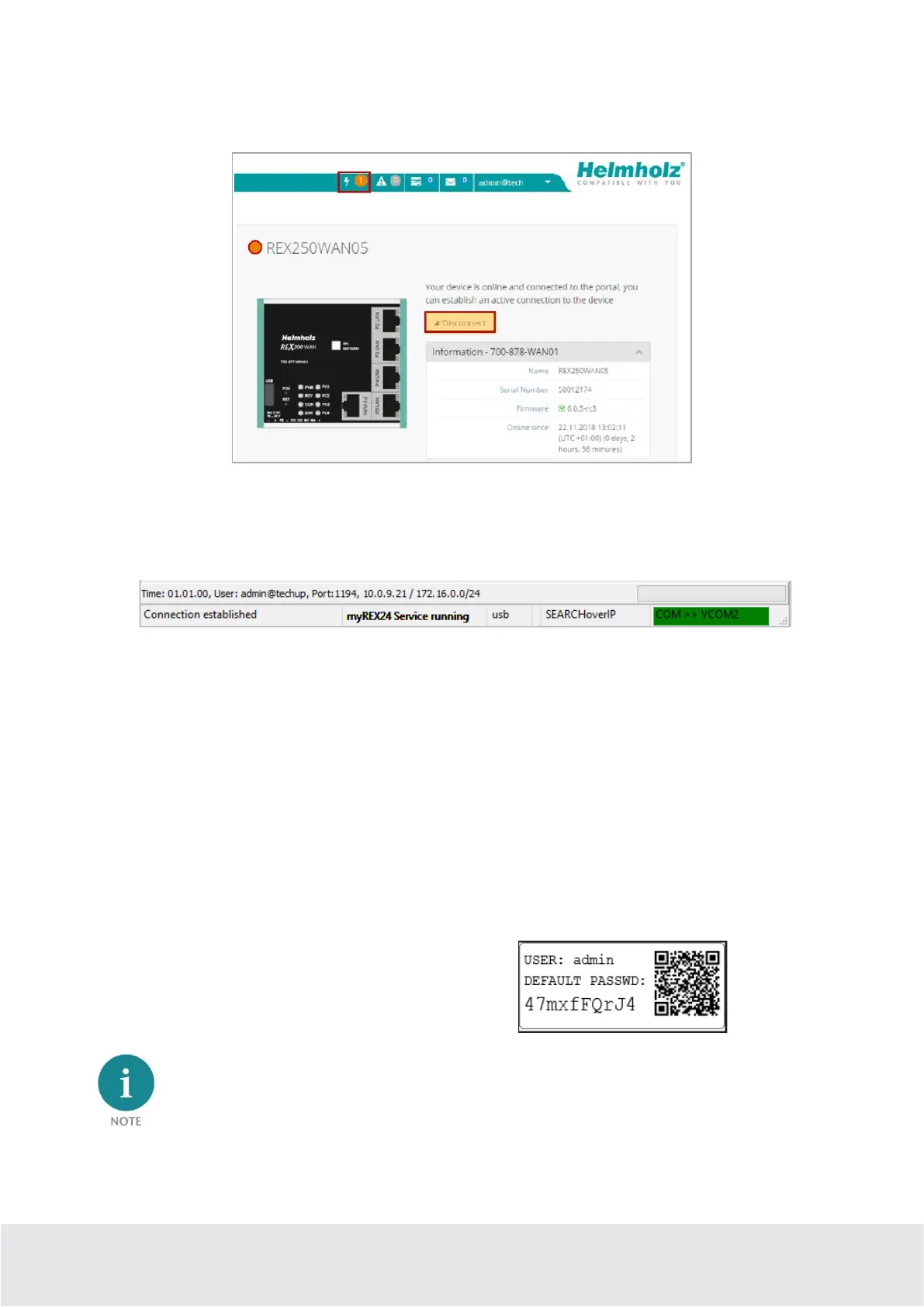
The active connection status to the REX 200/250 is represented by an animated orange connection but-
ton. The number of active connections made using this account is shown with details in the menu bar.
Once the VPN connection to the REX 200/250 has been established, all the IPv4 packets valid for the
applicable LAN network on the system side will be forwarded. The parameters (port, VPN IP, LAN IP etc.)
used for this connection are also shown with details in the status bar at the bottom.
To end a remote access connection, click the orange animated connection button and then confirm dis-
connection of the remote connection.
8 Tips und tricks
8.1 Checking the device status
The device status website of the REX 200/250 shows the connection status and the active configuration
data of the router. To this purpose, the REX 200/250 must be accessible in the LAN, meaning that the
TCP/IP address of a PC must be in the same IP subnet. To this purpose, enter the LAN IP address of the
REX 100 into the address bar of a browser. The authentication information is printed on the back of the
device.
Example of a preset individual device password:
The access data for the web interface can be changed in the myREX24 portal in the respective device
settings under "Services - User Administration" or additional users can be created for this REX router.


 To Next Page