EasyManua.ls Logo

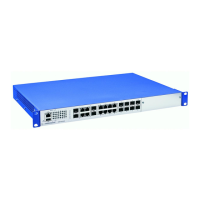
Hirschmann GigaLION-24TP - User Manual

Hirschmann GigaLION-24TP
426 pages
Print Icon
To Next Page IconTo Next Page
Loading...
GigaLION-24TP
Release
1.0
06/05
Technical Support
HAC-Support@hirschmann.de
User-Guide
Management
Gigabit ETHERNET Workgroup Switch
GigaLION-24TP

Table of Contents

Questions and Answers

  • G
    Gerald AllenAug 13, 2025
    How to access the on-board configuration program of Hirschmann Network Router via a serial port connection?
    • A
      alicia51Aug 13, 2025
      To access the on-board configuration program of your Hirschmann Network Router via a serial port connection: * Ensure your terminal emulator program is set to VT100 compatible with 8 data bits, 1 stop bit, no parity, and a baud rate of 9600, 19200, 38400, 57600, or 115200 bps. * Check that the null-modem serial cable conforms to the pin-out connections provided in the Installation Guide.
  • C
    Christopher PerezAug 17, 2025
    Why is the Power LED off on my Hirschmann Switch?
    • A
      Anthony GrayAug 17, 2025
      If the Power LED on your Hirschmann switch is off, the power supply might be disconnected. Check all connections between the switch, the power cord, and the wall outlet. If the problem persists, contact your dealer for assistance.
  • J
    James ClarkAug 21, 2025
    What to do if Link LED is off on Hirschmann GigaLION-24TP?
    • R
      Robert MedinaAug 21, 2025
      If the Link LED is off on your Hirschmann switch, verify that both the switch and the connected device are powered on. Ensure the cable is securely plugged into both the switch and the device. Check that you are using the correct type of cable and that its length doesn't exceed the specified limits. Inspect the adapter on the connected device and the cable connections for any defects, and replace any defective adapters or cables.
  • O
    omar30Aug 25, 2025
    What to do if my Hirschmann Switch has power problems (LED issues)?
    • M
      Maria DavisAug 26, 2025
      If you're experiencing power problems with your Hirschmann switch, including LED issues, start by checking for loose power connections. Also, check for any power losses or surges at the power outlet. Before a shutdown, make sure the unit's fans are unobstructed and running. If you still can't find the problem, the internal power supply may be defective.
  • A
    Angela JamesAug 28, 2025
    Why is the Power LED Amber on my Hirschmann Switch?
    • J
      jessica12Aug 28, 2025
      If the Power LED on your Hirschmann switch is amber, it indicates that the internal power supply has failed. Contact your local dealer for assistance.
  • W
    William WoodwardAug 31, 2025
    What to do if Diag LED is Amber on Hirschmann GigaLION-24TP Switch?
    • D
      Daniel HancockAug 31, 2025
      If the Diag LED on your Hirschmann switch is amber, power cycle the switch to try and clear the condition. If the condition does not clear, contact your dealer for assistance.
  • T
    Timothy SullivanSep 8, 2025
    What to do if I cannot connect to my Hirschmann Network Router using Secure Shell?
    • K
      Kirk JensenSep 8, 2025
      If you're having trouble connecting to your Hirschmann Network Router using SSH, it could be due to a few factors. You might have exceeded the maximum number of concurrent Telnet/SSH sessions; try connecting again later. Ensure that the SSH server's control parameters are correctly configured on the switch and that your SSH client software is properly configured on your management station. Verify that you've generated a public key on the switch and exported it to the SSH client. Also, make sure you've set up an account on the switch for each SSH user, including a username, authentication level, and password. Finally, confirm that you've imported the client's public key to the switch if you're using public key authentication.

Summary

Chapter 1: Introduction

Key Features

Lists the primary functionalities and capabilities of the switch.

Description of Software Features

Provides an overview of advanced performance-enhancing features and management options.

Chapter 2: Initial Configuration

Connecting to the Switch

Details methods for accessing the switch for configuration and monitoring.

Basic Configuration

Covers essential configuration steps like setting passwords and IP addresses.

Chapter 3: Configuring the Switch

Using the Web Interface

Explains how to use the embedded HTTP Web agent for switch management.

Basic Configuration

Covers fundamental configuration tasks like system and IP settings.

Configuring Event Logging

Describes controlling error message logging, severity levels, and remote logging.

User Authentication

Explains methods to restrict management access using passwords, RADIUS, TACACS+, etc.

Access Control Lists

Details packet filtering for IP and MAC frames to control network traffic.

Port Configuration

Covers managing port settings like speed, duplex, flow control, and trunking.

VLAN Configuration

Explains how to create and manage Virtual LANs for network segmentation and security.

Class of Service Configuration

Allows specifying packet precedence based on congestion and mapping priority tags.

Multicast Filtering Commands

Details configuring IGMP snooping and query for optimizing multicast traffic.

Chapter 4: Command Line Interface

Using the Command Line Interface

Introduces the CLI and methods for accessing it.

Understanding Command Modes

Explains the different command classes (Exec, Configuration) and modes.

System Management Commands

Details commands for managing system logs, passwords, and user access.

Interface Commands

Covers configuration of Ethernet ports, aggregated links, and VLANs.

Spanning Tree Commands

Explains configuration of Spanning Tree Algorithm (STA) for loop prevention.

VLAN Commands

Details commands for creating, configuring, and managing VLANs.

IP Interface Commands

Covers IP address, default gateway, and interface status configuration.

Appendix A: Software Specifications

Software Features

Lists the supported software features like authentication, ACLs, and VLANs.

Management Features

Details management methods such as in-band and out-of-band access.

Appendix B: Troubleshooting

Problems Accessing the Management Interface

Provides solutions for common issues with Telnet, SSH, and serial connections.

Using System Logs

Guides on using system logs for fault diagnosis and troubleshooting.

Hirschmann GigaLION-24TP Specifications

General IconGeneral
BrandHirschmann
ModelGigaLION-24TP
CategorySwitch
LanguageEnglish

Related product manuals